# View and manage Agent Memory service
```json metadata
{
"title": "View and manage Agent Memory service",
"description": "View and manage your Agent Memory service in Redis Cloud.",
"categories": ["docs","operate","rc"],
"tableOfContents": {"sections":[{"children":[{"id":"general-settings","title":"General settings"},{"id":"memory-configuration","title":"Memory configuration"},{"id":"actions","title":"Actions"}],"id":"configuration-tab","title":"Configuration tab"},{"id":"metrics-tab","title":"Metrics tab"},{"children":[{"id":"generate-a-new-service-api-key-replace-service-api-key","title":"Generate a new service API key {#replace-service-api-key}"},{"id":"delete-api-key","title":"Delete API key"}],"id":"api-keys-tab","title":"API keys tab"}]}
,
"codeExamples": []
}
```
After you have [created your first Agent Memory service](https://redis.io/docs/latest/operate/rc/context-engine/agent-memory/create-service), selecting **Agent Memory** from the Redis Cloud Console menu will take you to the **Agent Memory Services** page.
This page displays a list of all Agent Memory services associated with your account.

Select your Agent Memory service from the list to view the service's details.
## Configuration tab
The **Configuration** tab lets you view the details of your Agent Memory service. It contains the following sections:
- The **General settings** section provides the connection details and general settings for your Agent Memory service.
- The **Memory configuration** section provides the service settings for your Agent Memory service.
- The **Actions** section lets you flush or delete your Agent Memory service.
Some of these settings can be changed after service creation. To do so, select the **Edit** button.
### General settings
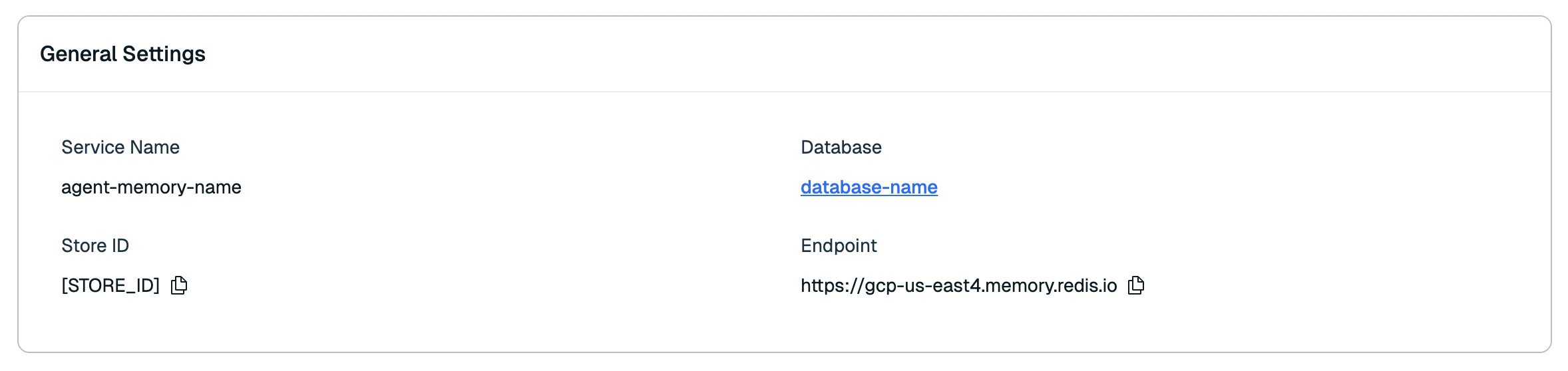
The **General settings** section provides section provides the connection details and general settings for your Agent Memory service.
| Setting name |Description|
|:----------------------|:----------|
| **Service name** | The name of your agent memory service. _(Editable)_ |
| **Database** | The name of the database your service uses. |
| **Store ID** | The unique ID of your Agent Memory store. |
| **Endpoint** | The base URL for any Agent Memory requests. |
Select the **Copy** button next to the Store ID and API Base URL to copy them to the clipboard.
See [use the Agent Memory API](https://redis.io/docs/latest/operate/rc/context-engine/agent-memory/use-agent-memory) for more information on how to use the connection information and API keys.
### Memory configuration
The **Memory configuration** section shows the time-to-live (TTL) for memory storage.

| Setting name |Description|
|:----------------------|:----------|
| **Short-term TTL** | The time-to-live (TTL) of your agent's **short-term memory** (also known as **session memory**). _(Editable)_ |
| **Long-term TTL** | The time-to-live (TTL) of your agent's **long-term memory**. _(Editable)_ |
### Actions
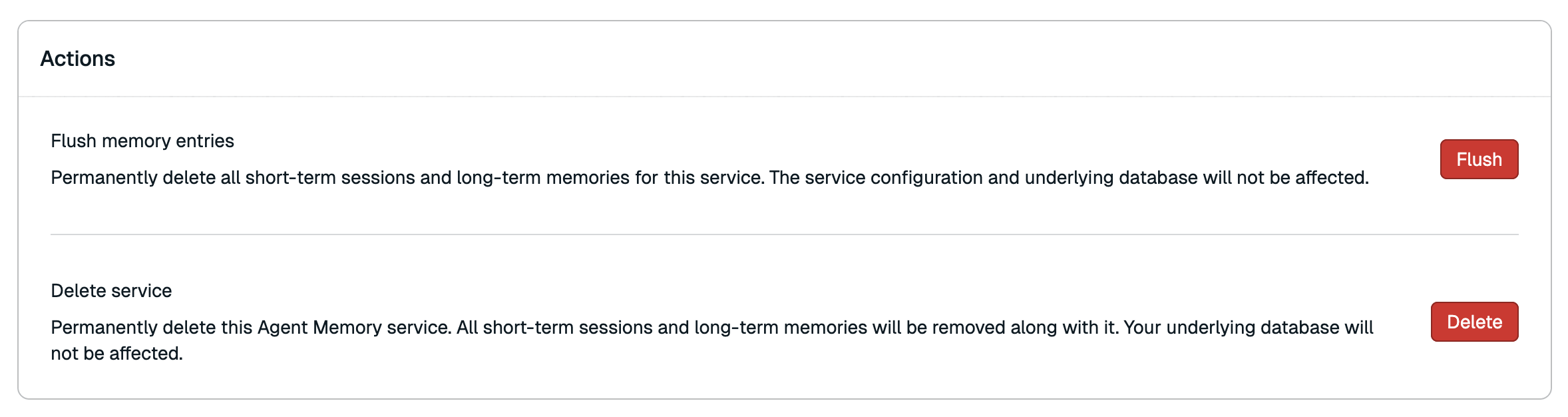
The **Actions** section lets you flush or delete your Agent Memory service.
#### Flush memory entries
Flushing the service completely erases all stored memory data while preserving the service configuration and the search index used by the service.
To flush the service:
1. Select **Flush**.
1. A confirmation dialog will appear. Select **Flush** again to confirm.
Flushing the service is permanent and cannot be undone, and will result in empty memory retrieval results until new memory is stored.
#### Delete service
Deleting your Agent Memory service permanently deletes all associated memory data, the service configuration, and the Agent Memory search index. It also immediately terminates all API keys associated with the service. Data stored in other indexes within the same database will remain unaffected.
To delete your Agent Memory service:
1. Select **Delete**.
1. A confirmation dialog will appear. Select the checkbox to confirm that you want to delete the service.
1. Select **Delete** again to confirm.
Deleting the Agent Memory service is permanent and cannot be undone.
## Metrics tab
The **Metrics** tab provides a series of graphs showing performance data for your Agent Memory service.
| Metric | Description |
|--------|-------------|
| Short-term Memory Latency | The average time to process a Short-term memory (or Session memory) lookup request. |
| Long-term Memory Latency | The average time to process a Long-term memory lookup request. |
## API keys tab
The **API keys** tab shows a list of all API keys for your service.
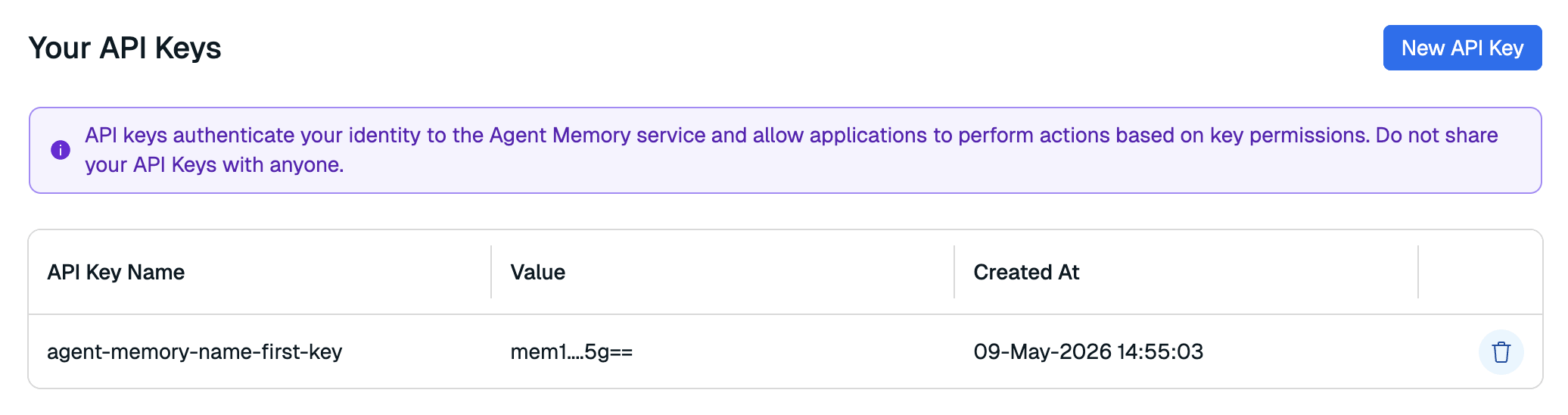
Here, you can generate a new API key or remove any keys that are no longer in use. You can generate or remove service API keys at any time.
### Generate a new service API key {#replace-service-api-key}
To generate a new service key:
1. Select **New API key**.

1. Enter a new name for your API key.
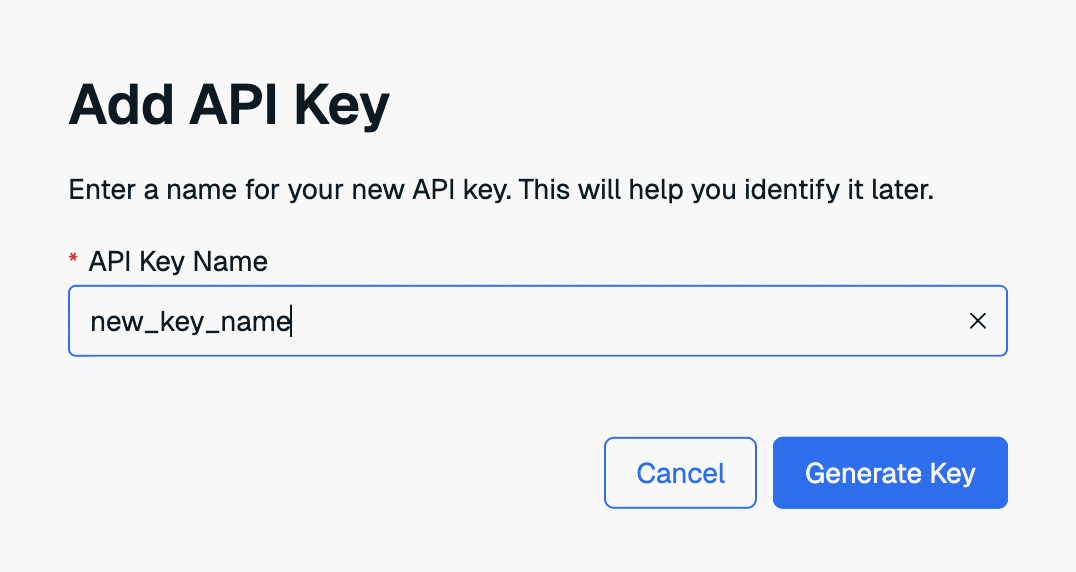
1. Select **Generate key** to generate your new API key.
1. The new key will appear in a dialog box. Select **Copy** to copy the key to the clipboard.
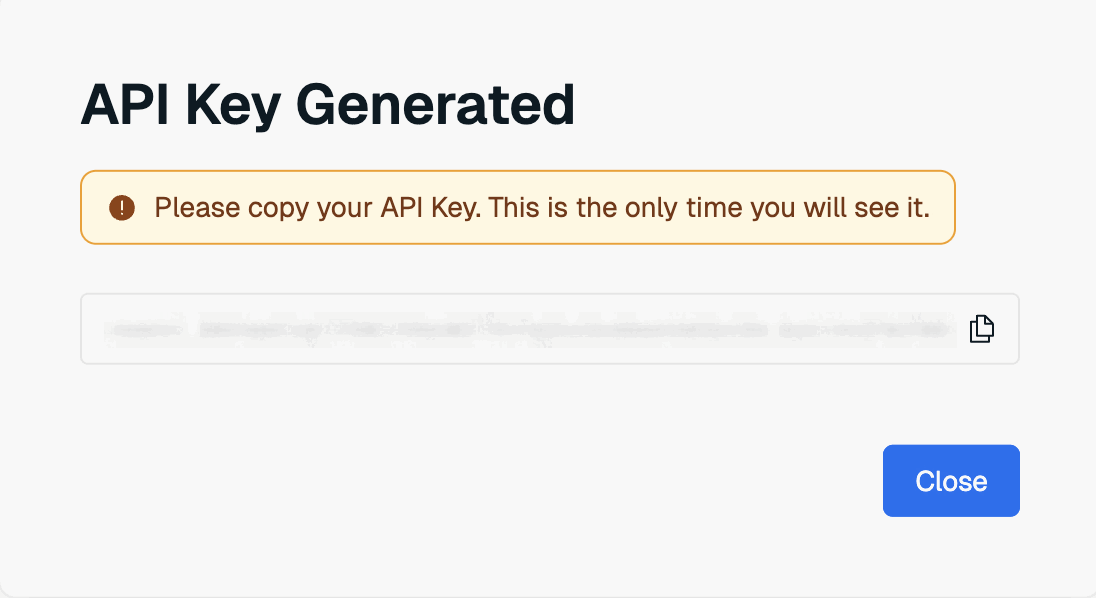
This is the only time the value of the user key is available. Save it to a secure location before closing the dialog box.
If you lose the service key value, you will need to generate a new key again.
### Delete API key
To delete an API key, select the **Delete API key** button next to the old key.
