# View and manage Context Retriever admin keys
```json metadata
{
"title": "View and manage Context Retriever admin keys",
"description": "View and manage Context Retriever admin keys in Redis Cloud.",
"categories": ["docs","operate","rc"],
"tableOfContents": {"sections":[{"id":"admin-keys-tab","title":"Admin keys tab"},{"id":"generate-a-new-admin-key","title":"Generate a new admin key"},{"id":"delete-an-admin-key","title":"Delete an admin key"}]}
,
"codeExamples": []
}
```
After you have [created your first Context Retriever service](https://redis.io/docs/latest/operate/rc/context-engine/context-retriever/create-service), you can view and manage your admin keys from the **Admin keys** tab in the **Context Retriever** section of the Redis Cloud console.
A Context Retriever **admin key** authorizes administrative operations against Context Retriever in your Redis Cloud account, such as creating, updating, or deleting services and their entity models. You can use it with the [Context Surfaces Python Client](https://pypi.org/project/context-surfaces/) and `cxtctl` CLI to create an Agent key and call your tools.
## Admin keys tab
From the [Redis Cloud console](https://cloud.redis.io/), select **Context Retriever** from the left-hand menu, then select the **Admin keys** tab.
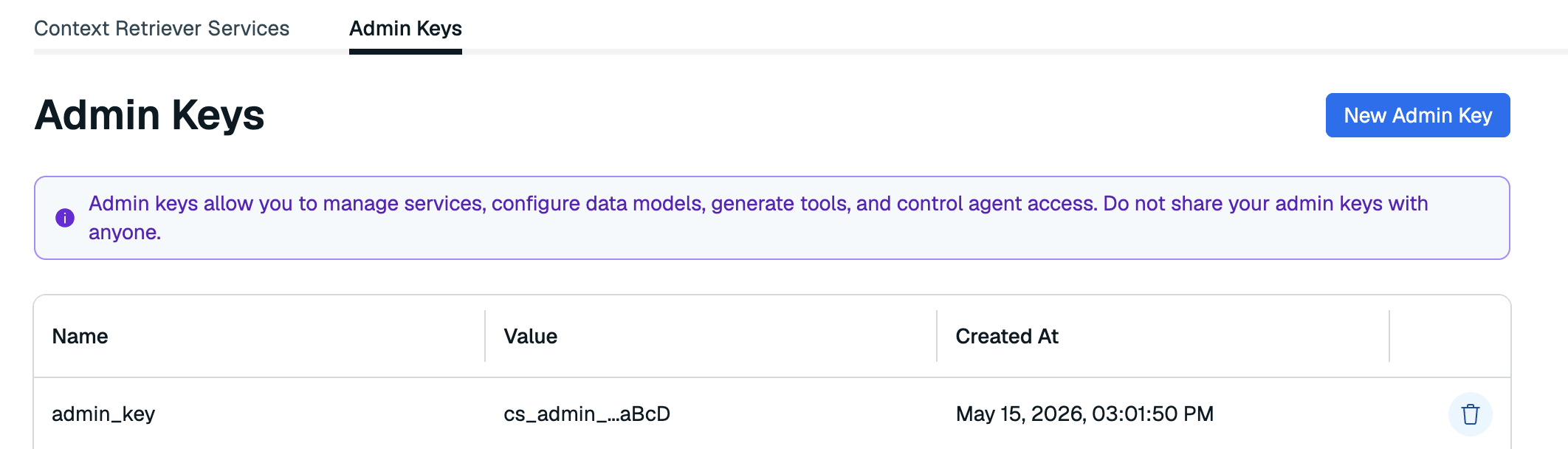
This tab shows a list of all admin keys associated with Context Retriever in your account. Here, you can generate a new admin key or remove any keys that are no longer in use. You can generate or remove admin keys at any time.
| Column | Description |
|:-------|:------------|
| **Name** | The name you assigned to the admin key when you created it. |
| **Value** | An abbreviated value of the admin key. |
| **Created** | The date and time the admin key was generated. |
## Generate a new admin key
To generate a new admin key:
1. Select **New admin key**.

1. Enter a name for your admin key.
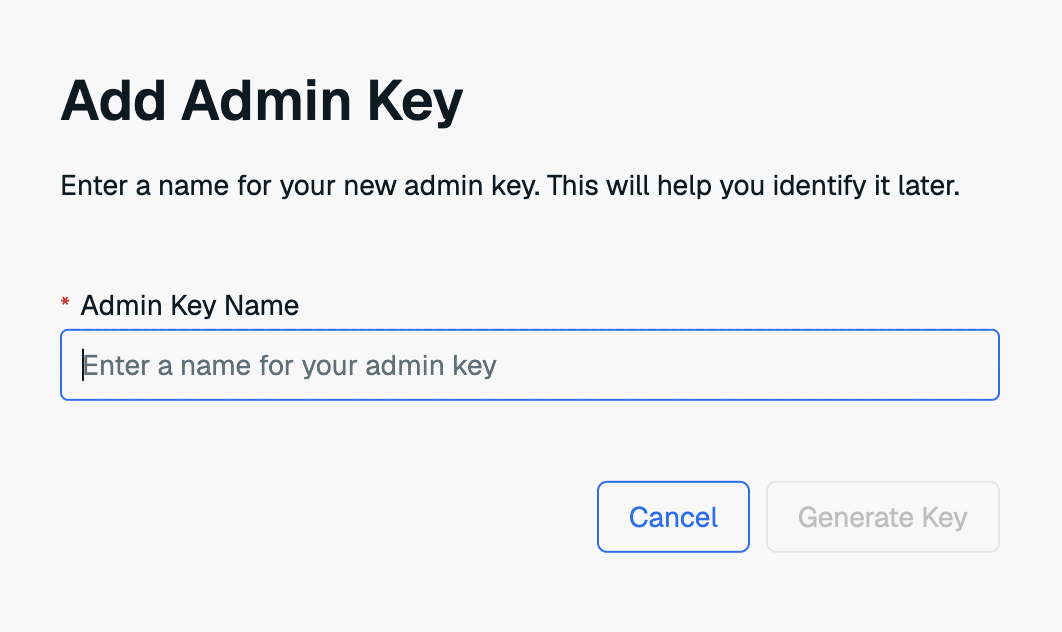
1. Select **Generate key** to generate your new admin key.
1. The new key will appear in a dialog box. Select **Copy** to copy the key to the clipboard.
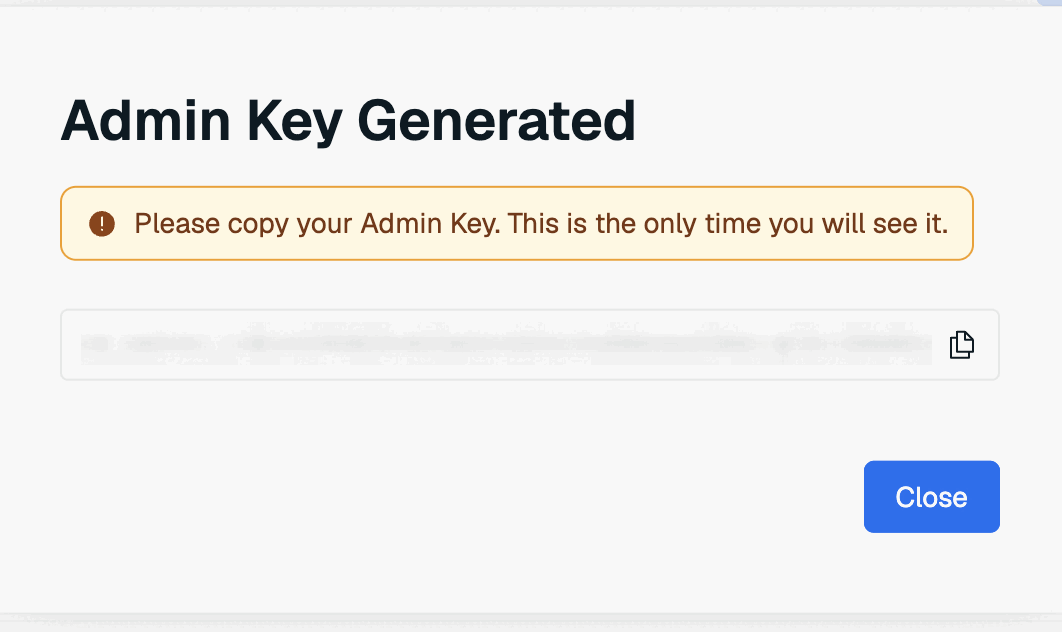
This is the only time the value of the admin key is available. Save it to a secure location before closing the dialog box.
If you lose the admin key value, you will need to generate a new admin key.
## Delete an admin key
To delete an admin key, select the **Delete admin key** button next to the key you want to remove.

Deleting an admin key immediately revokes any administrative operations that rely on it. This action cannot be undone.