# Manage Active-Active databases
```json metadata
{
"title": "Manage Active-Active databases",
"description": "Manage your Active-Active database settings.",
"categories": ["docs","operate","rs"],
"tableOfContents": {"sections":[{"children":[{"id":"change-global-configuration","title":"Change global configuration"},{"id":"change-local-configuration","title":"Change local configuration"},{"id":"view-differences-between-global-and-local-configuration","title":"View differences between global and local configuration"}],"id":"database-settings","title":"Database settings"},{"children":[{"id":"add-participating-clusters","title":"Add participating clusters"},{"id":"remove-participating-clusters","title":"Remove participating clusters"}],"id":"participating-clusters","title":"Participating clusters"},{"children":[{"id":"change-the-replication-backlog-size","title":"Change the replication backlog size"}],"id":"replication-backlog","title":"Replication backlog"},{"id":"data-persistence","title":"Data persistence"}]}
,
"codeExamples": []
}
```
You can configure and manage your Active-Active database from either the Cluster Manager UI or the command line.
## Database settings
Most Active-Active database settings can be changed after database creation. One notable exception is database clustering, which can't be turned on or off after the database has been created.
As of Redis Software version 8.0.16, the Cluster Manager UI supports both [global](#change-global-configuration) and [local](#change-local-configuration) configuration changes for Active-Active databases. In earlier versions, configuration changes made in the Cluster Manager UI applied only to the local instance and required additional manual updates for each participating cluster.
### Change global configuration
Global configuration changes are applied to all participating clusters in the Active-Active database. However, if your Active-Active mesh contains local configurations, they will continue to override global settings on the database instances where they are applied.
Applying global configuration changes will override any local settings created using the API or earlier Cluster Manager UI versions. To keep local changes, manage them in the [**Local** configuration tab](#change-local-configuration).
**Cluster Manager UI:**
To make global configuration changes in the Cluster Manager UI:
1. Select the Active-Active database from the **Databases** list and go to its **Configuration** screen.
1. While on the **Global** tab, click **Edit**.
 1. Make your configuration changes.
1. Click **Save** to apply the changes globally to all participating clusters.
**crdb-cli:**
To change the global configuration from the command line, use [`crdb-cli crdb update`](https://redis.io/docs/latest/operate/rs/references/cli-utilities/crdb-cli/crdb/update):
```sh
crdb-cli crdb update --crdb-guid --
```
Replace the placeholders `` with your own values.
### Change local configuration
Local configuration changes override global configuration settings and are applied only to the database instance on the current cluster.
To apply changes to a local Active-Active database instance, use one of the following methods:
**Cluster Manager UI:**
To change the local configuration in the Cluster Manager UI:
1. Select the Active-Active database from the **Databases** list and go to its **Configuration** screen.
1. Go to the **Local** tab.
1. Make your configuration changes.
1. Click **Save** to apply the changes globally to all participating clusters.
**crdb-cli:**
To change the global configuration from the command line, use [`crdb-cli crdb update`](https://redis.io/docs/latest/operate/rs/references/cli-utilities/crdb-cli/crdb/update):
```sh
crdb-cli crdb update --crdb-guid --
```
Replace the placeholders `` with your own values.
### Change local configuration
Local configuration changes override global configuration settings and are applied only to the database instance on the current cluster.
To apply changes to a local Active-Active database instance, use one of the following methods:
**Cluster Manager UI:**
To change the local configuration in the Cluster Manager UI:
1. Select the Active-Active database from the **Databases** list and go to its **Configuration** screen.
1. Go to the **Local** tab.
 1. Click **Edit**, then make your configuration changes.
1. Click **Save** to apply the changes to the current database instance only.
**rladmin:**
To change the local configuration from the command line, use [`rladmin tune db`](https://redis.io/docs/latest/operate/rs/references/cli-utilities/rladmin/tune#tune-db):
```sh
rladmin tune db { db: | }
```
Replace the placeholders `` with your own values.
### View differences between global and local configuration
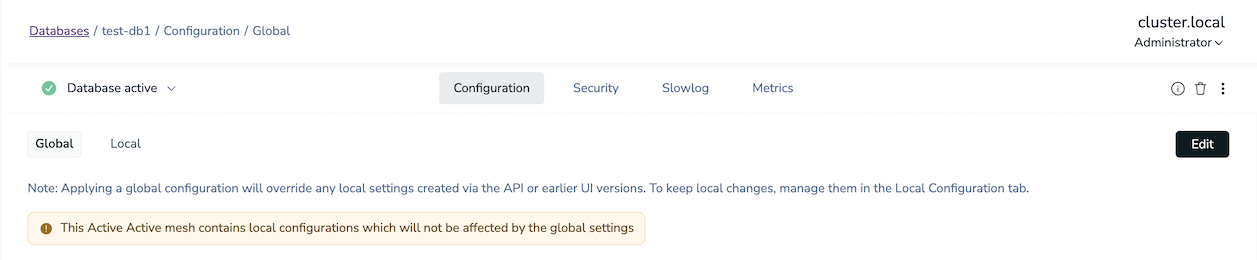
In the Cluster Manager UI, an Active-Active database's **Global** configuration tab indicates when a local configuration differs from the global configuration:
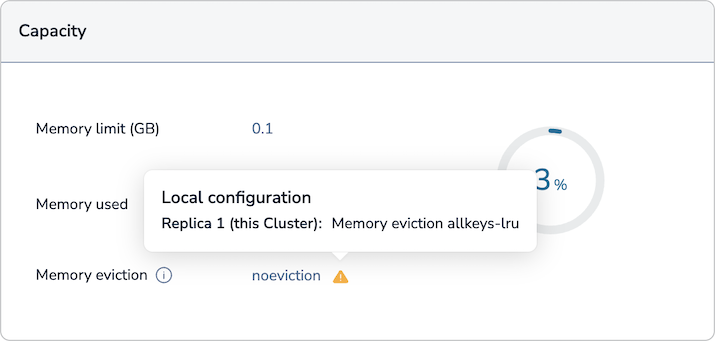
If a warning symbol appears next to a setting on the **Global** configuration tab, point to the warning symbol to show details about the local configuration differences:
On the **Local** configuration tab, any locally configured settings that differ from the global settings are marked with a **Local configuration** label:

## Participating clusters
You can add and remove participating clusters of an Active-Active database to change the topology.
To manage the changes to Active-Active topology, use [`crdb-cli`](https://redis.io/docs/latest/operate/rs/references/cli-utilities/crdb-cli/) or the participating clusters list in the Cluster Manager UI.
### Add participating clusters
All existing participating clusters must be online and in a syncing state when you add new participating clusters.
New participating clusters create the Active-Active database instance based on the global Active-Active database configuration.
After you add new participating clusters to an existing Active-Active database,
the new database instance can accept connections and read operations.
The new instance does not accept write operations until it is in the syncing state.
If an Active-Active database [runs on flash memory](https://redis.io/docs/latest/operate/rs/databases/flash), you cannot add participating clusters that run on RAM only.
To add a new participating cluster to an existing Active-Active configuration using the Cluster Manager UI:
1. Select the Active-Active database from the **Databases** list and go to its **Configuration** screen.
1. Click **Edit**.
1. In the **Participating clusters** section, go to **Other participating clusters** and click **+ Add cluster**.
1. In the **Add cluster** configuration panel, enter the new cluster's URL, port number, and the admin username and password for the new participating cluster:

1. Click **Join cluster** to add the cluster to the list of participating clusters.
1. Click **Save**.
### Remove participating clusters
All existing participating clusters must be online and in a syncing state when you remove an online participating cluster.
If you must remove offline participating clusters, you can forcefully remove them.
If a forcefully removed participating cluster tries to rejoin the cluster,
its Active-Active database membership will be out of date.
The joined participating clusters reject updates sent from the removed participating cluster.
To prevent rejoin attempts, purge the forcefully removed instance from the participating cluster.
To remove a participating cluster using the Cluster Manager UI:
1. Select the Active-Active database from the **Databases** list and go to its **Configuration** screen.
1. Click **Edit**.
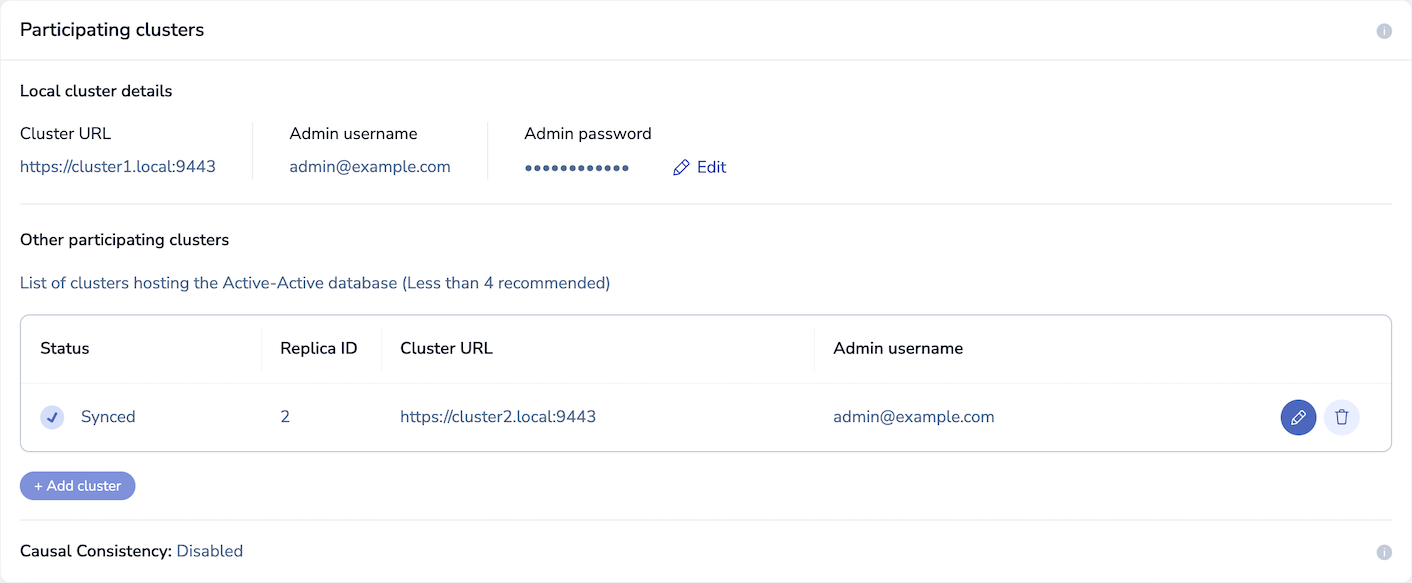
1. In the **Participating clusters** section, point to the cluster you want to delete in the **Other participating clusters** list:
1. Click  to remove the cluster.
1. Click **Save**.
## Replication backlog
Redis databases that use [replication for high availability](https://redis.io/docs/latest/operate/rs/databases/durability-ha/replication.md) maintain a replication backlog (per shard) to synchronize the primary and replica shards of a database. In addition to the database replication backlog, Active-Active databases maintain a backlog (per shard) to synchronize the database instances between clusters.
By default, both the database and Active-Active replication backlogs are set to one percent (1%) of the database size divided by the number of shards. This can range between 1MB to 250MB per shard for each backlog.
### Change the replication backlog size
Use the [`crdb-cli`](https://redis.io/docs/latest/operate/rs/references/cli-utilities/crdb-cli) utility to control the size of the replication backlogs. You can set it to `auto` or set a specific size.
Update the database replication backlog configuration with the `crdb-cli` command shown below.
```text
crdb-cli crdb update --crdb-guid --default-db-config "{\"repl_backlog_size\": }"
```
Update the Active-Active (CRDT) replication backlog with the command shown below:
```text
crdb-cli crdb update --crdb-guid --default-db-config "{\"crdt_repl_backlog_size\": }"
```
## Data persistence
Active-Active supports AOF (Append-Only File) data persistence only. Snapshot persistence is _not_ supported for Active-Active databases and should not be used.
If an Active-Active database is currently using snapshot data persistence, use `crdb-cli` to switch to AOF persistence:
```text
crdb-cli crdb update --crdb-guid --default-db-config '{"data_persistence": "aof", "aof_policy":"appendfsync-every-sec"}'
```
1. Click **Edit**, then make your configuration changes.
1. Click **Save** to apply the changes to the current database instance only.
**rladmin:**
To change the local configuration from the command line, use [`rladmin tune db`](https://redis.io/docs/latest/operate/rs/references/cli-utilities/rladmin/tune#tune-db):
```sh
rladmin tune db { db: | }
```
Replace the placeholders `` with your own values.
### View differences between global and local configuration
In the Cluster Manager UI, an Active-Active database's **Global** configuration tab indicates when a local configuration differs from the global configuration:

If a warning symbol appears next to a setting on the **Global** configuration tab, point to the warning symbol to show details about the local configuration differences:

On the **Local** configuration tab, any locally configured settings that differ from the global settings are marked with a **Local configuration** label:

## Participating clusters
You can add and remove participating clusters of an Active-Active database to change the topology.
To manage the changes to Active-Active topology, use [`crdb-cli`](https://redis.io/docs/latest/operate/rs/references/cli-utilities/crdb-cli/) or the participating clusters list in the Cluster Manager UI.
### Add participating clusters
All existing participating clusters must be online and in a syncing state when you add new participating clusters.
New participating clusters create the Active-Active database instance based on the global Active-Active database configuration.
After you add new participating clusters to an existing Active-Active database,
the new database instance can accept connections and read operations.
The new instance does not accept write operations until it is in the syncing state.
If an Active-Active database [runs on flash memory](https://redis.io/docs/latest/operate/rs/databases/flash), you cannot add participating clusters that run on RAM only.
To add a new participating cluster to an existing Active-Active configuration using the Cluster Manager UI:
1. Select the Active-Active database from the **Databases** list and go to its **Configuration** screen.
1. Click **Edit**.
1. In the **Participating clusters** section, go to **Other participating clusters** and click **+ Add cluster**.
1. In the **Add cluster** configuration panel, enter the new cluster's URL, port number, and the admin username and password for the new participating cluster:

1. Click **Join cluster** to add the cluster to the list of participating clusters.
1. Click **Save**.
### Remove participating clusters
All existing participating clusters must be online and in a syncing state when you remove an online participating cluster.
If you must remove offline participating clusters, you can forcefully remove them.
If a forcefully removed participating cluster tries to rejoin the cluster,
its Active-Active database membership will be out of date.
The joined participating clusters reject updates sent from the removed participating cluster.
To prevent rejoin attempts, purge the forcefully removed instance from the participating cluster.
To remove a participating cluster using the Cluster Manager UI:
1. Select the Active-Active database from the **Databases** list and go to its **Configuration** screen.
1. Click **Edit**.
1. In the **Participating clusters** section, point to the cluster you want to delete in the **Other participating clusters** list:

1. Click  to remove the cluster.
1. Click **Save**.
## Replication backlog
Redis databases that use [replication for high availability](https://redis.io/docs/latest/operate/rs/databases/durability-ha/replication.md) maintain a replication backlog (per shard) to synchronize the primary and replica shards of a database. In addition to the database replication backlog, Active-Active databases maintain a backlog (per shard) to synchronize the database instances between clusters.
By default, both the database and Active-Active replication backlogs are set to one percent (1%) of the database size divided by the number of shards. This can range between 1MB to 250MB per shard for each backlog.
### Change the replication backlog size
Use the [`crdb-cli`](https://redis.io/docs/latest/operate/rs/references/cli-utilities/crdb-cli) utility to control the size of the replication backlogs. You can set it to `auto` or set a specific size.
Update the database replication backlog configuration with the `crdb-cli` command shown below.
```text
crdb-cli crdb update --crdb-guid --default-db-config "{\"repl_backlog_size\": }"
```
Update the Active-Active (CRDT) replication backlog with the command shown below:
```text
crdb-cli crdb update --crdb-guid --default-db-config "{\"crdt_repl_backlog_size\": }"
```
## Data persistence
Active-Active supports AOF (Append-Only File) data persistence only. Snapshot persistence is _not_ supported for Active-Active databases and should not be used.
If an Active-Active database is currently using snapshot data persistence, use `crdb-cli` to switch to AOF persistence:
```text
crdb-cli crdb update --crdb-guid --default-db-config '{"data_persistence": "aof", "aof_policy":"appendfsync-every-sec"}'
```