Connect clusters
Add Redis Software, Redis Cloud, Redis Open Source, Amazon ElastiCache, and Google Memorystore sources to Radar.
| Redis Radar |
|---|
After installing Redis Radar, it's time to connect your clusters. Add each cluster manually — Radar doesn't discover clusters on its own. After you add a cluster, Radar tests the connection and then keeps collecting that source's state automatically going forward. While Radar lets you view your cluster's status, it doesn't change the any of the cluster settings or configuration.
What you can connect
| Type | How Radar reaches it | What you supply |
|---|---|---|
| Redis Software | The cluster REST API, over HTTPS on port 9443 | A hostname or IP address, plus an account on the cluster |
| Redis Open Source | Direct access to the Redis instance | A hostname and port, plus credentials if the instance requires them |
| Redis Cloud | The Redis Cloud API | An API account key and an API user key |
| Amazon ElastiCache | The AWS control-plane APIs | Read-only AWS credentials and the regions to scan |
| Google Memorystore | The Google Cloud APIs | A read-only service account, plus the project and regions to scan |
Radar encrypts every credential before storing it. Credentials are never returned through the API and never written to logs.
Self-managed connections
Connect Redis Software clusters and Redis Open Source instances that you run yourself. Radar reaches each one directly, so you supply a host and an account on the cluster or instance. Redis Software and Redis Open Source connections are per cluster or per instance.
Before you connect
For every connection you need:
- Credentials for the cluster or instance. Radar uses the same management interface you do, so it needs an account there. Read access is enough.
- Network access from Radar to the source. Radar connects outbound. Nothing needs to connect back to Radar, so no inbound rule is required on the Radar host. If Radar can't reach a cluster directly, install an agent inside that network instead. See Connect clusters with an agent.
Connect a Redis Software cluster
Radar reads Redis Software clusters through the cluster REST API.
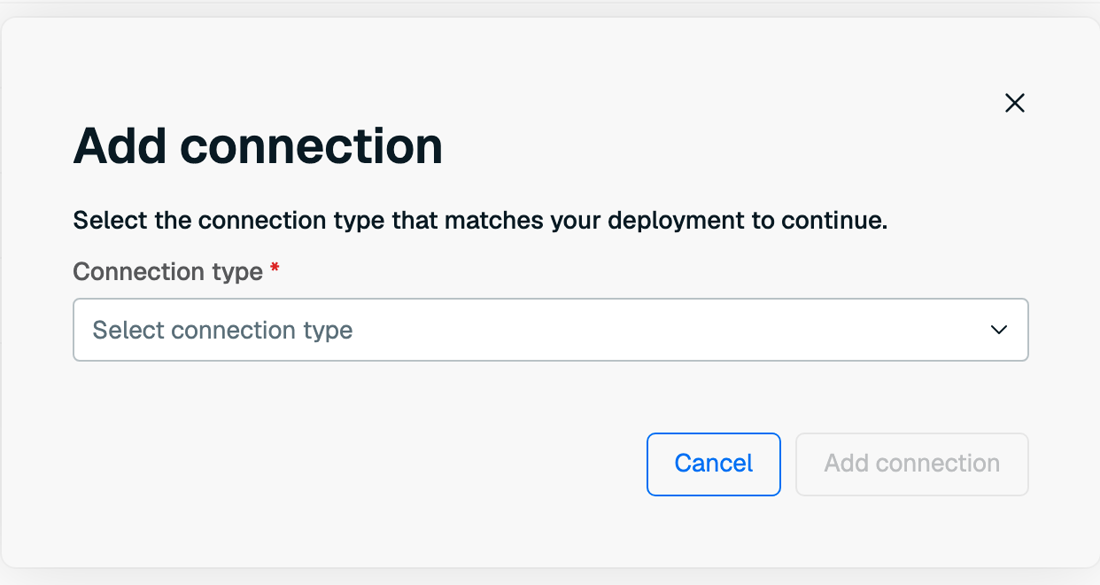
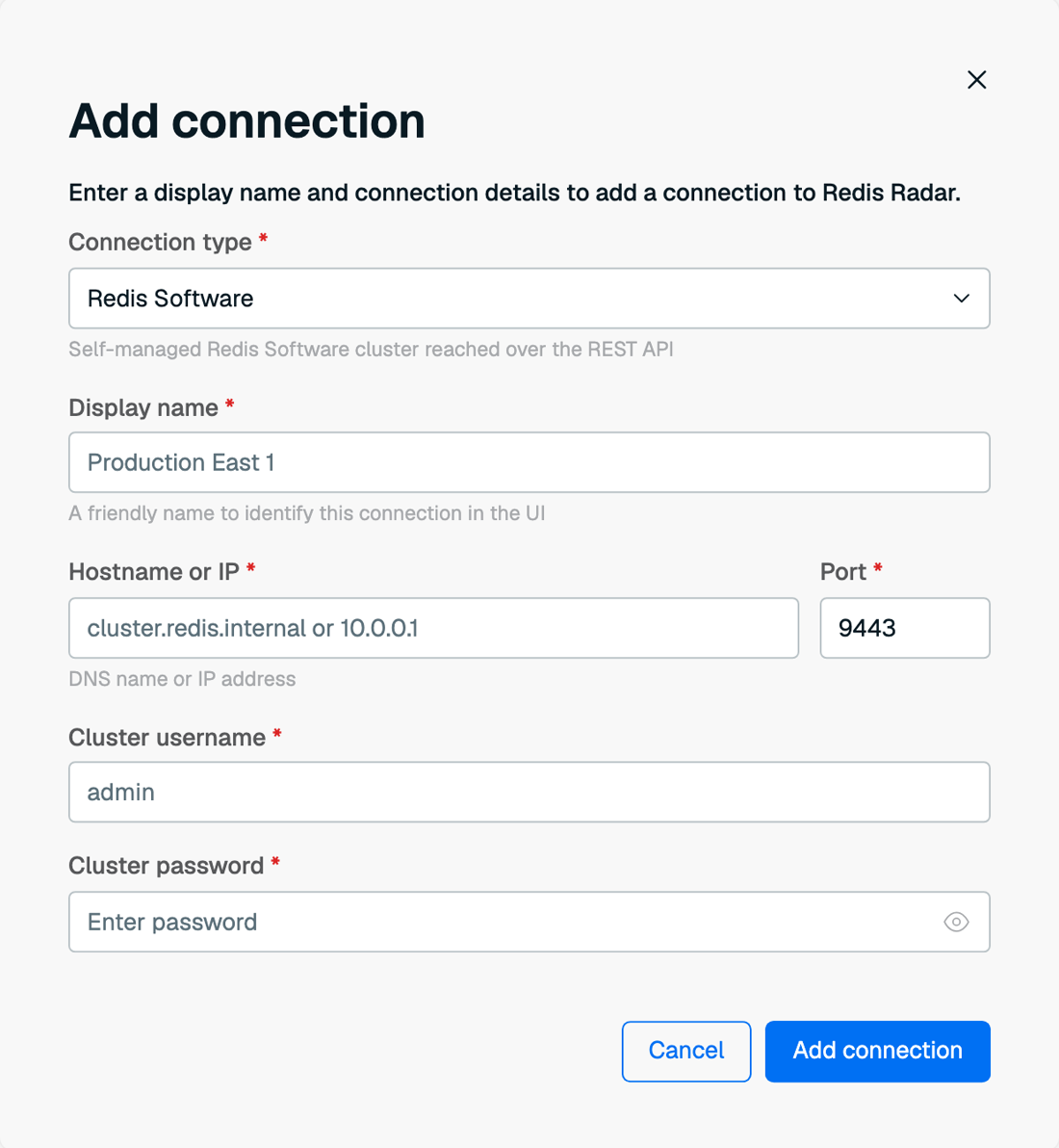
- Select Add connection, from either the top bar or the Connections page.
- Set the connection type to Redis Software.
- Enter a display name. Use something you can recognize in a fleet-wide list, such as
Production East 1. - Enter the cluster's hostname or IP address, for example
cluster.redis.internalor10.0.0.1. - Enter the port. The default is
9443, the cluster REST API port. - Enter the username and password of an account on the cluster.
- Select Add connection.
Radar tests the connection before it saves anything. If the test fails, Radar shows the error and does not create the connection, so you can correct the details and select Retry.
Radar always reaches the REST API over HTTPS.
Point Radar at the cluster's fully qualified domain name rather than one node's address. A node address works until that node is unavailable, at which point Radar reports the whole cluster as unreachable.
Connect a Redis Open Source instance
Radar connects straight to the instance, so it needs network access to that endpoint.
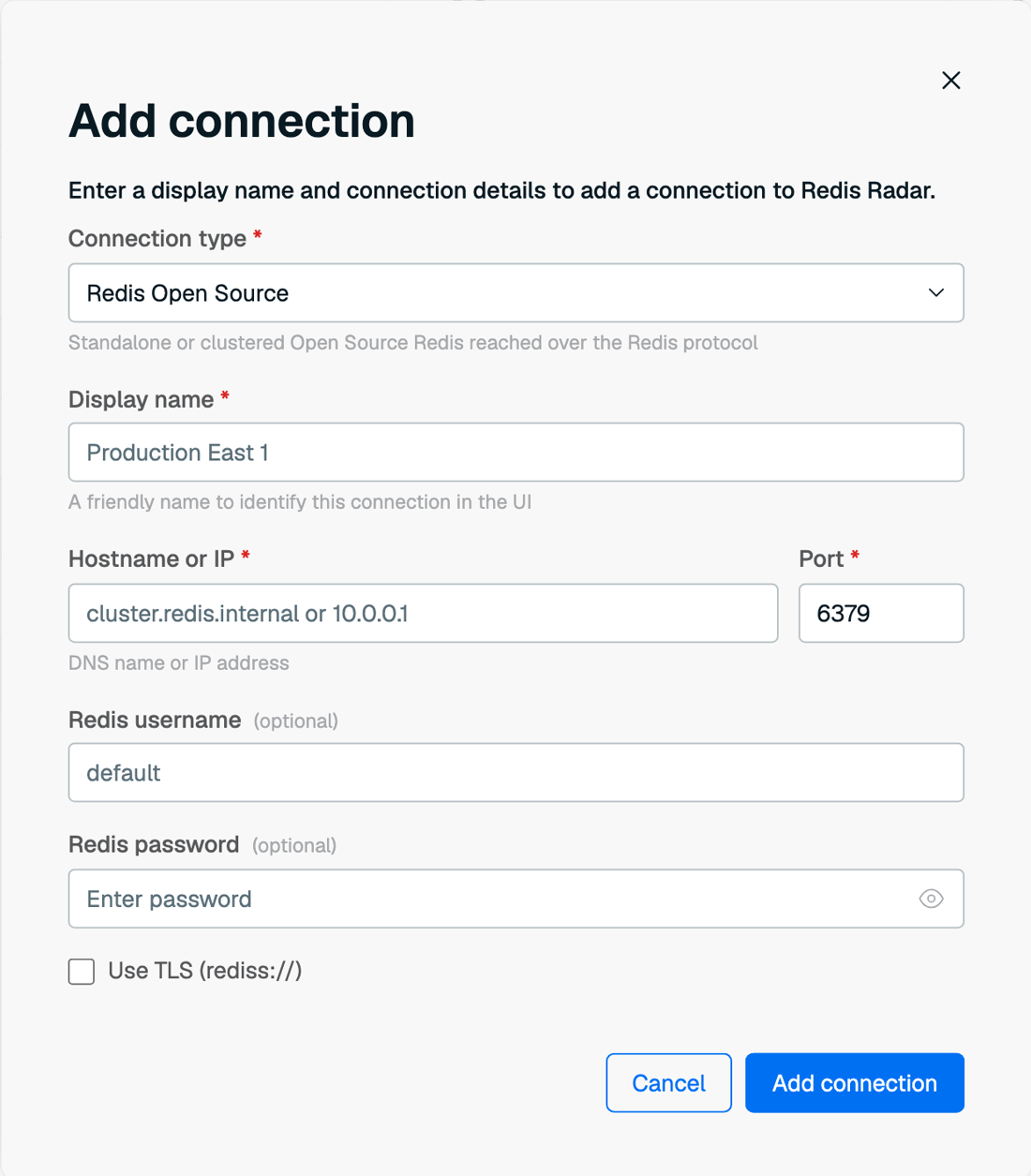
- Select Add connection.
- Set the connection type to Redis Open Source.
- Enter a display name.
- Enter the hostname or IP address and port. The default port is
6379. - Enter a username and password if the instance requires authentication. Leave both empty if it does not.
- Select Use TLS (rediss://) if the instance requires an encrypted connection.
- Select Add connection.
Cloud connections
Connect a Redis Cloud account, Amazon ElastiCache, or Google Memorystore. These connections use each provider's own API rather than talking to a database directly, so what you supply is API credentials rather than an account on a cluster. One Redis Cloud connection covers every subscription and database in that account, and one ElastiCache or Memorystore connection covers every resource in the regions you select. ElastiCache and Memorystore resources appear on the Databases view rather than Clusters.
Before you connect
For every connection you need:
- API credentials for the provider. A Redis Cloud API account key and API user key, read-only AWS credentials, or a read-only Google Cloud service account. Radar never writes to your Redis Cloud subscription or provider account.
- The regions to scan, for Amazon ElastiCache and Google Memorystore. Radar only scans the regions you list.
- Network access from Radar to the provider's API. Radar connects outbound only.
Connect a Redis Cloud account
A Redis Cloud connection uses the Redis Cloud API, so it covers every subscription and database in the account at once.
- Create a Redis Cloud API key. You need both the API account key and an API user key. See Redis Cloud API.
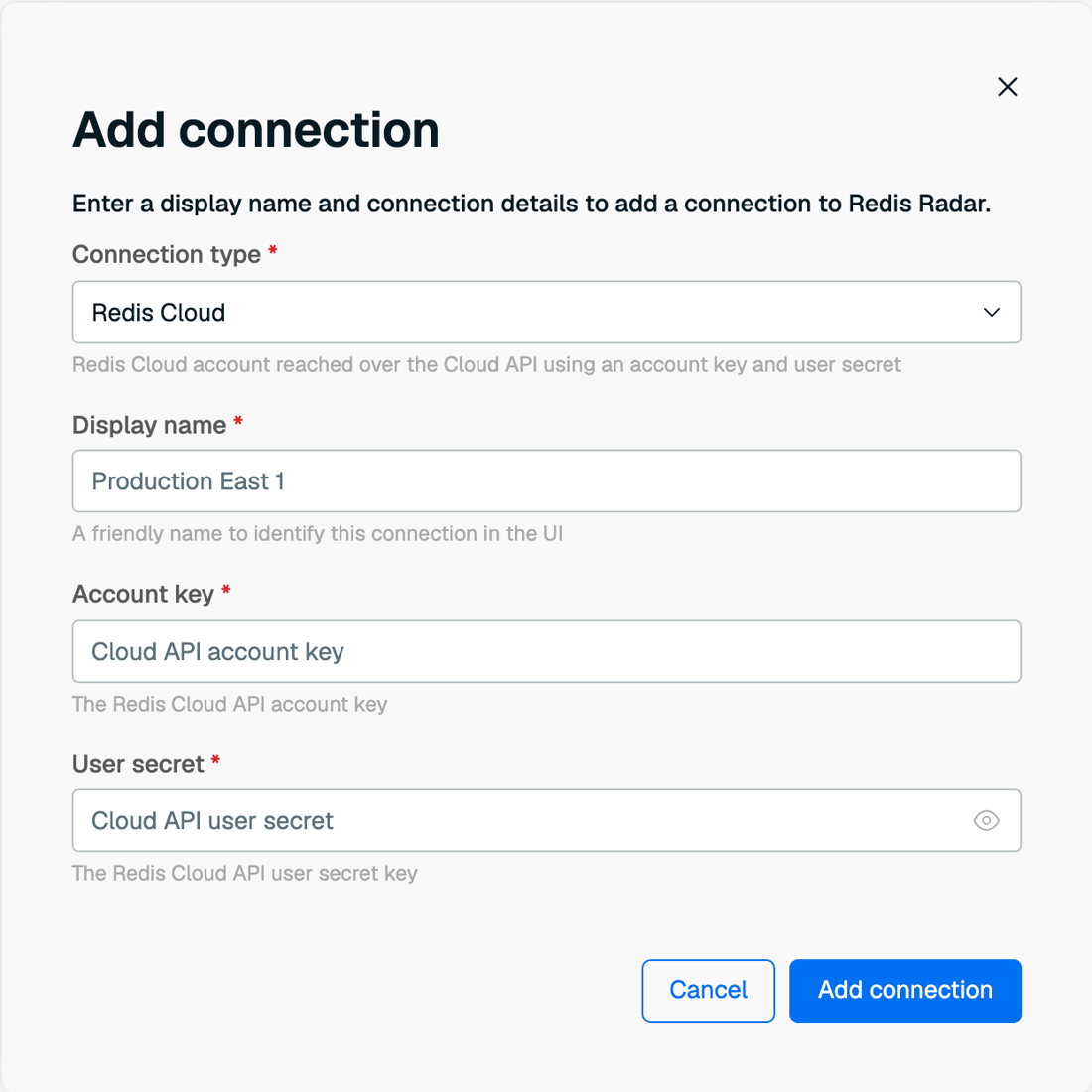
- In Radar, select Add connection.
- Set the connection type to Redis Cloud.
- Enter a display name.
- Enter the API account key and the API user key.
- Select Add connection.
Connect Amazon ElastiCache
One ElastiCache connection covers every ElastiCache resource in the regions you select.
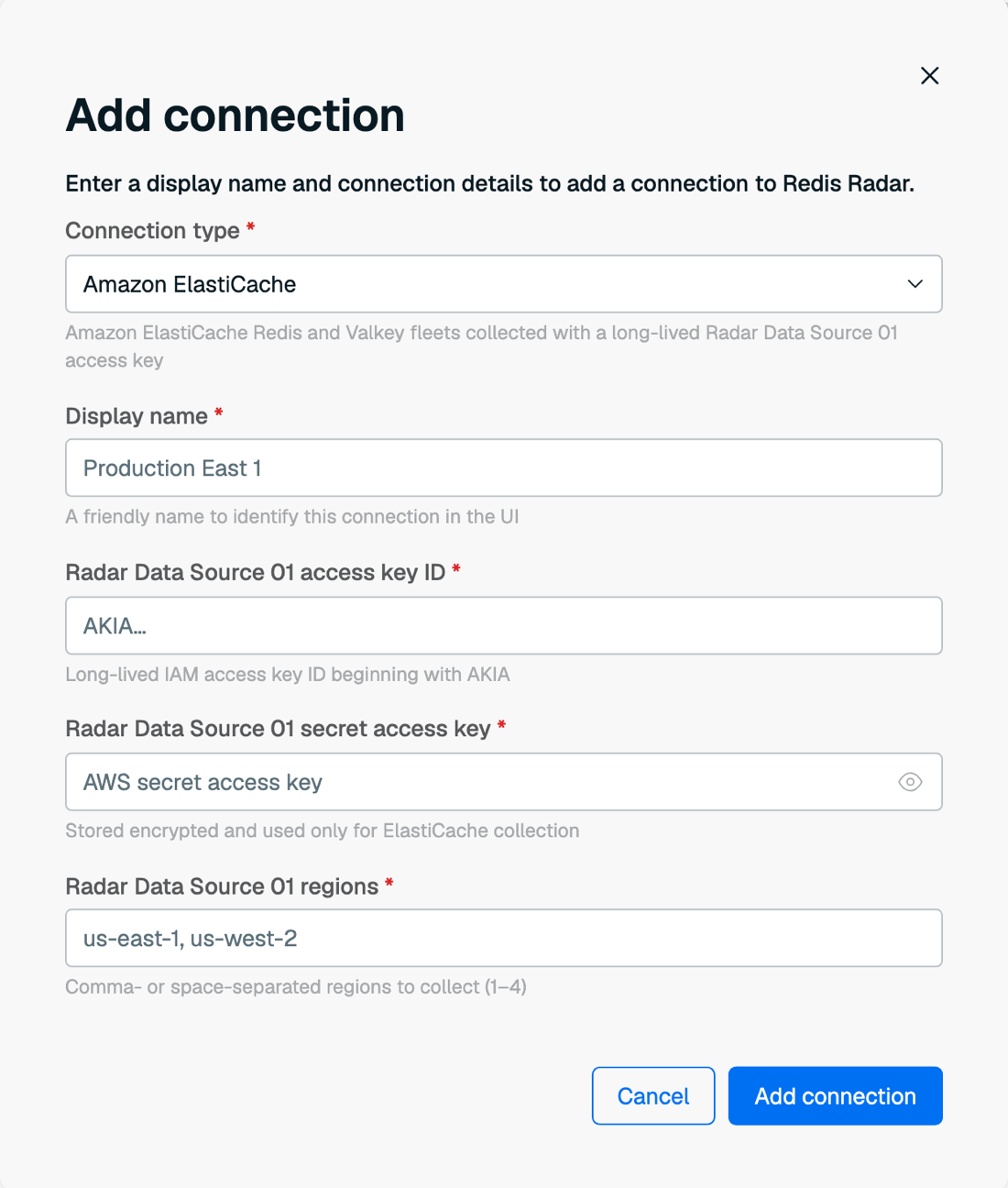
Amazon ElastiCache appears in the connection type list only if an administrator enabled the ElastiCache connector, which is off by default.
Before you connect, create an AWS identity with read-only ElastiCache access. The policy needs no write permissions and no cache data-plane permissions:
elasticache:DescribeReplicationGroupselasticache:DescribeCacheClusterselasticache:DescribeServerlessCachescloudwatch:GetMetricDatatag:GetResourcesec2:DescribeRegions
How Radar authenticates depends on where it runs:
On Redis Cloud, Radar assumes a read-only role in your AWS account, so you supply a role ARN rather than keys:
- Select Add connection.
- Set the connection type to Amazon ElastiCache.
- Enter your 12-digit AWS account ID, then select Continue. Radar generates an external ID for this connection and shows a trust policy that uses it.
- In AWS, create a read-only IAM role with those permissions, and give it the trust policy Radar shows.
- Enter a display name.
- Enter the role ARN, and the AWS regions to scan, separated by commas, for example
us-east-1, us-west-2. - Select Add connection.
Radar generates the external ID and keeps it. Don't supply one of your own, and don't reuse the external ID from another connection.
Both the API server and the worker need outbound HTTPS on port 443 to the AWS control-plane endpoints in every region you configure: sts, elasticache, monitoring, tagging, and ec2. Radar never opens a connection to a cache endpoint.
Blocking the CloudWatch or tagging endpoints degrades what Radar can report and produces a capability warning. Blocking the identity or ElastiCache inventory endpoints stops the connection test and collection outright.
Connect Google Memorystore
One Memorystore connection covers every Memorystore resource in the regions you select, across the Redis, Valkey, and Memcached engines.
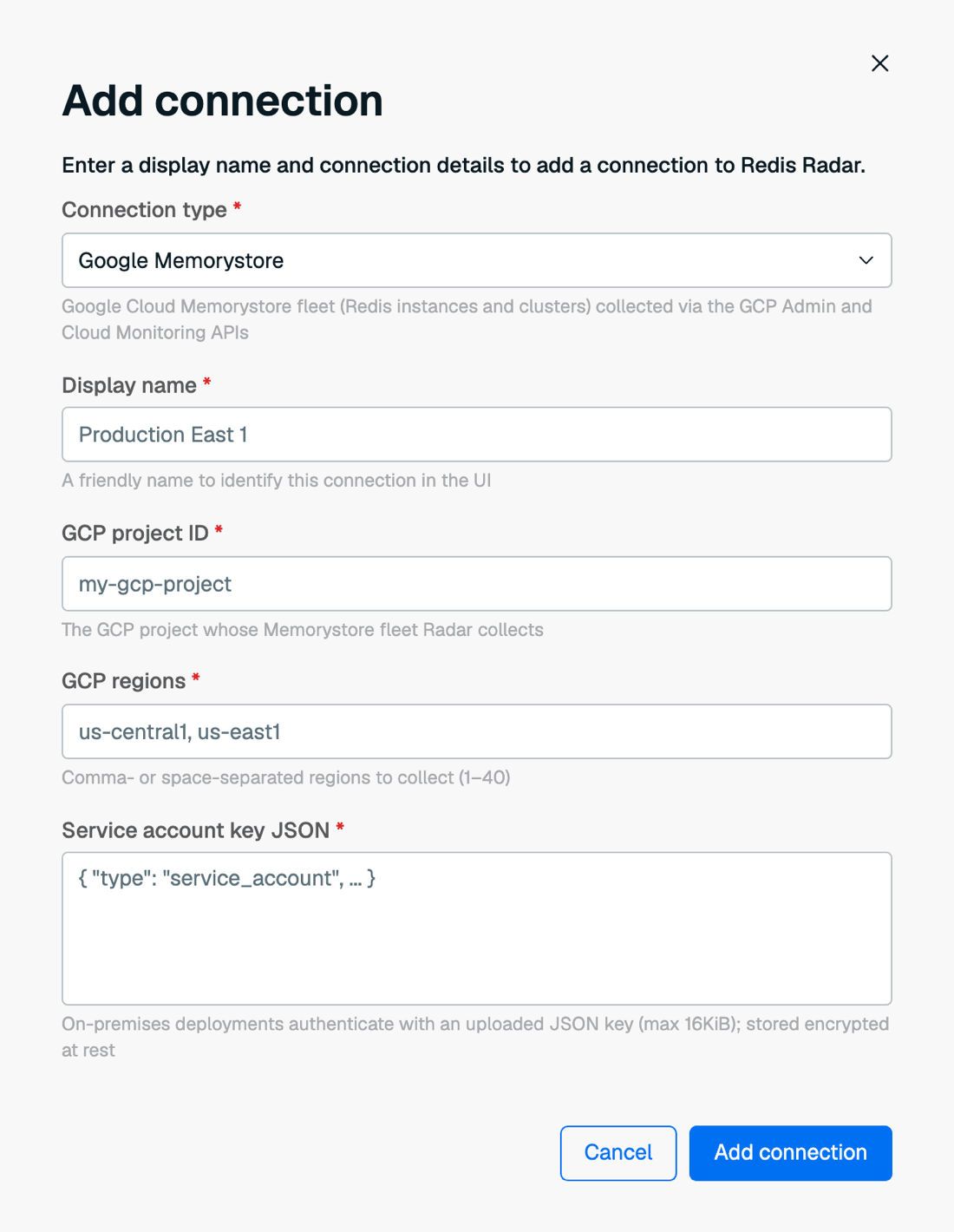
Google Memorystore appears in the connection type list only if an administrator enabled the Memorystore connector, which is off by default.
Before you connect, create a service account in the target project and grant it the read roles for the engines you run:
| Role | Covers |
|---|---|
roles/redis.viewer |
Memorystore for Redis and Redis Cluster |
roles/memorystore.viewer |
Memorystore for Valkey only |
roles/memcache.viewer |
Memorystore for Memcached |
roles/monitoring.viewer |
Cloud Monitoring metrics for every engine |
A single custom role with the same read permissions works too, as long as it keeps resourcemanager.projects.get.
How Radar authenticates depends on where it runs:
On Redis Cloud, Radar impersonates the service account rather than holding a key for it, so there is no key to create or paste. Prepare the project first:
- Label the project
redis-radar-tenant=<your-tenant-id>. Your tenant ID is in the Radar user menu. Radar checks the label before it creates the connection and before every collection, so a missing label fails the connection test. - Grant Radar's service account,
[email protected], the Service Account Token Creator role (roles/iam.serviceAccountTokenCreator) on the service account you created.
- Select Add connection.
- Set the connection type to Google Memorystore.
- Enter a display name.
- Enter the GCP project ID, for example
my-gcp-project. - Enter the GCP regions to scan, separated by commas, for example
us-central1, us-east1. - Enter the service account email, for example
[email protected]. - Select Add connection.
Both the API server and the worker need outbound HTTPS on port 443 to oauth2.googleapis.com, redis.googleapis.com, memorystore.googleapis.com, memcache.googleapis.com, and monitoring.googleapis.com. Allowing *.googleapis.com covers the whole path.
Secure cluster connections
Radar holds credentials for every cluster in your fleet, so treat the connection path as sensitive.
- Encrypt the connection. Redis Software connections always use HTTPS. For Redis Open Source, select Use TLS unless the instance is unencrypted and you accept that.
- Give Radar its own account on each cluster. A dedicated account keeps Radar's access auditable and separate from any user's, and lets you limit what Radar can do.
- Protect the encryption key. On a self-managed install, every credential Radar stores is encrypted with the key you supplied at install. Back that key up alongside the database and store the backup separately. See Install Radar.
Remove or reconnect a cluster
Only administrators can remove a connection. See Manage access.
Radar has no way to edit a saved connection's credentials, host, port, or scanned regions. If any of those change — for example, a rotated password or access key, or a cluster that moved to a new address — remove the connection and add it again with the new details.
To remove a connection:
- Go to the Connections page.
- Select More options next to the connection.
- Select Remove connection.
- Confirm the removal.
Removing a connection permanently deletes the health and usage data Radar collected through it. It does not affect the underlying Redis deployment or cloud account, and it cannot be undone.
For a Redis Cloud account connection, removing it removes every subscription discovered through that account, not just one database.
Next steps
Radar starts collecting information as soon as a connection is saved. The first collection populates the fleet view, and Radar refreshes each source after that. See Monitor clusters and databases.