Manage access
Create Radar users, assign roles, and connect LDAP or SAML SSO.
| Redis Radar |
|---|
This page applies to self-managed Radar installations. Redis Cloud manages Radar users and roles for you, so the local accounts, roles, LDAP, and SAML SSO described here do not apply there.
Radar has two roles, administrator and viewer, one of which is assigned to every user. Users sign in with a local Radar account, through your directory over LDAP, or through your identity provider with SAML SSO.
Create local accounts under Users. Choose and configure the sign-in method under Settings > Authentication, where that choice applies to all of Radar.

Roles
| Role | Can do |
|---|---|
| Admin | Everything a viewer can, plus add and remove connections, manage users, and change settings. |
| Viewer | Read the fleet: clusters, databases, usage, and alerts. |
A role applies to the entire fleet. You cannot scope a user to a subset of clusters.
New users are viewers unless you choose otherwise. Only admins can see or change users; the Users area is hidden from viewers.
Create local users
- Go to Users and add a user.
- Enter a username and email address.
- Set a password. It must be 6 to 128 characters and contain at least one uppercase letter.
- Choose a role.
The Users list shows each account's role, where it authenticates, when it was created, and its last sign-in, so you can tell a local account from a directory account at a glance.
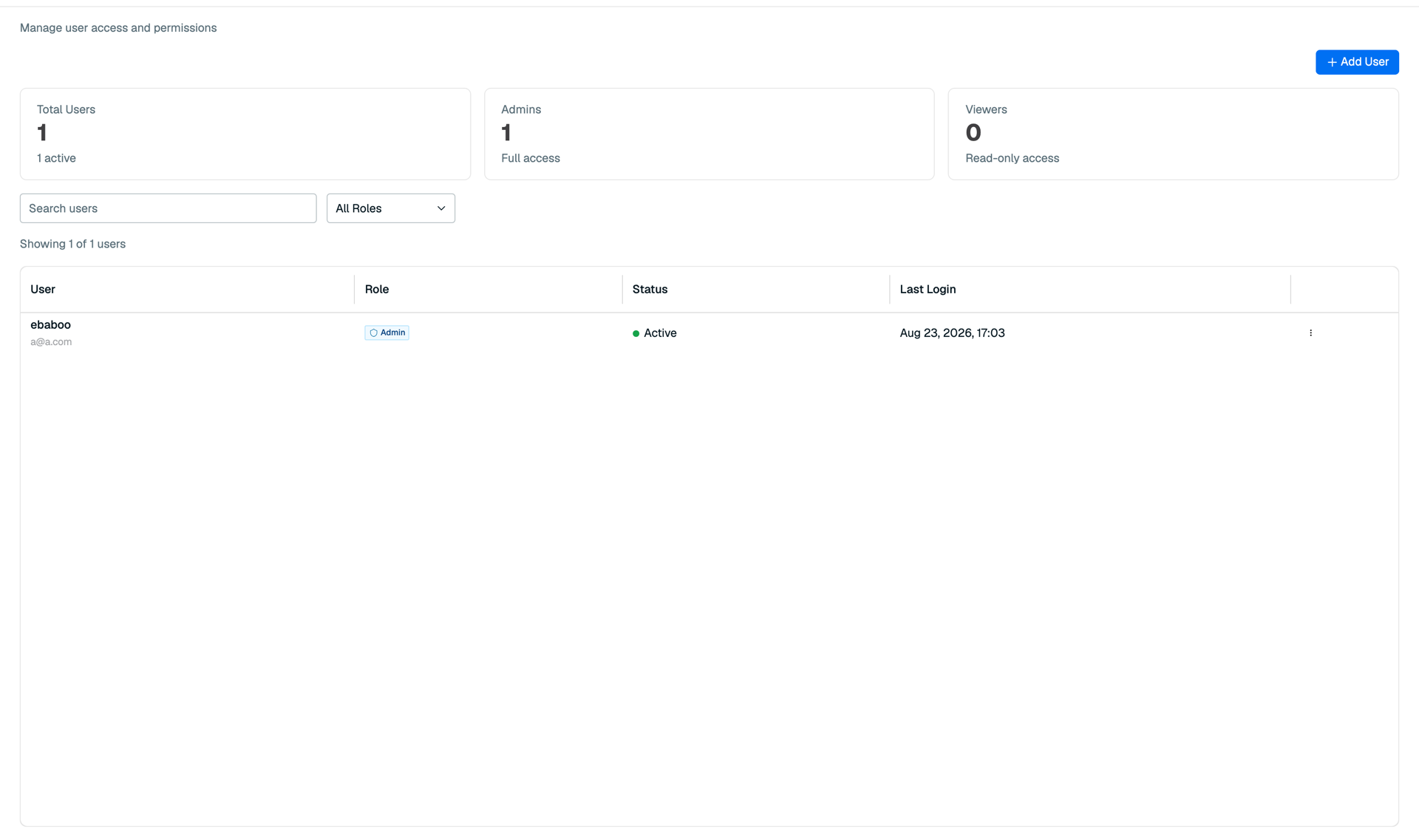
If an account locks, admins unlock it from the same list.
Radar creates no default account and ships no default password. The one-time bootstrap flow creates the first administrator while the database has no users. See Install Radar.
Change or reset a local password
Local users change their own password from Change password in the user menu. Radar asks for the current password and the new one, then signs you out of your other sessions. Users who sign in through LDAP or SAML SSO change their password in their directory or identity provider instead.
If a local user can't sign in, including the only administrator, reset the password from the Radar host or cluster. The command prompts twice for the new password, or reads it from standard input with --password-stdin. The new password follows the same rules as a new account's. The reset also clears any lockout and ends the user's sessions.
-
On an RPM host:
sudo radar user reset-password --user <username-or-email> -
On Kubernetes, run it in the API deployment, which is
radar-apifor a release namedradar:kubectl exec -it -n <namespace> deploy/<release-name>-api -- /app/radar user reset-password --user <username-or-email>
Connect a directory with LDAP
Radar authenticates against your directory and takes each user's role from their group membership, so you grant and revoke Radar access by changing groups.
Configure LDAP under Settings > Authentication, in the Active Directory / LDAP section.
Connect to the directory
Enter the network address of your directory server and the bind account Radar uses to search it:
| Setting | Description |
|---|---|
| Server host | The hostname or IP address of the directory server. |
| Server port | Port the directory listens on. |
| Bind DN | Distinguished name of the account Radar uses to search the directory. |
| Bind password | Password for the bind account. |
| Base DN | Where in the directory tree Radar looks for users. |
Find the user
Radar resolves a username one of two ways. Set the one that matches your directory:
| Setting | Description |
|---|---|
| User filter | An LDAP search filter. Radar substitutes {username} with the name entered at sign-in. Use this when users are spread across the tree. |
| User DN pattern | A distinguished name template containing {username}, used to bind directly. Use this when every user's DN follows one predictable shape. |
If both are set, the search filter takes precedence.
Map groups to roles
Map your directory's groups to Radar's two roles:
| Setting | Description |
|---|---|
| Group base DN | Where in the tree Radar looks for groups. |
| Group filter | A search filter for a user's groups. Radar substitutes {userDn} with the user's distinguished name. |
| Admin group DN | Members of this group sign in as admins. |
| Viewer group DN | Members of this group sign in as viewers. |
Secure the connection
Configure how Radar's connection to the directory is encrypted:
| Setting | Description |
|---|---|
| Use SSL | Connect over LDAPS. |
| Start TLS | Upgrade a plain connection to TLS after connecting. |
| Validate certificate | Verify the directory's certificate. Leave this on. |
| CA certificate | The certificate authority chain in PEM format, if your directory uses a private CA. |
Turning off certificate validation means Radar sends the bind password over a connection it has not verified. Supply the CA certificate instead.
To see recent failed LDAP sign-ins, go to Settings > Security. The LDAP sign-in failures list covers sign-ins to Radar only, not Redis Software cluster events.
Set up SAML SSO
Radar acts as the service provider and your identity provider asserts who the user is and what role they get.
Configure SAML under Settings > Authentication, in the Single Sign-On section.
1. Give Radar its address
Enter the service address: the URL where users reach Radar. Radar derives its service provider entity ID and its assertion consumer service (ACS) URL from it, then displays both so you can register them with your identity provider.
Get the address right the first time. It is the value your identity provider validates against, so a mismatch fails every sign-in.
2. Enter your identity provider's details
| Setting | Description |
|---|---|
| IdP entity ID | The identity provider's unique identifier. |
| IdP SSO URL | Where Radar sends users to sign in. |
| IdP certificate | The identity provider's signing certificate, in PEM format. Radar verifies assertions against it. |
3. Supply the service provider certificate
Provide Radar's own certificate and private key in PEM format so it can sign requests. Radar encrypts the private key at rest and never returns it through the API. Leaving these fields empty keeps whatever is already stored, so you do not have to re-paste them to change another setting.
4. Map assertion values to roles
Tell Radar which assertion attribute carries the role, and which values grant each one:
| Setting | Description |
|---|---|
| Role attribute | The assertion attribute Radar reads the role from. |
| Admin role values | Values in that attribute that grant the administrator role. |
| Viewer role values | Values that grant the viewer role. |
5. Restrict and enforce
Narrow who can sign in through SSO and decide whether local passwords still work alongside it:
| Setting | Description |
|---|---|
| Allowed email domains | Only accept assertions for users in these domains. |
| Require link confirmation | Ask a user to confirm before their identity provider account is linked to an existing Radar account. |
| Enforce SSO | Require SSO and stop accepting local passwords. |
Confirm that at least one administrator can sign in through your identity provider before you turn on Enforce SSO. Once local passwords stop being accepted, a broken SAML configuration locks everyone out, including you.