Get started with Flex databases for Redis Software
Configure Flex databases on your Redis Software cluster.
| Redis Software |
|---|
This page guides you through a quick setup of Flex with a single node for testing and demo purposes.
For production environments, see Plan a Flex deployment for Redis Software and more detailed installation instructions in the install and setup section.
To set up a Redis Software cluster using Flex with a single node:
-
Review the version requirements.
-
Install Redis Software or run it in a Docker container.
-
Set up a cluster with flash storage.
-
Create a new database with flash enabled.
Version requirements
To create Flex databases, you need:
-
Redis Software cluster version 8.0.2-17 or later
-
Redis database version 8.2 or later
Install Redis Software
Bare metal, VM, Cloud instance
To install on bare metal, a virtual machine, or a Cloud instance:
-
Download the Redis Software binaries from the download center.
-
Upload the binaries to a Linux-based operating system.
-
Extract the image:
tar -vxf <downloaded tar file name> -
After the
tarcommand completes, you can find a newinstall.shscript in the current directory:sudo ./install.sh -y
Docker-based installation
For testing purposes, you can run a Redis Software Docker container:
docker run -d --cap-add sys_resource --name rp -p 8443:8443 -p 12000:12000 redislabs/redis:latest
Prepare and format flash memory
After you install Redis Software, use the prepare_flash script to prepare and format flash memory:
sudo /opt/redislabs/sbin/prepare_flash.sh
This script finds unformatted disks and mounts them as RAID partitions in /var/opt/redislabs/flash.
To verify the disk configuration, run:
sudo lsblk
Set up a cluster with flash storage
-
Direct your browser to
https://localhost:8443on the host machine to see the Redis Software Cluster Manager UI.Note:Depending on your browser, you may see a certificate error. Choose "continue to the website" to go to the setup screen.
-
Click Create new cluster.
-
Set up account credentials for a cluster administrator, then click Next to proceed to cluster setup.
-
Enter your cluster license key if you have one. Otherwise, the cluster uses the trial version.
-
Provide a cluster FQDN such as
mycluster.local, then click Next. -
In the Storage configuration section, turn on the Enable flash storage toggle.
-
Click Create cluster.
-
Click OK to confirm that you are aware of the replacement of the HTTPS TLS certificate on the node, and proceed through the browser warning.
Create a database
On the Databases screen:
-
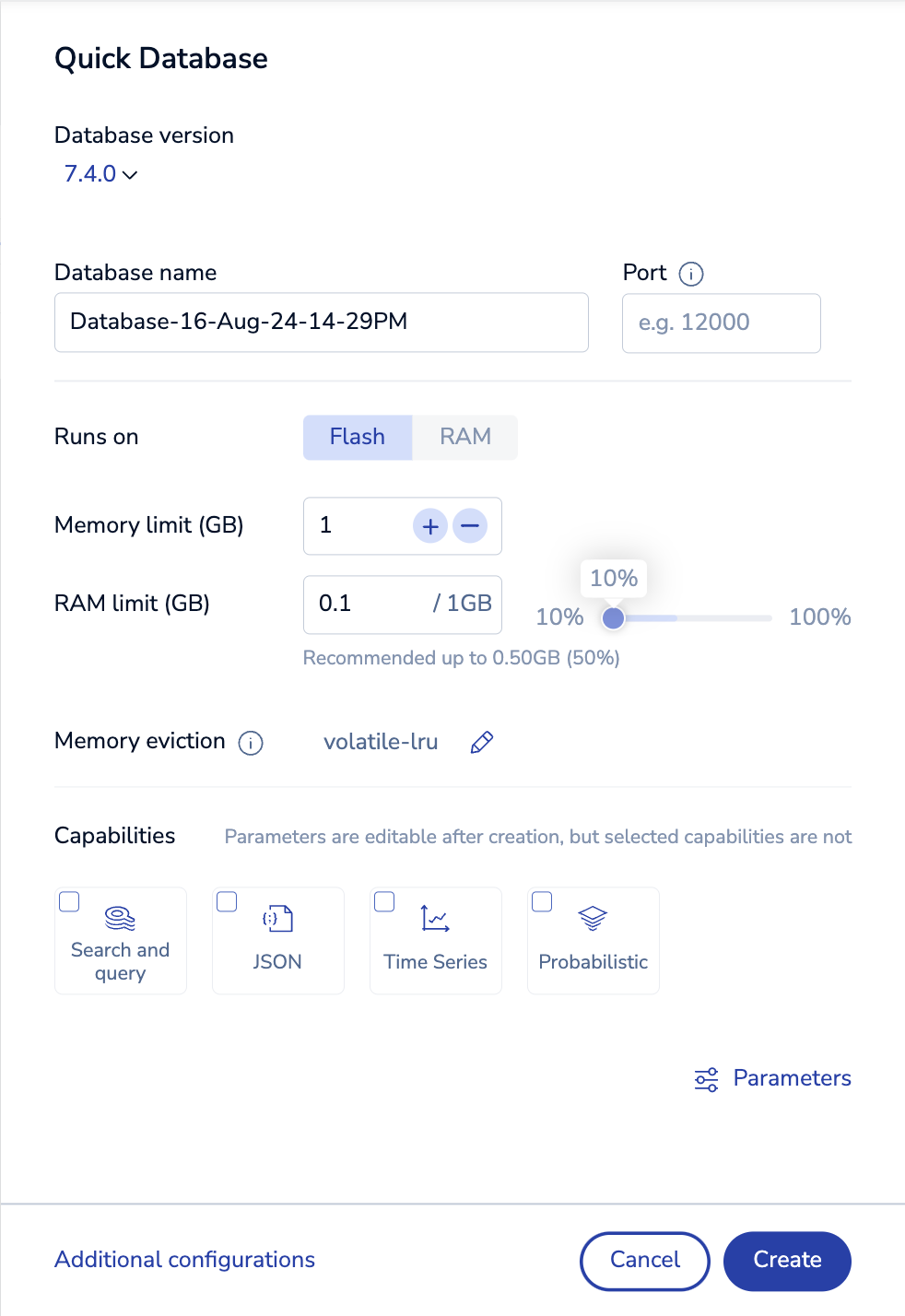
Select Quick database.
-
Verify Flash is selected for Runs on.
-
Enter
12000for the endpoint Port number. -
Optionally, select Full options to see available alerts.
-
Click Create.
You now have a Flex database.
Connect to your database
After you create the database, you can connect to it and store data. See Test client connection for connection options and examples.
Next steps
To see the true performance and scale of Flex, you must tune your I/O path and set the flash path to the mounted path of SSD or NVMe flash memory.