Billing & payments
Describes how to view billing transactions and manage payment methods for Redis Cloud subscriptions.
| Redis Cloud |
|---|
The Billing & Payments screen:
- Shows recent transactions for your account
- Helps you manage your payment methods
- Applies coupon credits to your account
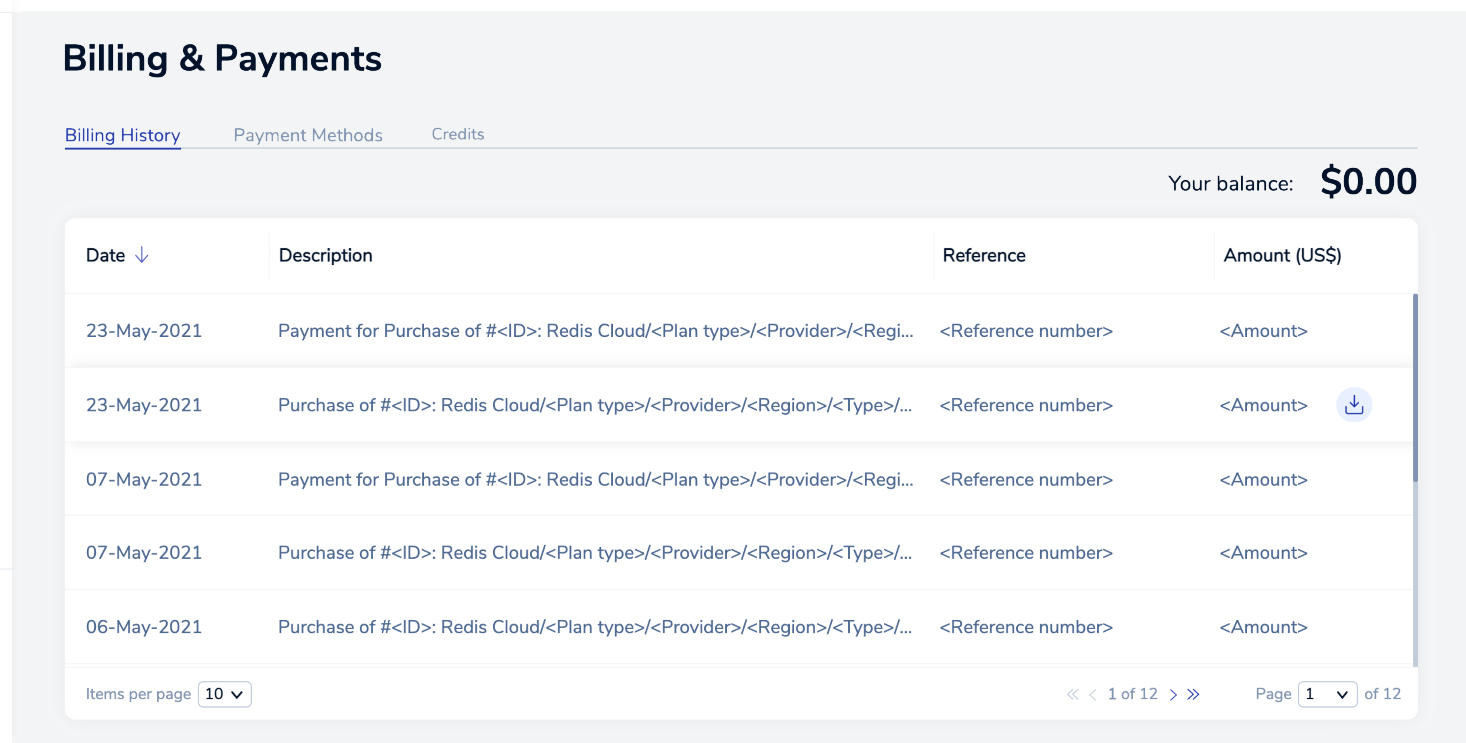
The following tabs are available:
-
The Billing History tab displays recent charges and payments. Each transaction includes the following details:
Detail Description Date Date the transaction was recorded Description Description of the transaction Reference Reference number Amount Transaction amount Billing details may vary between regions.
You can download invoices on this tab.
A Pay Now button appears in selected regions.

Select this button to pay your invoice.
-
The Payment Methods tab lists your current payment methods. Your account uses a single default credit card for all active subscriptions. A Default badge identifies that card, but only when your account has more than one stored card; if you have only one card, it's implicitly the default.
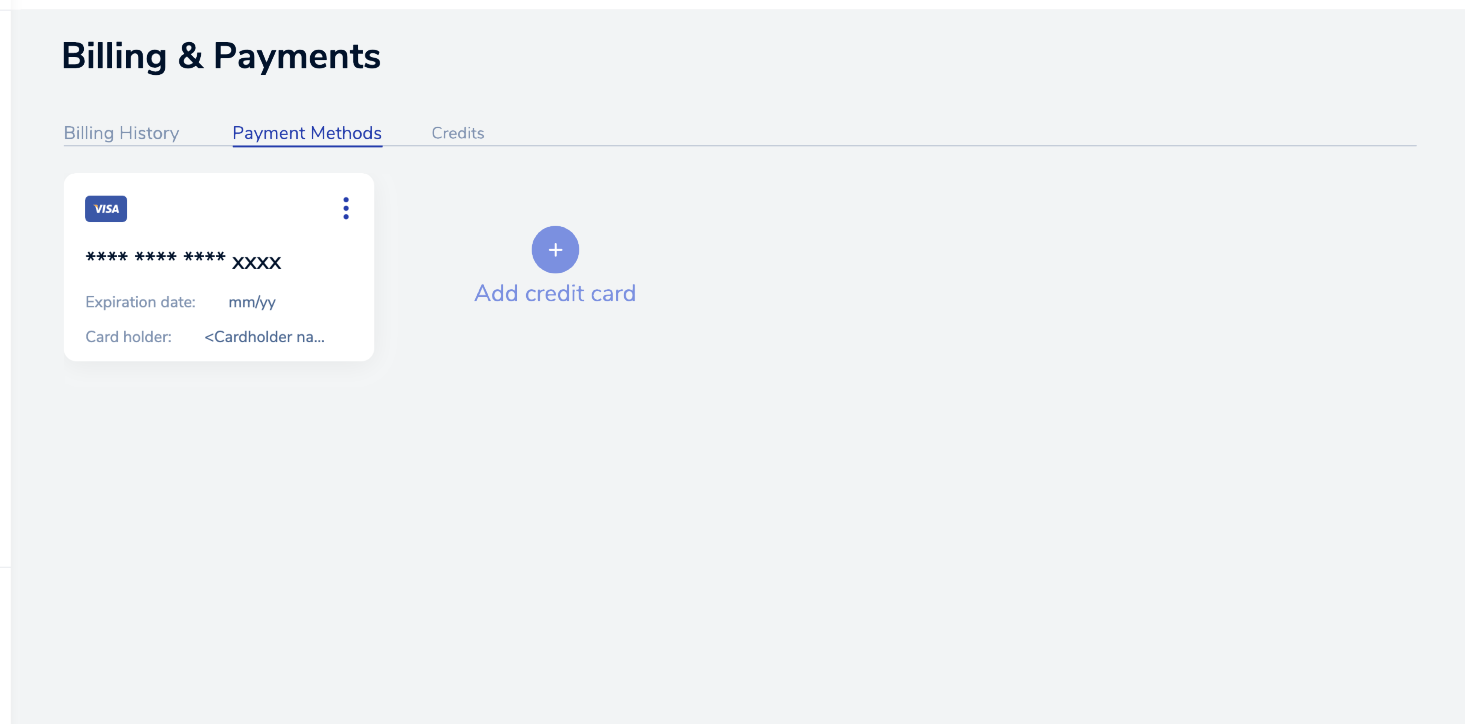
Select Add credit card to enter new credit card details, or Add marketplace account to add a Google Cloud Marketplace or AWS Marketplace account. See Set the default credit card and Remove a credit card.
Note:If your account has more than one stored credit card, Redis Cloud shows a banner on login and on the Payment Methods page asking you to remove any cards you're not using: "Please remove any unused cards from your account. You can manage your credit cards anytime from the Billing & Payments page." You can dismiss this banner and continue using the console.
-
The Credits tab shows coupon credits that have been applied to your account, if any.
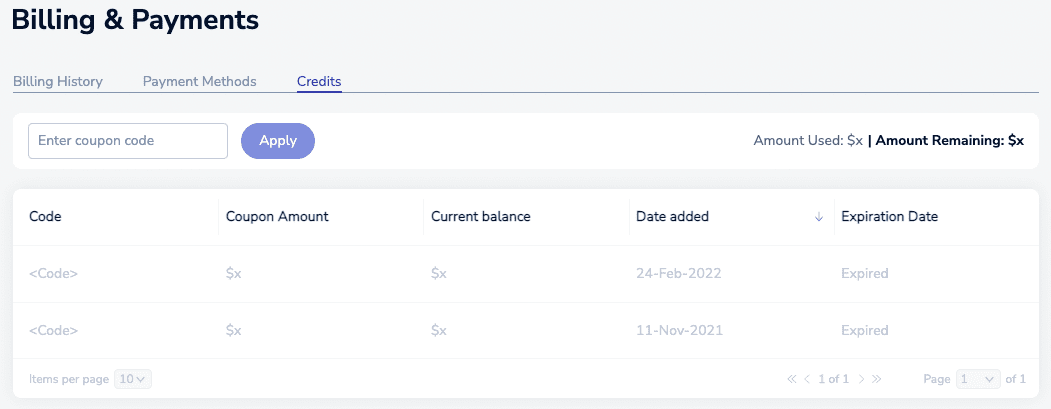
Detail Description Code Coupon code Coupon Amount Amount credited to your account Current Balance Amount left Date added Date applied to your account Expiration Date Date the amount expires You can apply a coupon on this tab.
Download invoice
To download an invoice:
-
In the Redis Cloud console, select Billing & Payments.
-
From the Billing History tab, locate and select the invoice.
-
Select the Download invoice icon displayed to the right of the invoice amount.

The invoice is downloaded as an Acrobat PDF file. Use your browser's download features to manage the file.
Add credit card
To add a new credit card:
-
In the Redis Cloud console, select Billing & Payments > Payment Methods.
-
Select Add credit card and add the credit card details.
If you have not already added a business address to your account, you must enter one. Redis uses your business address for communication, invoicing, and tax purposes.
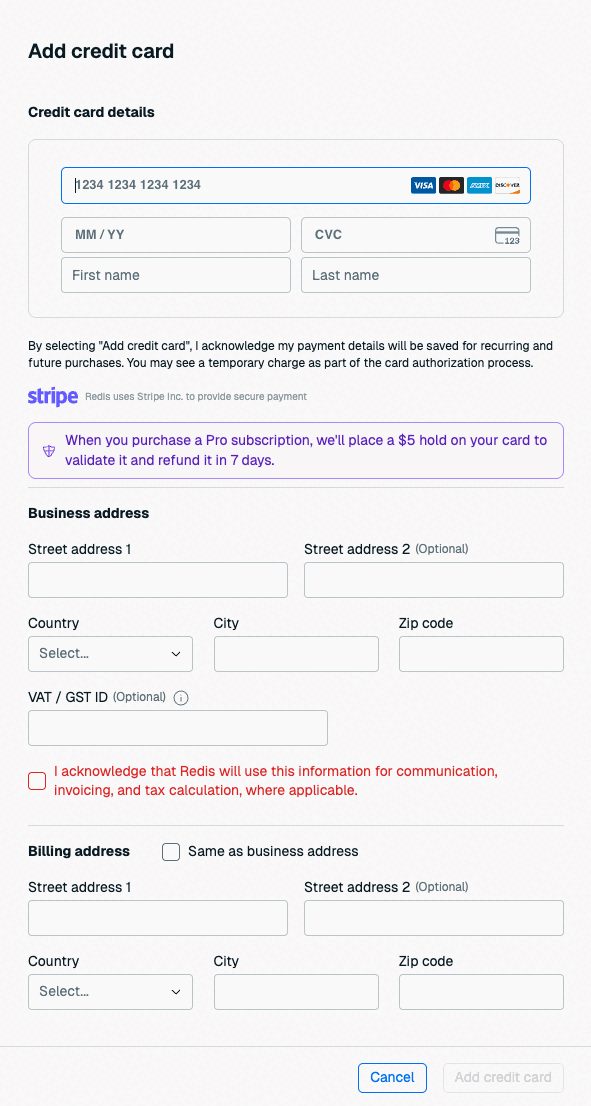
If you already have a business address, you don't need to enter one here. See Account settings to learn how to update your business address.

If the card's billing address is the same as your account's business address, select Same as business address to fill the billing address with your business address details.
-
Select the Add Credit Card button to save your changes.
 Note:
Note:If this is the only credit card on your account, Redis Cloud automatically sets it as your default card. While your account has only one stored card, Add credit card is unavailable and you can't remove that card; use Update Card to change its details instead.
Set the default credit card
Your account's default credit card applies to all active subscriptions. To change it:
-
In the Redis Cloud console, select Billing & Payments > Payment Methods.
-
Locate the card you want to use, then select Set as Default.
-
In the Change default credit card dialog, select Confirm.
Changing your default credit card applies that card to all active subscriptions in your account that use a credit card as their payment method.
If your account has more than one credit card actively used across different subscriptions, an Account Admin or Billing Admin must choose a single default card. Starting October 1, 2026, that admin sees a dialog on login listing each stored card by its last 4 digits, expiration date, and name on card. You must select a card and select Confirm Default Card to continue to the console; you can't close or dismiss this dialog without selecting a card.
After you confirm a default card, Redis Cloud applies it to all active subscriptions in your account.
Remove a credit card
To remove a credit card you no longer use:
-
In the Redis Cloud console, select Billing & Payments > Payment Methods.
-
Locate the card, then select Remove.
You can't remove your default credit card. If you try, Redis Cloud shows this message: "You cannot delete your default credit card. Please set another card as default first." Set a different card as default first, then remove the one you no longer need.
If your account has only one stored credit card, Remove is unavailable, because your account always needs a default credit card.
Add marketplace account
If you have a Google Cloud Marketplace or AWS Marketplace account already associated with another Redis Account that you own, you can add it to your current account.
To do this:
-
In the Redis Cloud console, sign in to the account you would like to associate with your marketplace account.
-
Select Billing & Payments > Payment Methods.
-
Select Add Marketplace account.
-
Select the marketplace account you want to connect and confirm that it will pay for your Redis Cloud resources going forward.
-
Select Connect account.

Your marketplace account is now connected to your Redis Cloud account. If you would like to disconnect your marketplace account from your Redis Cloud account, select Disconnect.
Apply coupon
Coupons apply credits to your Redis Cloud account. To redeem a coupon:
-
In the Redis Cloud console, select Billing & Payments and then select the Credits tab.
-
Enter the coupon code and then select the Apply button.

The value of the coupon is applied to your account when accepted.
For help, contact Support.
Generally, charges are non-refundable.
For any special circumstances that may warrant a refund, please contact Support and be sure to provide detail about the reasons for the refund request.
Download cost report
Select the Cost report button to download a report of all shard costs in CSV format.

The report gives a breakdown of all your Redis billing unit costs, per subscription and database, by month. Subscriptions under the minimum subscription price are broken down into actual billing unit prices and the difference from minimum price.
See Cost report and How to download and visualize the cost report for more information.
Troubleshoot
See Billing on the Redis knowledge base for help troubleshooting billing issues: