View and manage Context Retriever admin keys
View and manage Context Retriever admin keys in Redis Cloud.
| Redis Cloud |
|---|
After you have created your first Context Retriever service, you can view and manage your admin keys from the Admin keys tab in the Context Retriever section of the Redis Cloud console.
A Context Retriever admin key authorizes administrative operations against Context Retriever in your Redis Cloud account, such as creating, updating, or deleting services and their entity models. You can use it with the Context Surfaces Python Client and cxtctl CLI to create an Agent key and call your tools.
Admin keys tab
From the Redis Cloud console, select Context Retriever from the left-hand menu, then select the Admin keys tab.
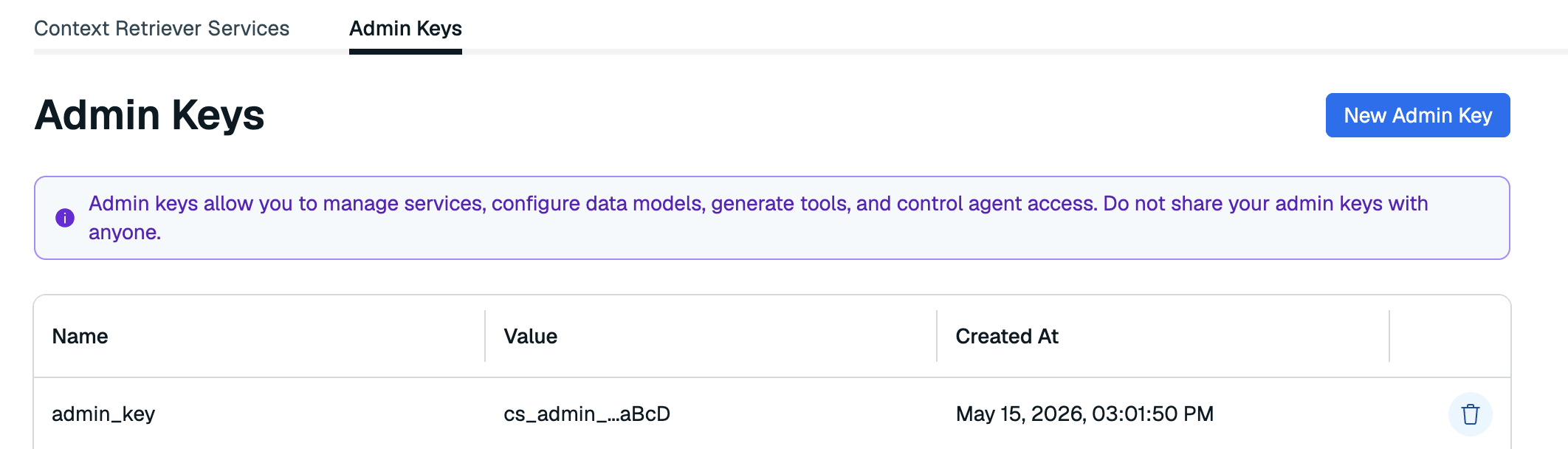
This tab shows a list of all admin keys associated with Context Retriever in your account. Here, you can generate a new admin key or remove any keys that are no longer in use. You can generate or remove admin keys at any time.
| Column | Description |
|---|---|
| Name | The name you assigned to the admin key when you created it. |
| Value | An abbreviated value of the admin key. |
| Created | The date and time the admin key was generated. |
Generate a new admin key
To generate a new admin key:
-
Select New admin key.

-
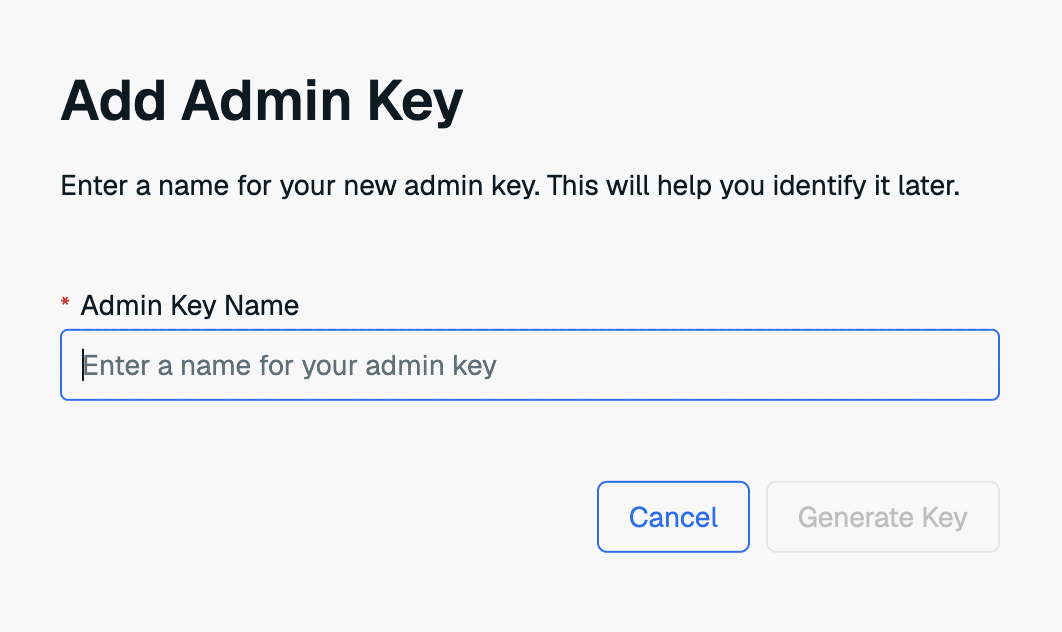
Enter a name for your admin key.
-
Select Generate key to generate your new admin key.
-
The new key will appear in a dialog box. Select Copy to copy the key to the clipboard.
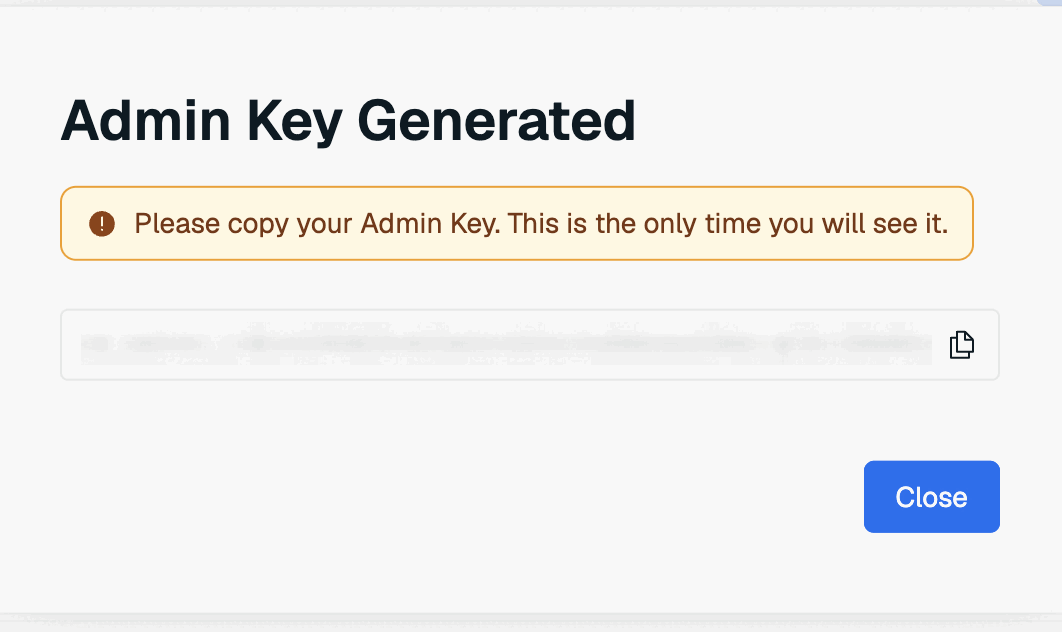 Warning:
This is the only time the value of the admin key is available. Save it to a secure location before closing the dialog box.
If you lose the admin key value, you will need to generate a new admin key.
Delete an admin key
To delete an admin key, select the Delete admin key button next to the key you want to remove.

Deleting an admin key immediately revokes any administrative operations that rely on it. This action cannot be undone.