Create data pipeline
Connect one or more source databases to a Redis Cloud target and define your data pipeline.
| Redis Cloud |
|---|
After you have prepared each source database and created a workspace, you can create a pipeline. One pipeline can ingest data from several source databases into one Redis target.
In the Redis Cloud console, open your target database's Data Integration tab and select Add pipeline. You can also open the workspace from the Data Integration page or your subscription's Data Integration tab. To continue an existing draft, open its actions menu and select Resume pipeline setup.

To create a pipeline:
- Settings: Select the shared target, default data structure, and processor properties.
- Add sources: Select source types and give each source a unique name.
- Configure source: Configure and test connectivity and credentials for each source.
- Select data: Select schemas, tables, and columns for each source.
- Add transformations: Add jobs and assign them to sources.
- Review & deploy: Review all sources and deploy the pipeline.
Settings
-
Select the target from the Target database list. All sources write to this database.

-
Select Hash or JSON as the Default data structure. Transformation jobs can override how individual records are written.
-
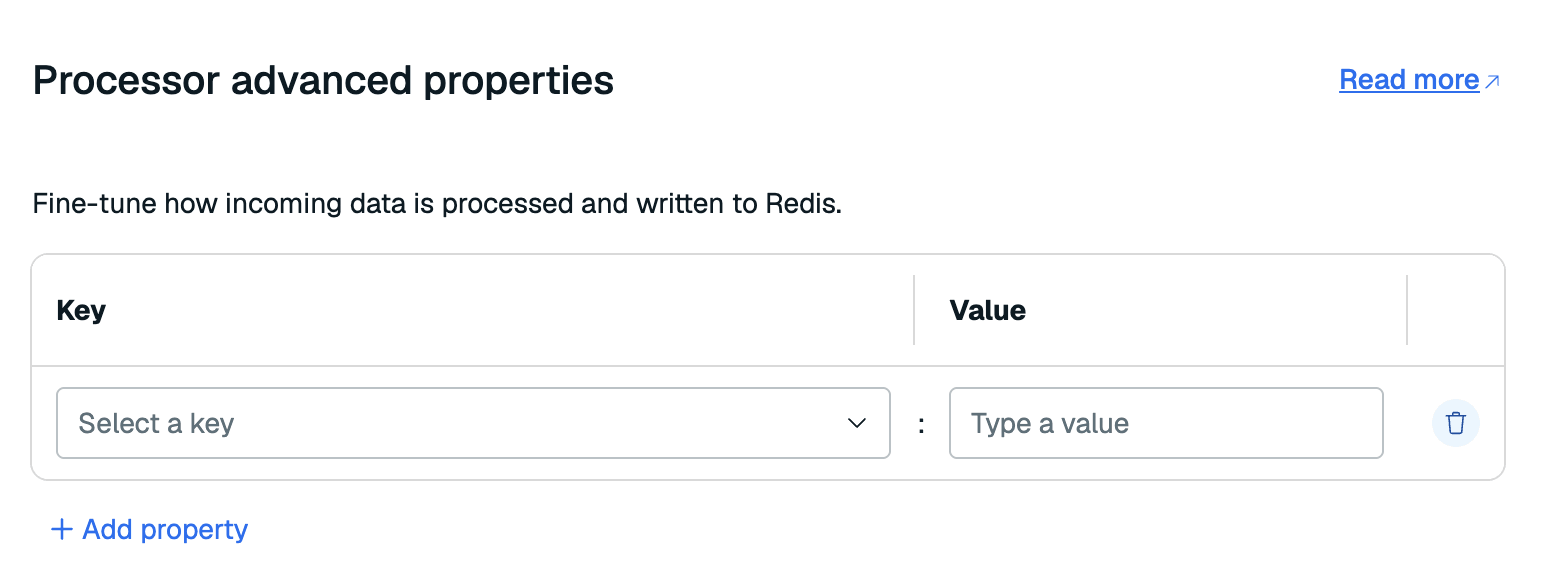
If needed, configure Processor properties. These apply to the whole pipeline, not to an individual source. See the processor configuration reference.
-
Select Continue.
RDI Cloud uses the Flink processor.
Add sources
- Select a source database type: MySQL, MariaDB, Oracle, SQL Server, PostgreSQL, MongoDB, or Snowflake (Preview).
- Enter a unique Source name, for example
inventory-mysql. Use up to 22 characters: lowercase letters, numbers, and hyphens. Start with a lowercase letter and end with a letter or number. The namesrdi,source,target, andapicannot be used for sources. - To include another source, select Add source in the Sources list and repeat these steps. You can combine different database types or add several sources of the same type.
- Select Continue.
The source name identifies the source in the pipeline configuration and transformation jobs; it is not just a display label. These naming rules were introduced with RDI 2.0.0. Sources that existed before the upgrade retain their names, even if they do not meet these rules.
Select a source in the Sources list to configure its connection and dataset. Each source has separate progress indicators for its details, configuration, and data selection.
Configure source
Repeat the following configuration for every source. The Configure source step has three expandable sections:
Complete the sections and select Test source. Correct any reported errors before continuing. Select each other source and test its configuration, then select Continue to open Select data.
Source connectivity
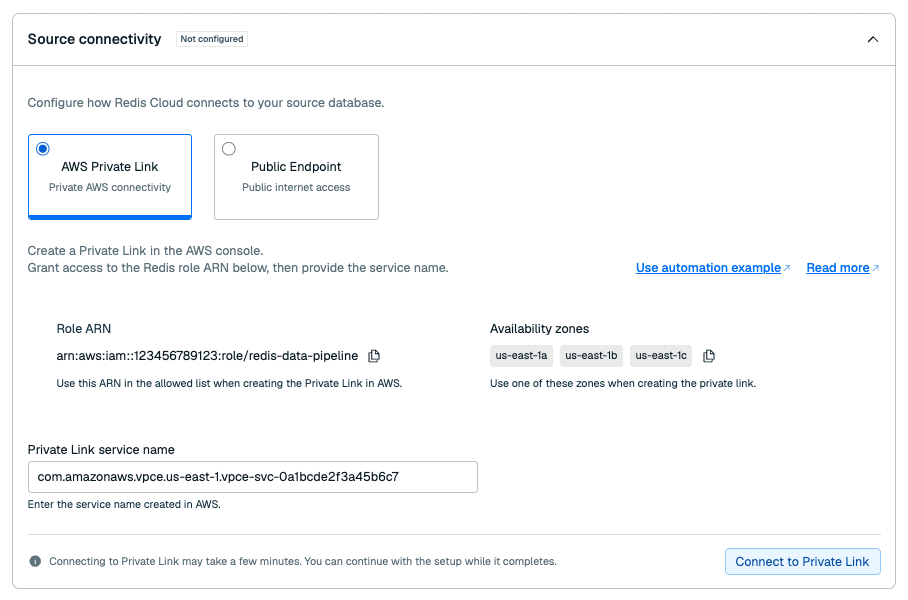
Choose AWS Private Link or Public Endpoint for the selected source, according to its connectivity requirements.
-
For AWS Private Link, enter the Private Link service name from your endpoint service. Select Connect to Private Link and wait for connectivity to complete. If the connection fails, check the service name and its allowed principal.
-
For Public Endpoint, enter the source IP address or hostname. Add the Redis Cloud outbound IP address shown in the console to your source database's allowlist.
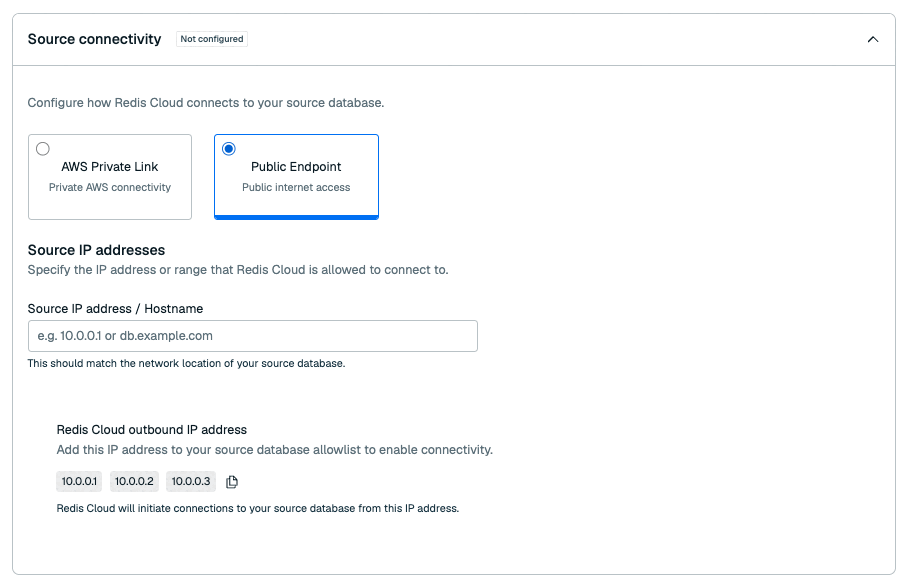
Configure connectivity for each source separately. Sources in the same pipeline can use different connectivity methods.
Secrets
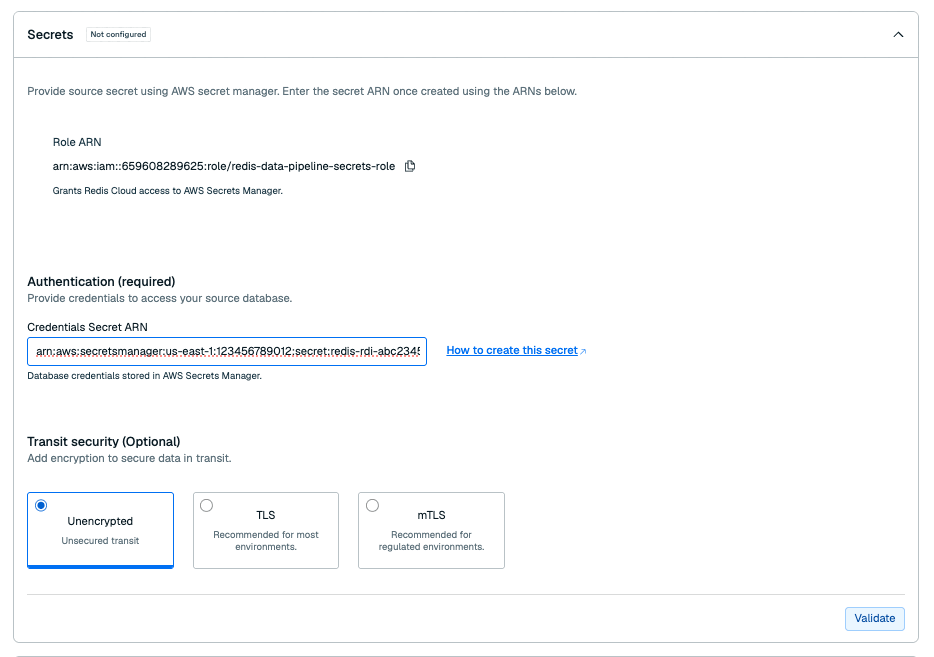
Enter the Amazon Resource Name (ARN) of the selected source's database credentials secret in Credentials Secret ARN.
For Snowflake, select the authentication method matching your secret:
- Password: The credentials secret contains
usernameandpassword. - Key-pair: The credentials secret contains
username; anypasswordis ignored. Provide the private key secret ARN. The private key is stored in plain text PEM format.
Under Transit security, select the mode required by your source:
-
TLS (Transport Layer Security): Provide the CA certificate secret ARN when your source requires it.

-
mTLS (mutual TLS): Provide the CA certificate, client certificate, and client private key secret ARNs. Also provide the client key passphrase secret ARN if the key is encrypted.
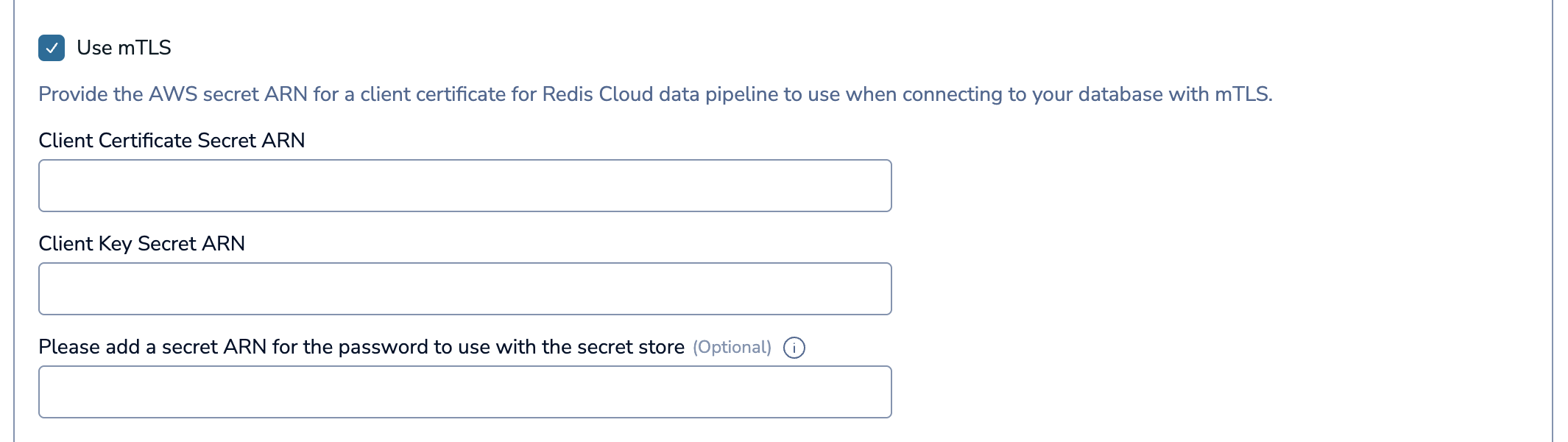
Select Validate to check access to the selected source's secrets. Repeat this for each source. The AWS secret contents and permissions are described in Share source database credentials.
Source configuration
Enter the selected source's database settings. The fields depend on the database type and can include:
- Port: The source database port.
- Database(s): The database name, or a comma-separated list for source types that support multiple databases.
- Database Server ID: A replication client ID for MySQL or MariaDB. Use a different ID for each collector connecting to the same database server.
- PDB: The Oracle pluggable database.
- Connection string: The MongoDB connection information.
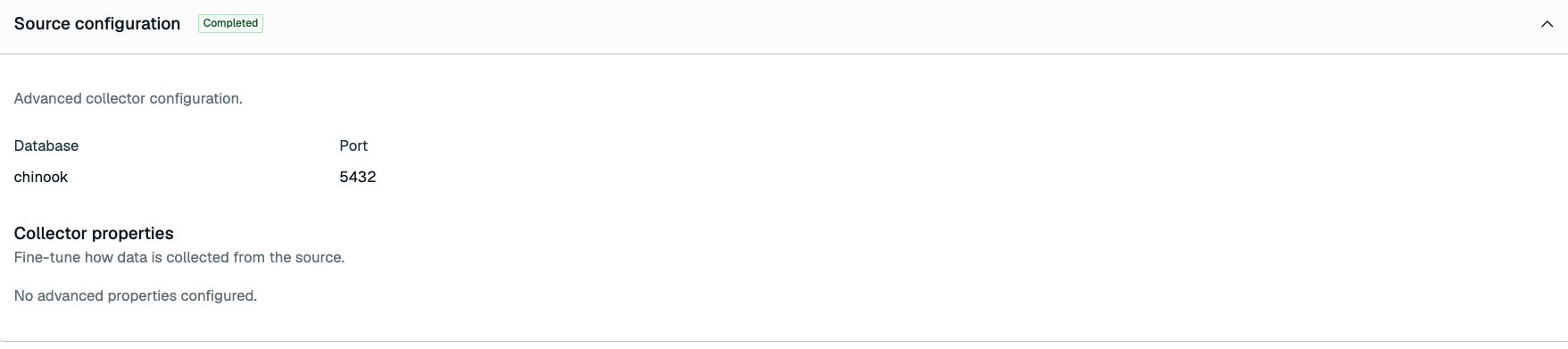
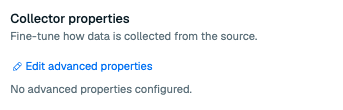
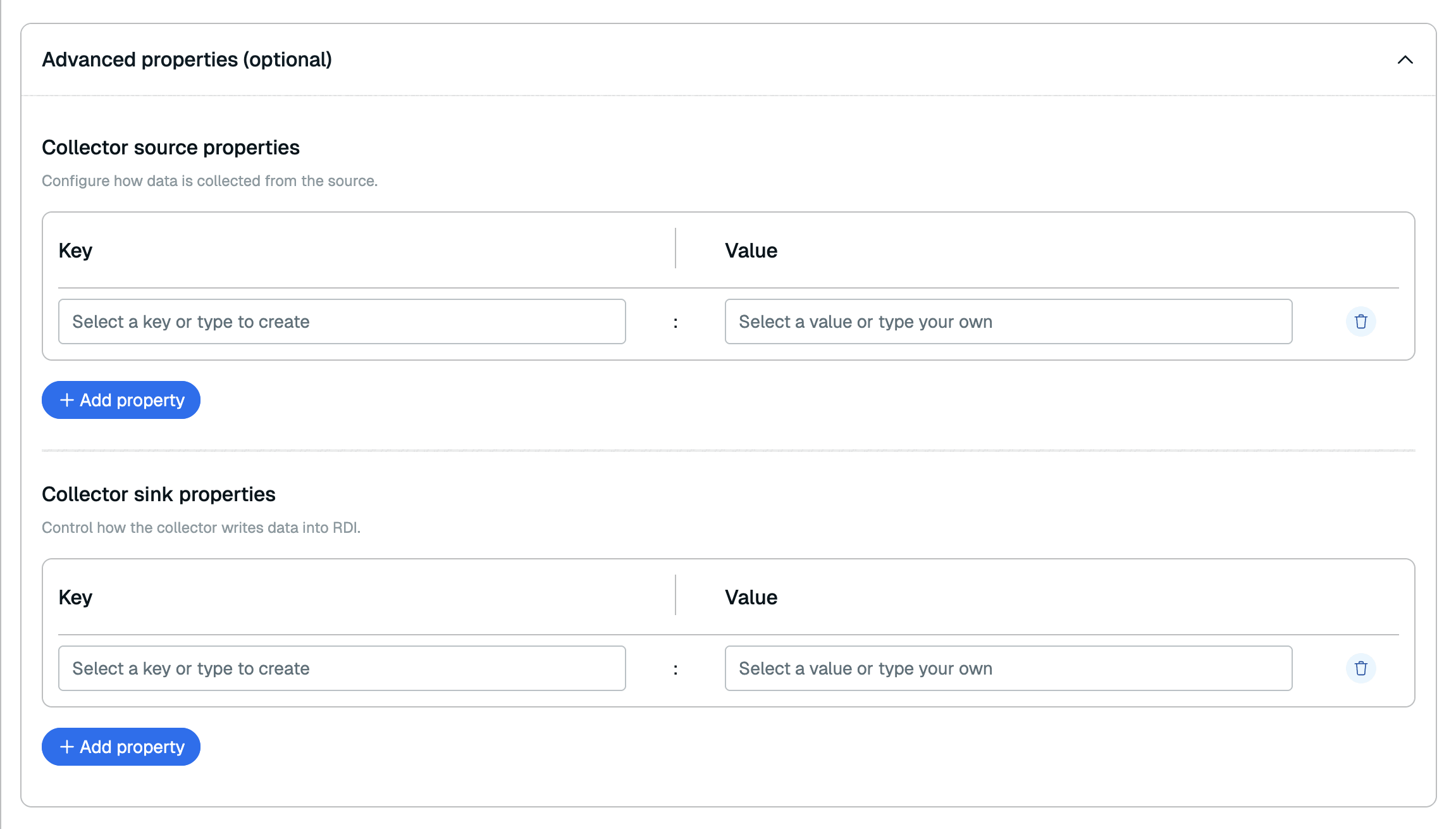
Use Collector properties for additional source and sink settings. These settings apply to the selected source. See the collector source properties and collector sink properties.
Select data
Select each source in the Sources list and choose the data to ingest from that source.
Do not write data directly to keys managed by RDI. Changes from another application can cause transformation failures or data inconsistencies, and RDI can overwrite them. A pipeline reset does not flush the target database. Flush target database is a separate action that deletes all target data, including data written outside RDI. See Data recovery.
-
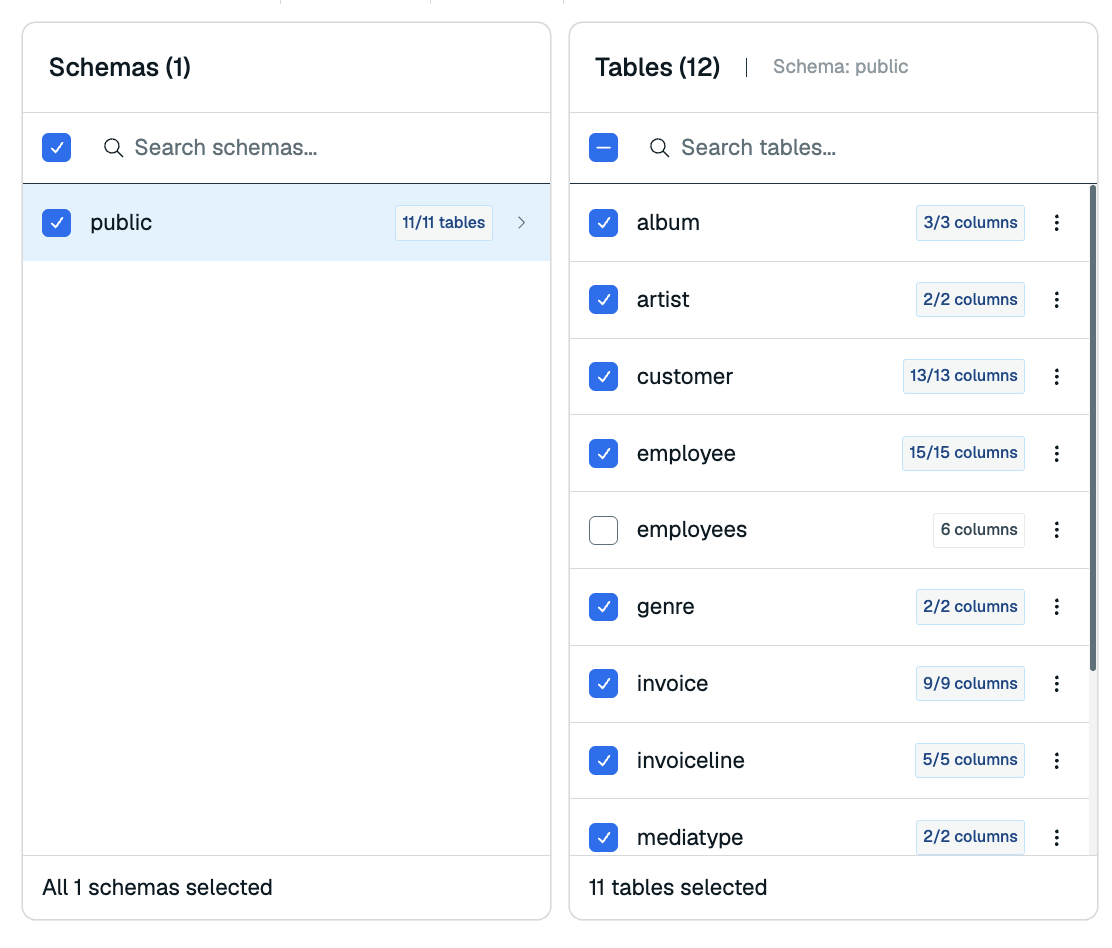
Select a schema in Schemas to see its tables.
-
Select the tables to ingest in Tables.
-
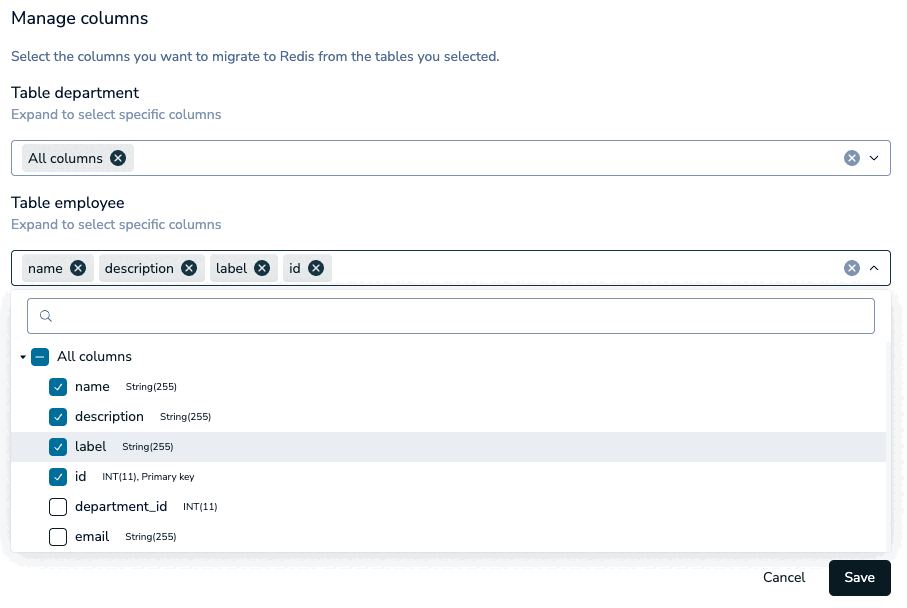
Select a table to see its Columns, then select the columns to ingest.
-
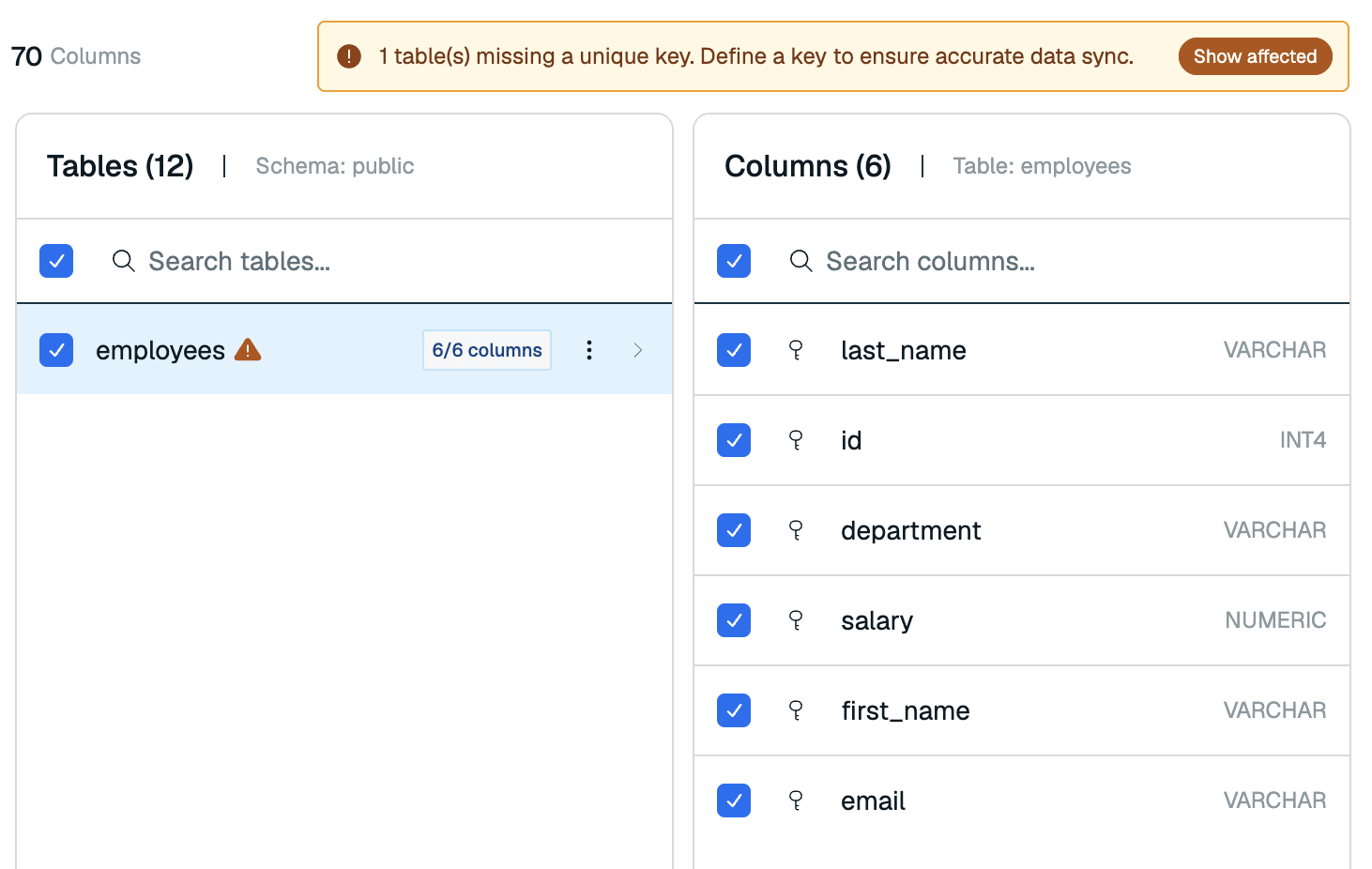
If a table has no unique key, use the key control next to the column that identifies each record. Review any missing-key warnings before continuing.

-
Repeat for the other sources, then select Continue.
The available schema, table, and column controls depend on the source type. Each source keeps its own selection, including when two sources contain tables with the same name.
Add transformations
Transformation jobs are optional. Without a matching job, RDI writes records using the pipeline's default data structure.
-
Select Upload jobs to upload the transformation job files needed for your selected tables.
-
Check the Source name assignment for each job. In a multi-source pipeline,
source.server_nameidentifies the source the job reads from. Select the source name you chose during setup. -
Review each job's validation status and correct errors.

-
Select Continue to review & deploy.
For the Flink processor, source matchers can use lists or entries prefixed with regex: to select several tables. Jobs must not overlap on the same table. See Transformation examples.
Review and deploy
Review every source's connection, selected data, and transformation jobs, together with the shared target and settings. Use the source actions to return to a section that needs changes.
Select Deploy pipeline to start the pipeline. Each source performs its initial snapshot and then captures ongoing changes. Snapshot duration depends on the amount of selected data and source performance.

Open the pipeline's Dashboard and Metrics tabs to follow progress for each source.