View and edit data pipeline
Observe and change your data pipeline.
| Redis Cloud |
|---|
To manage a pipeline, select it from your workspace on the Data Integration page or from the Data Integration tab of your subscription or database.
The pipeline page has the following tabs:
Use the Sources list in Metrics, Configuration, and Dataset to select the source you want to inspect. Settings applies to the whole pipeline. Transformations lists jobs with their source assignments.
Dashboard
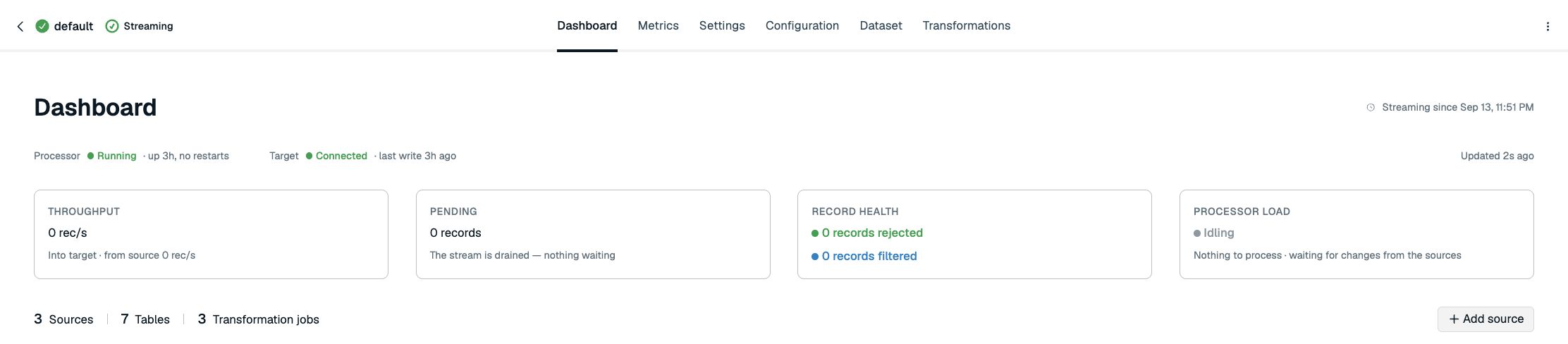
The Dashboard shows pipeline health, processor and target status, throughput, pending records, record health, and processor load. It also shows the number of sources, selected tables, and transformation jobs.
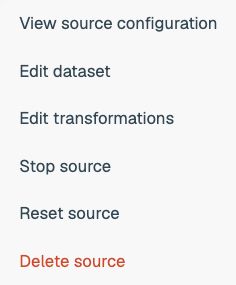
Each source has a card showing its database type, name, activity, and status. Expand a card for more details. Open the source's More actions menu to view its configuration, edit its dataset or transformations, or manage the source.
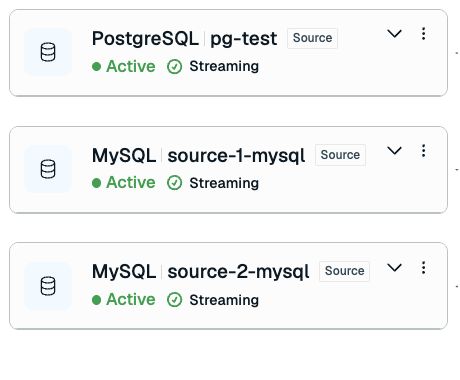
A pipeline can be streaming, stopped, or in an error or transitional state. If there is a problem, you can use the source cards and Metrics tab to identify the affected source before taking remedial action. Pipeline health and individual source status can differ, for example when one source is stopped.
Add a source
- On Dashboard, select Add source.
- In Add sources, select Add source in the Sources list, choose the new database type, and enter a unique source name. Existing sources remain listed with their connection details read-only.
- Complete Configure source, Select data, and Add transformations for the new source. See Create data pipeline for the configuration steps.
- Review the changes in Review & deploy and select Deploy pipeline.
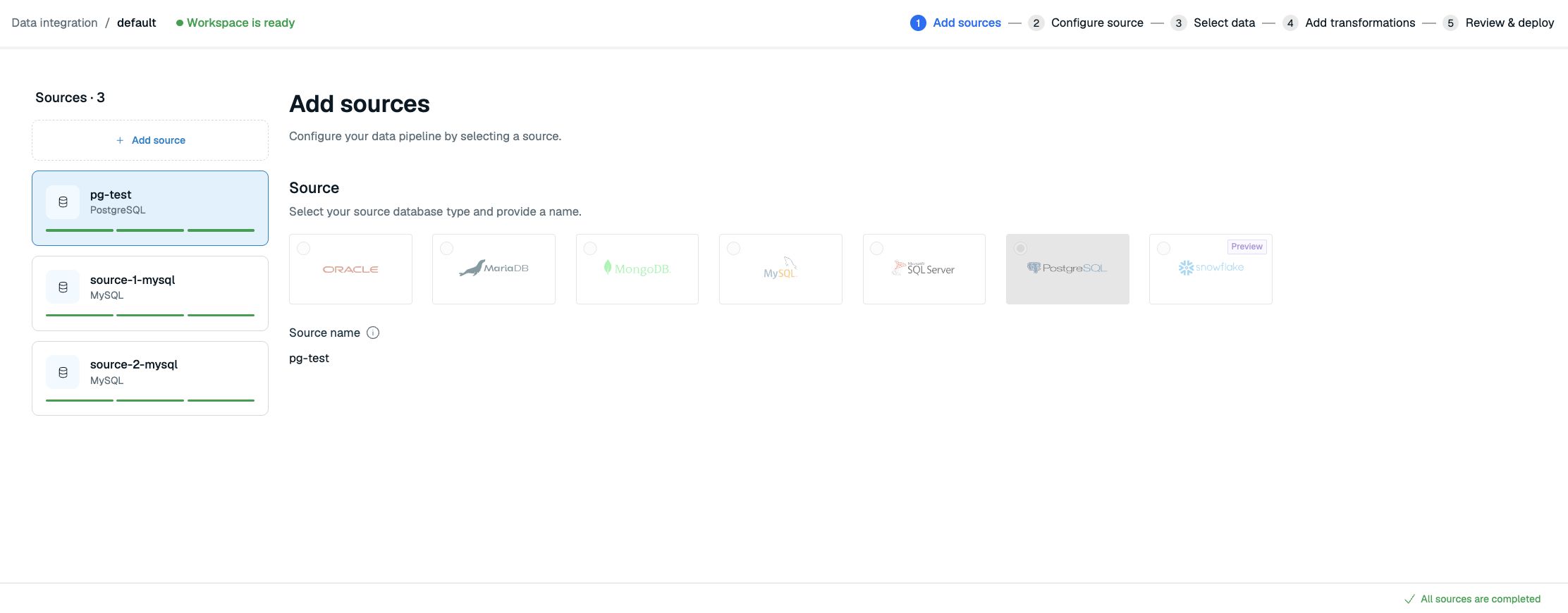
Adding a source keeps the existing pipeline's shared target and settings, so the wizard starts at Add sources. A source with an incomplete setup appears with Pending setup in the workspace. You can resume an existing draft setup at any time to complete it. If you remove a source, wait for the removal process to finish before adding another source.
When extending an older single-source pipeline, preserve the original source name and its existing job assignments. You do not need to recreate the pipeline to add a source.
Stop and start a source
- On Dashboard, open the source card's More actions menu.
- Select Stop source, then confirm with Stop source.
Stopping one source pauses data capture from that source without stopping the other sources. Starting it again resumes from its saved position. To resume a source, open its More actions menu and select Start source, then confirm with Start source. A source processes data only while the pipeline is running. See How does stopping sources affect billing?.
Reset a source
Resetting one source starts a new snapshot and reprocesses its selected data.
- On Dashboard, open the source card's More actions menu.
- Select Reset source.
- Review the effect and confirm with Reset source.
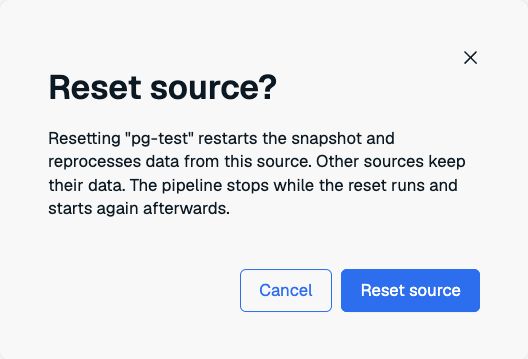
The reset clears that source's internal RDI streams, offsets, schema history, rejected records, and processing counters. The whole pipeline and all its sources restart during the reset. Other sources keep their saved positions and resume streaming. All records already in the shared target database remain, including those from the reset source. The new snapshot can overwrite records for that source. See What happens when I reset one source?.
Remove a source
Before deleting a source, remove or reassign transformation jobs that refer to it and apply the changes. RDI rejects deletion while a transformation job still refers to the source.
- On Dashboard, open the source card's More actions menu.
- Select Delete source.
- Review the confirmation and select Delete source.
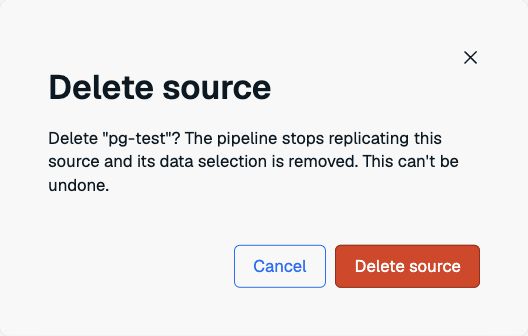
Deleting a source removes its data selection and internal RDI state, including streams, offsets, schema history, rejected records, and processing counters. Records already written to the target Redis database remain there. Other sources retain their data. The whole pipeline stops while RDI cleans up the removed source and starts again afterwards.
Source deletion cannot be undone. To remove its records from the target, see Can I flush data for a single source?.
Change target database
You can change the target to another database in the same subscription.
- On Dashboard, open the target card's More actions menu and select Change pipeline target.
- Select the new target database.
- Confirm with Change target.
All sources share the new target. Changing the target restarts the pipeline but does not automatically re-ingest existing records. Reset the pipeline if you need to copy the existing source data to the new target.
Metrics
Select a source in the Sources list to see its connection status, snapshot progress, queue usage, errors, and table-level record counts. Available collector diagnostics depend on the source type. Expand Diagnostics to see additional metrics for the selected source.
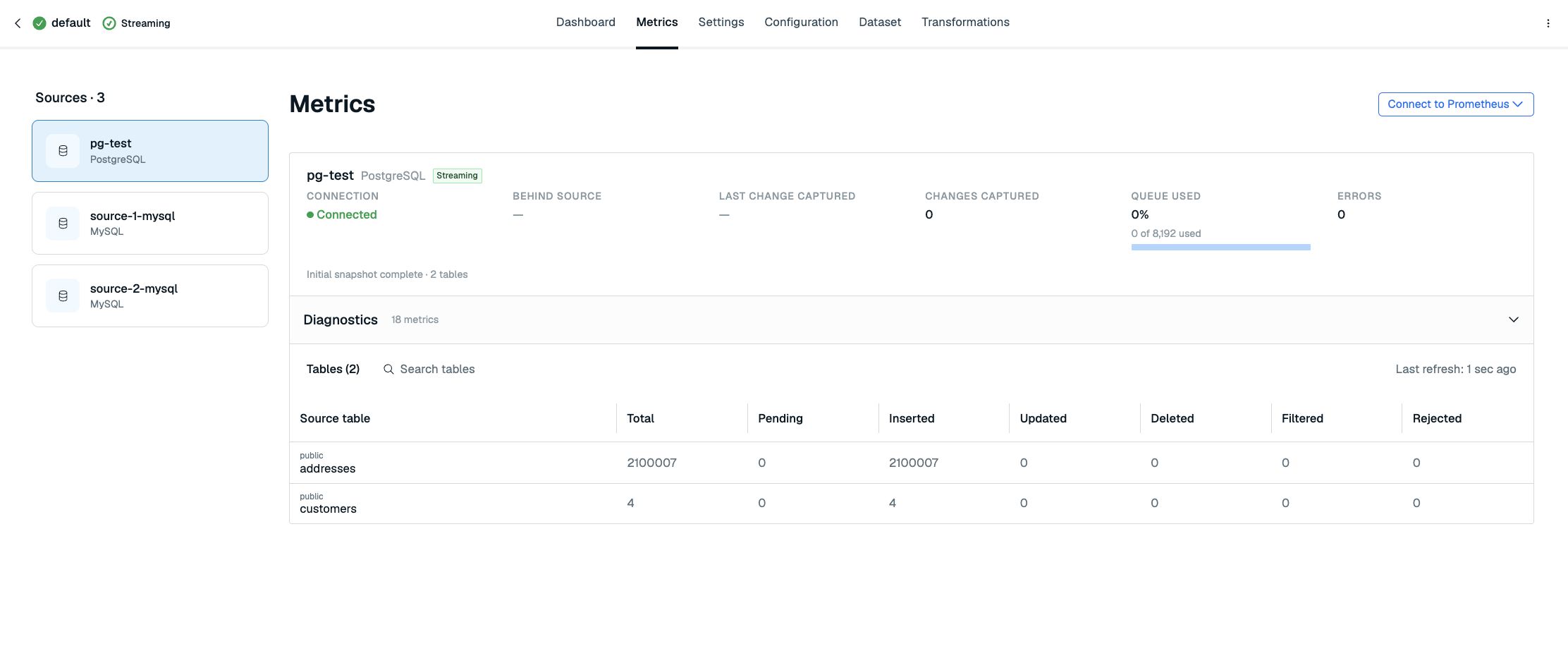
| Metric | Description |
|---|---|
| Source table | Name of the data stream. Each stream corresponds to a table from the source database. |
| Total | Total number of records that arrived from the source table. |
| Pending | Number of records from the source table that are waiting to be processed. |
| Inserted | Number of new records from the source table that have been written to the target database. |
| Updated | Number of updated records from the source table that have been updated in the target database. |
| Deleted | Number of deleted records from the source table that have been deleted in the target database. |
| Filtered | Number of records from the source table that were filtered from being inserted into the target database. |
| Rejected | Number of records from the source table that could not be parsed or inserted into the target database. Select a rejected count to open the Rejected records view for that table. |
View metrics endpoints
On Metrics, select Connect to Prometheus to view the available collector and processor endpoints. Add the required endpoints to your Prometheus configuration. Select the relevant source when inspecting per-source metrics.
Prometheus endpoints are exposed on Redis Cloud's internal network. To access this network, enable VPC peering or AWS Transit Gateway. See Prometheus and Grafana with Redis Cloud for more information.
VPC peering and AWS Transit Gateway are the tested and supported methods for accessing Prometheus endpoints. AWS PrivateLink support for this feature is under evaluation and is not currently supported.
For more information about available RDI metrics, see Observability.
Rejected records
The Rejected records view shows records that RDI sent to the dead letter queue (DLQ) because processing failed. Open it from the rejected count on the Dashboard tab or from a table-level rejected count on the Metrics tab.
The view shows:
- The total number of rejected records.
- The number of affected tables.
- The affected tables and their rejected counts.
- Rejected record IDs and rejection times.
- Safe troubleshooting metadata, such as the rejection reason, operation, affected table, and transformation job details when available. See Using the operation code for the operation labels.
Redis Cloud uses the RDI DLQ API to show a sanitized view of rejected records. It does not show the original source record payload or every field stored in the DLQ stream. To inspect the full DLQ entry, connect to the RDI database and read the corresponding DLQ stream directly.
For more information about why records are rejected and how RDI stores them, see Rejected records.
Settings
The Settings tab contains the default data structure (Hash or JSON) and advanced processor properties. These settings apply to all sources in the pipeline.
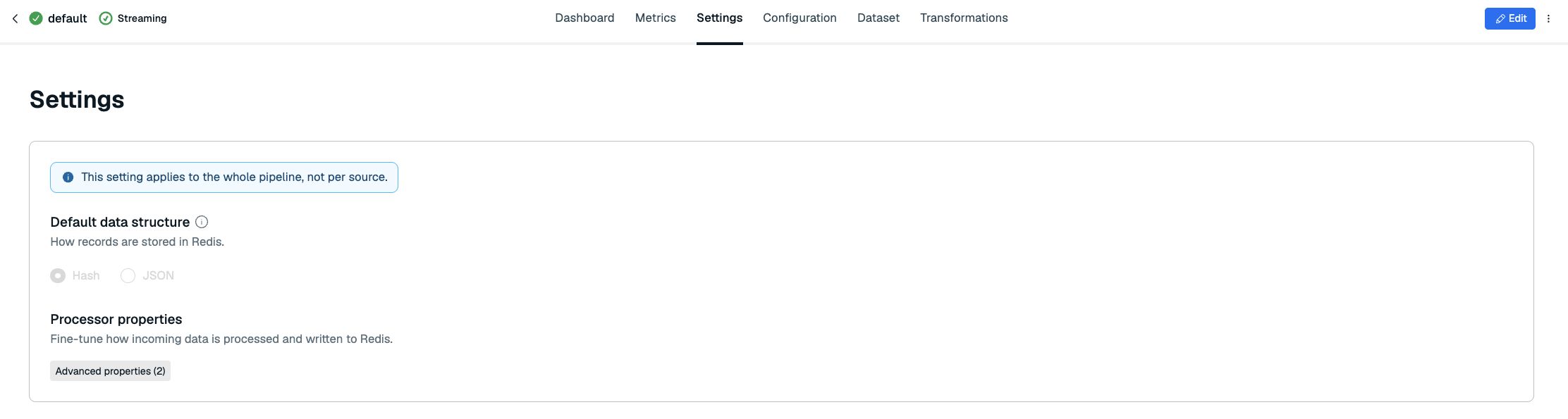
Select Edit to change these settings, then Save changes and Apply and restart. RDI Cloud uses the Flink processor. Review processor properties before changing them.
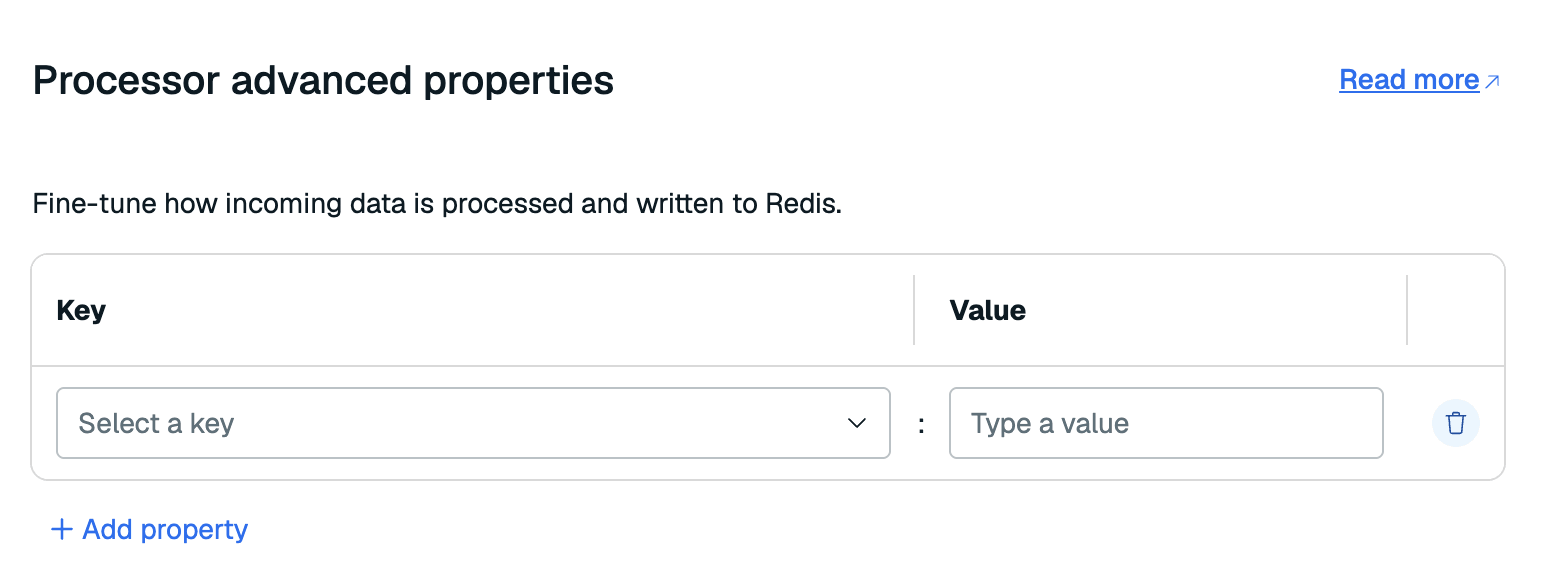
Configuration
Select a source in the Sources list to view its connectivity, secret references, and collector configuration. The connection details and secrets of a deployed source are read-only in this view.
Edit collector properties
-
Select the source in Configuration.
-
Select Edit collector properties.
-
Update the collector source properties or collector sink properties for that source.
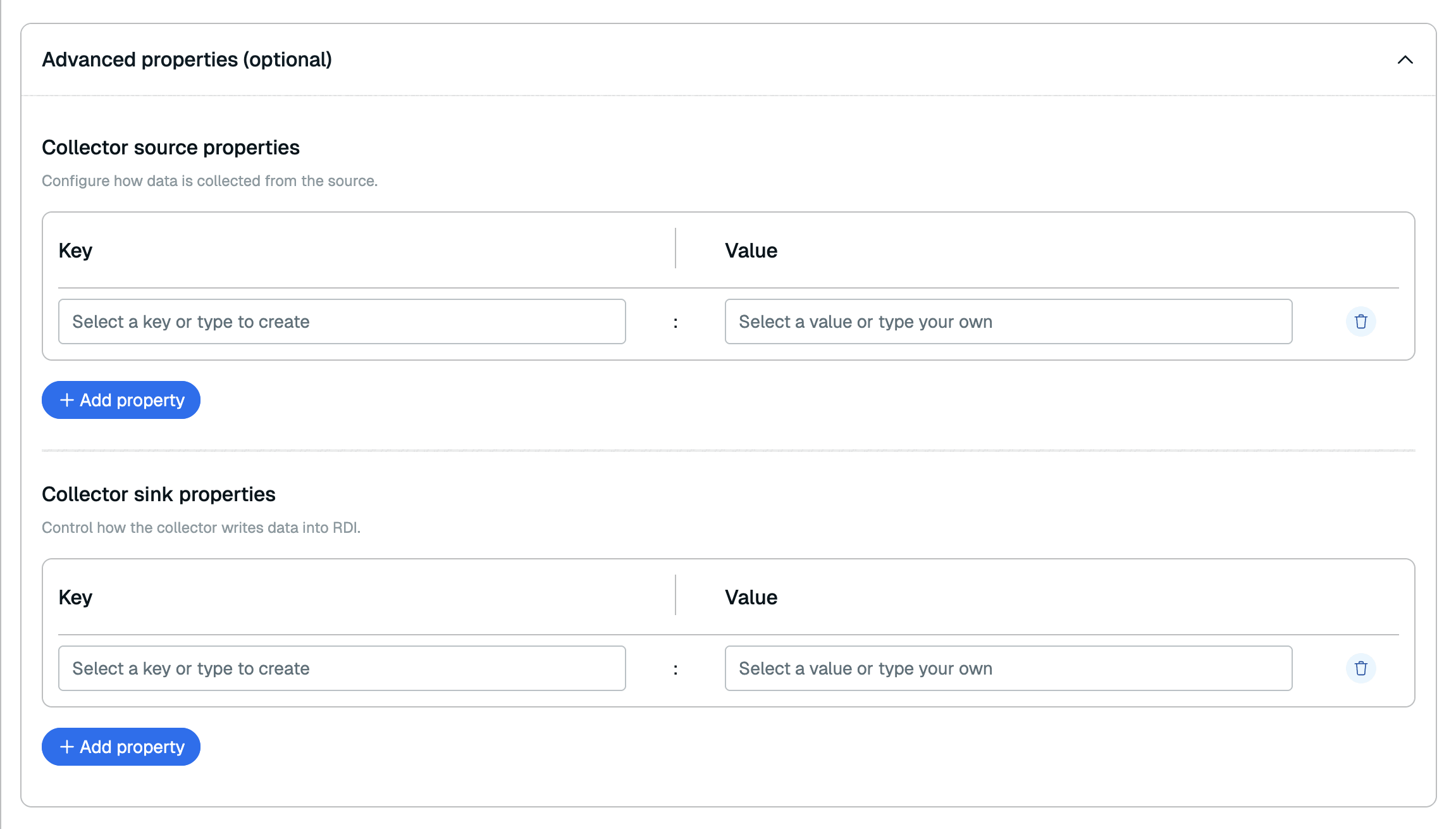
-
Save the properties and review the restart confirmation before applying the changes.
Dataset
Select a source in the Sources list to view the schemas, tables, columns, and keys selected for ingestion from that source.
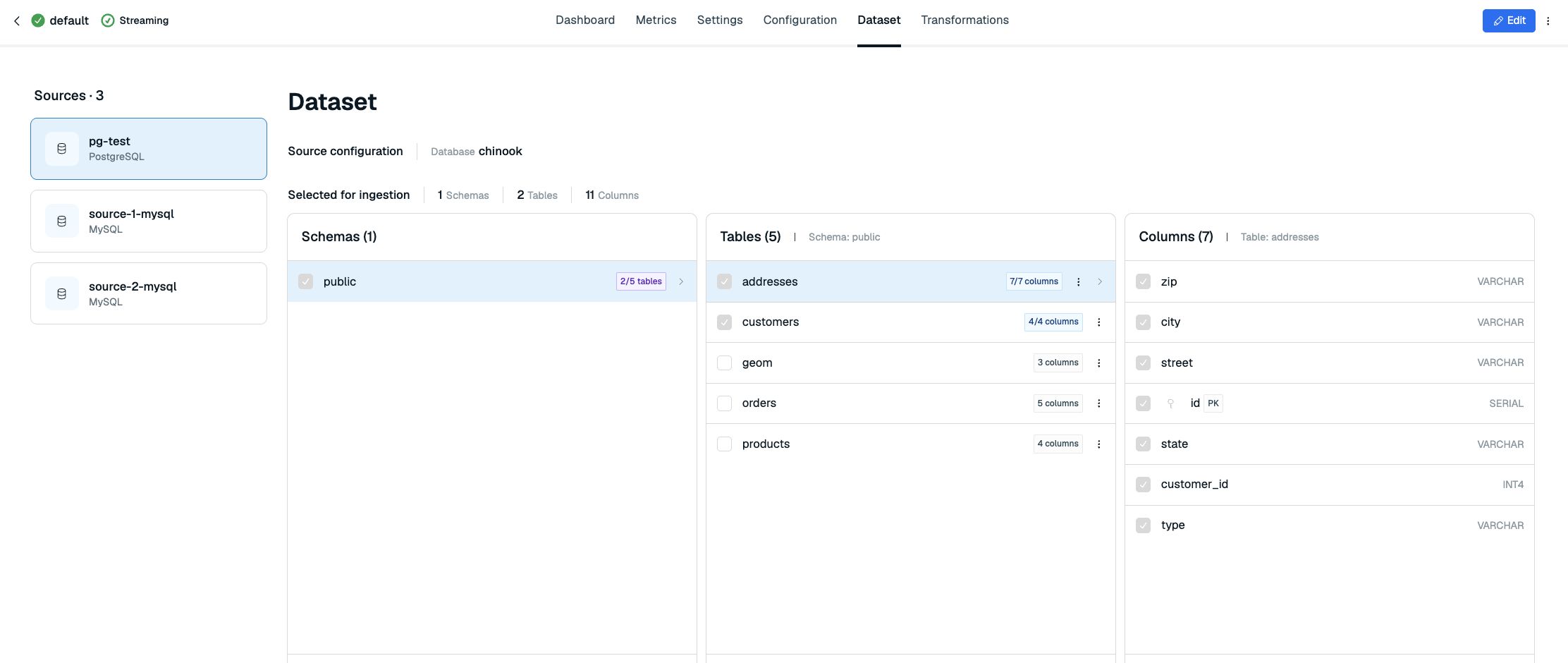
Edit dataset
-
Select the source, then select Edit.

-
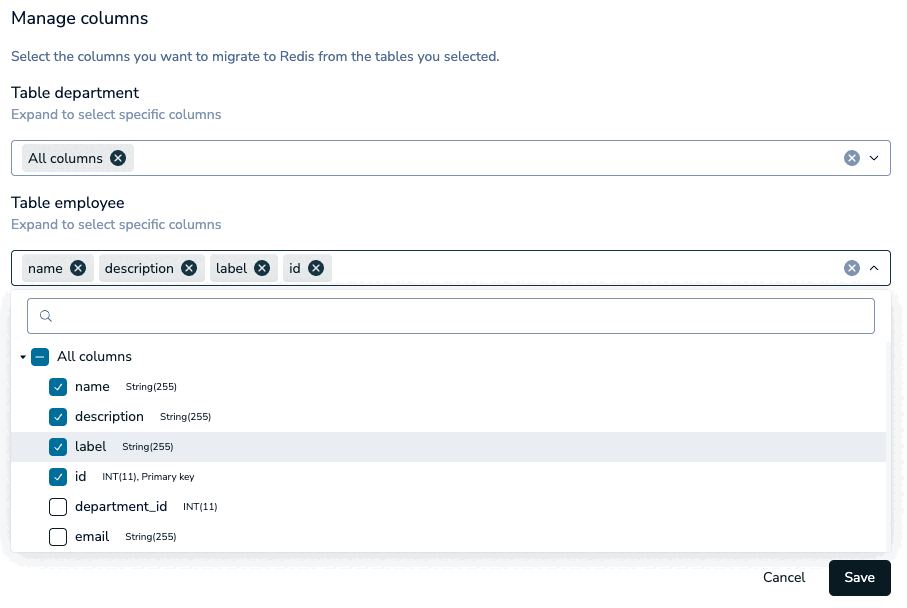
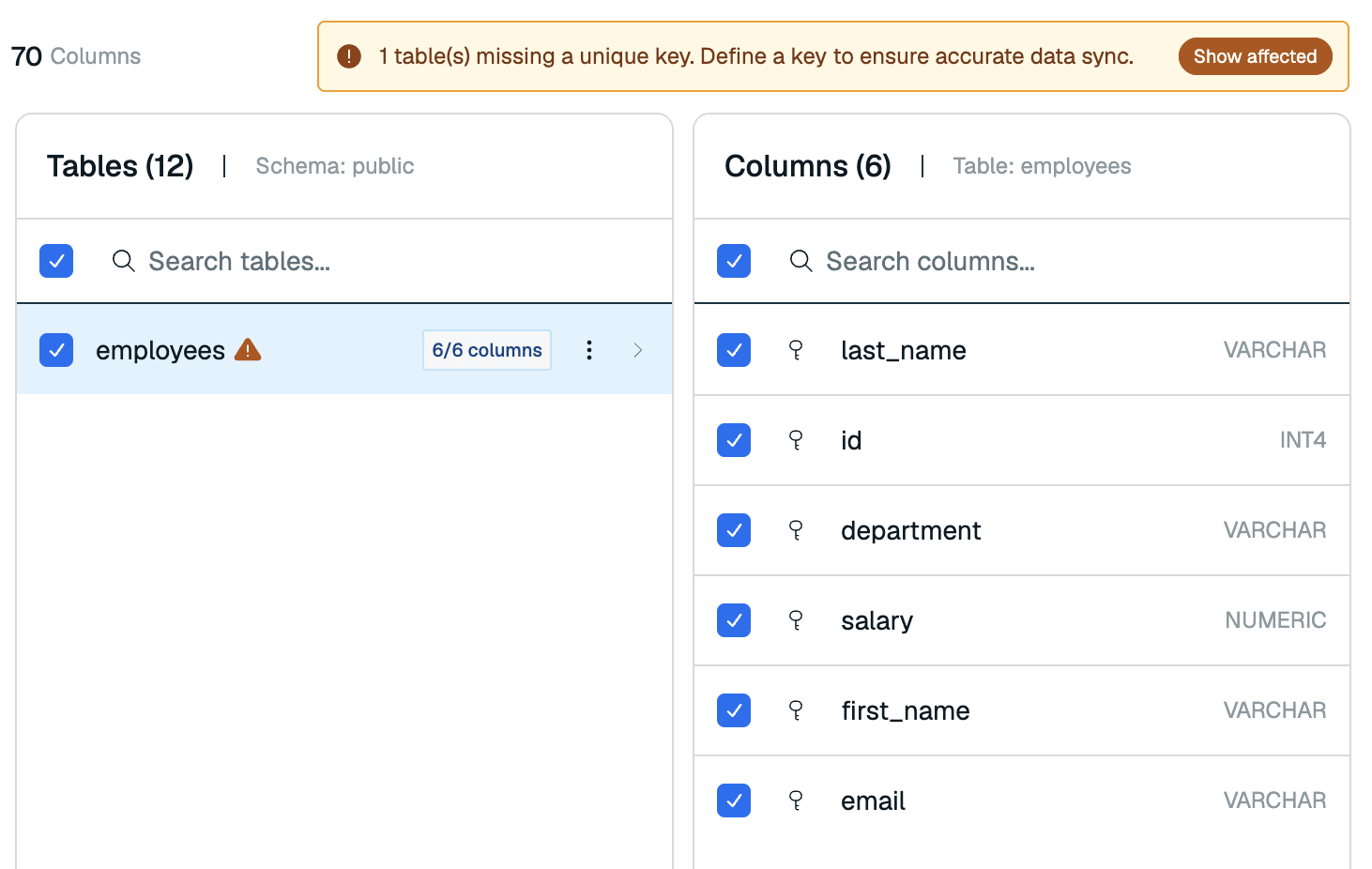
Select the schemas, tables, and columns to ingest. Review the record key for each selected table and correct any missing-key warnings.
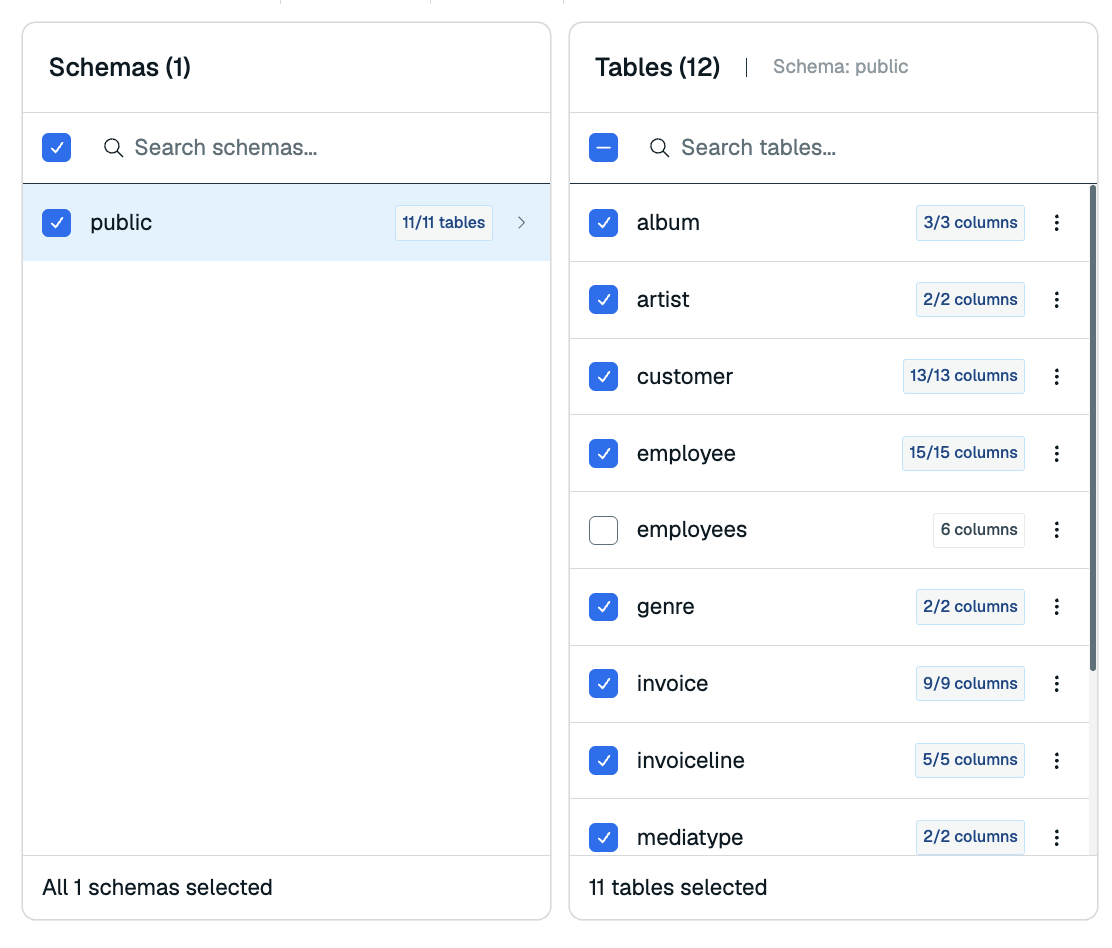

-
Select Save changes.
-
Review the restart warning and select Apply and restart.
Dataset changes belong to the selected source. Applying changes restarts the pipeline and can temporarily interrupt processing. Use Reset a source when you need a new snapshot of that source.
Transformations
The Transformations tab lists the pipeline's jobs, their source assignments, matching databases, schemas and tables, and validation status.

Edit transformations
- Select Edit on Transformations.
- Add, upload, or edit the transformation jobs needed for your tables.
- Select the Source name for each job.
- Resolve job validation errors and select Save changes.
- Review the restart warning and select Apply and restart.
The Flink processor accepts lists and regex: entries in source selection patterns, but rejects jobs where more than one job can apply to a given table. The default data structure and processor properties are in Settings.
Reset data pipeline
Resetting the whole pipeline clears its internal RDI state for all sources. A running pipeline restarts and takes a new snapshot for every source. A stopped pipeline remains stopped until you start it. RDI reprocesses the selected data using the current transformations. Reset alone does not delete records from the target database. See What happens when I reset the pipeline?.
- Open Pipeline actions and select Reset pipeline.
- Review the confirmation and select Reset data pipeline.
To re-run the snapshot for just one source while preserving other sources' internal data, see Reset a source.
Stop and restart data pipeline
- Open Pipeline actions and select Stop pipeline.
- Confirm with Stop pipeline.
Stopping the pipeline pauses processing for all sources. To resume, open Pipeline actions, select Start pipeline, and confirm with Start pipeline. Use the source actions to control an individual source separately. Stopping all sources individually leaves the processor running. See Billing for the difference in charges.
Flush the target database
Flushing permanently deletes all data from the target database, including records from every source and data written outside RDI. It does not reset source positions or automatically reload the data.
- Stop the pipeline and wait until it is stopped.
- Open Pipeline actions and select Flush target database. This action is disabled while the pipeline is running.
- Check the target database and confirm with Flush target database.
To refill the target, follow How do I reload data after a flush?.
Delete pipeline
You cannot delete a pipeline while the target database's Redis Cloud cluster is in maintenance mode. Wait until maintenance is complete, then delete the pipeline.
- Return to the workspace list on the Data Integration page or your database's Data Integration tab.
- Open the pipeline's actions menu and select Delete pipeline.
- Review and confirm the deletion.
Deleted pipelines cannot be recovered. If the pipeline has an associated setup draft, deletion also removes that draft. You can then delete the workspace when it is no longer needed.