Tutorial
How to build and run a Node.js application using Nginx, Docker and Redis
February 26, 20267 minute read

TL;DR:Define four services in adocker-compose.yml— Redis, two Node.js web servers, and an Nginx load balancer — then rundocker compose up -dto start everything. Nginx distributes traffic across the Node.js containers, and Redis tracks the total visit count.
This guide walks you through building a multi-container Docker application with Node.js, Nginx as a reverse proxy, and Redis for data storage. You'll use Docker Compose to orchestrate a visitor-counter app that load-balances requests across two Node.js instances while persisting hit counts in Redis.
#What you'll learn
- How to define a multi-container Docker application with Docker Compose
- How to configure Nginx as a reverse proxy and load balancer for Node.js
- How to connect a Node.js application to Redis inside a Docker network
- How to monitor Redis commands in real time

#What do you need?
- Node.js: An open-source, cross-platform JavaScript runtime environment that executes JavaScript outside a web browser.
- Nginx: An open-source web server used for reverse proxying, load balancing, and caching.
- Docker: A containerization platform for developing, shipping, and running applications.
- Docker Compose: A tool for defining and running multi-container Docker applications.
#What does the project structure look like?
#Prerequisites
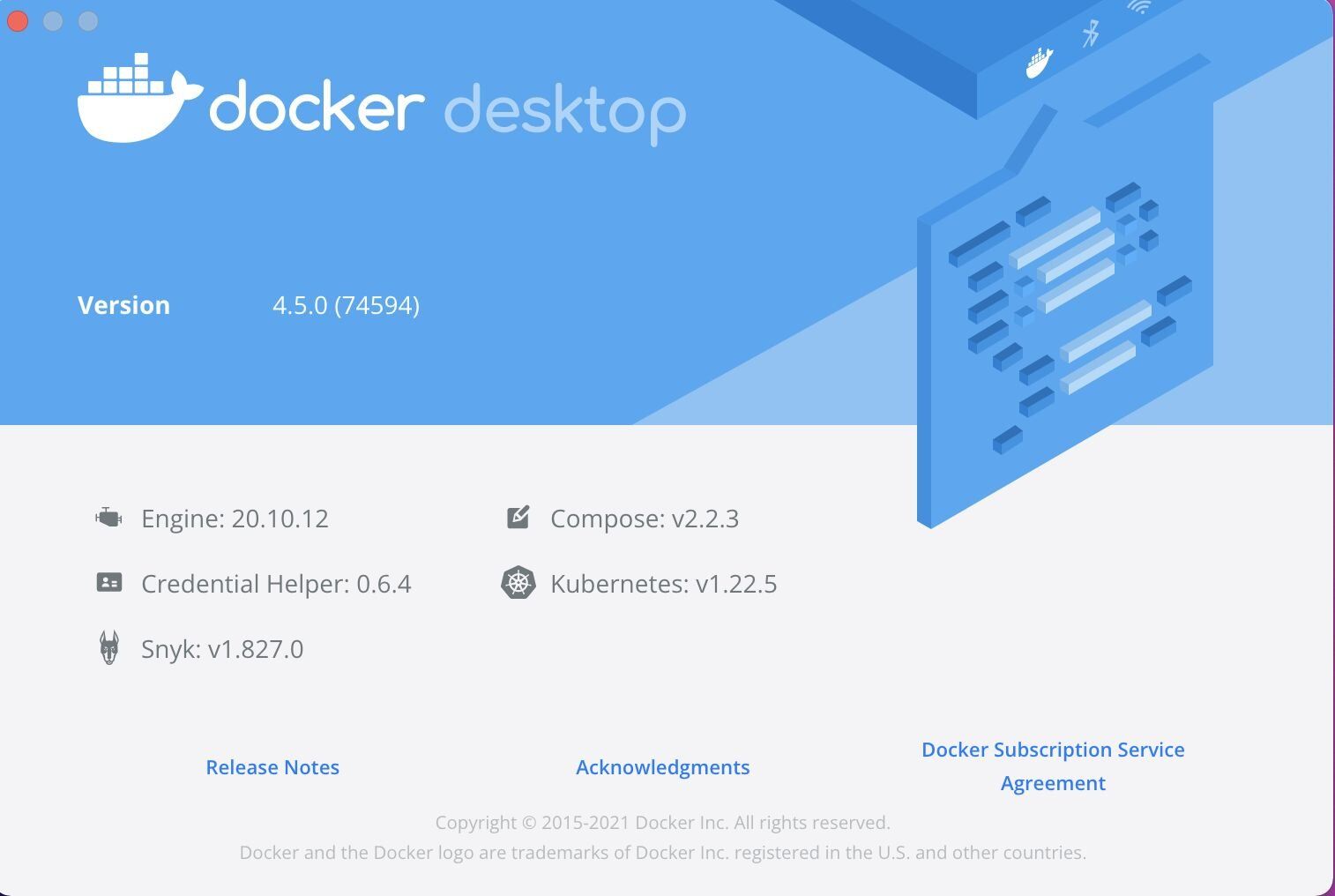
Install Docker Desktop on your local machine. Docker Desktop is available for Mac, Windows, and Linux.
INFODocker Desktop comes with Docker Compose installed by default, so you don't need to install it separately.
If you're new to running Redis in Docker, see How to Deploy and Run Redis in a Docker container first.
#How do you define the Docker Compose file?
Create a file named
docker-compose.yml with the following content:The compose file defines an application with four services:
redis, web1, web2, and nginx. When deploying the application, Docker Compose maps port 80 of the Nginx container to port 80 of the host. The two Node.js web servers run on ports 81 and 82, and Redis runs on its default port 6379.INFOBy default, Redis runs on port 6379. Make sure you don't run another instance of Redis on your system or that port 6379 on the host is not being used by another container, otherwise the port should be changed.
#How do you configure Nginx as a reverse proxy?
Create an
nginx directory and add the following files.#nginx/nginx.conf
This configuration tells Nginx to distribute incoming requests between
web1 and web2 using round-robin load balancing. Both Node.js servers listen on port 5000 inside their containers, and Docker networking resolves the hostnames automatically.#nginx/Dockerfile
#How do you build the Node.js web server?
Create a
web directory and add the following files.#web/Dockerfile
#web/package.json
#web/server.js
The Express app connects to the
redis service by hostname — Docker Compose automatically sets up DNS resolution between containers on the same network. Each request increments a visit counter stored in Redis.#How do you deploy the multi-container application?
Run Docker Compose to build and start all four containers:
#Expected result
List the running containers to verify the deployment:
#How do you test the application?
After the application starts, navigate to
http://localhost in your web browser or run:Notice how Nginx alternates between
web1 and web2, demonstrating the round-robin load balancing. The visit count increments across both servers because they share the same Redis instance.#How do you monitor Redis keys?
Use the Redis CLI
MONITOR command to watch commands in real time. Connect to the Redis container:The alternating IP addresses in the
MONITOR output confirm that requests are being distributed across the two Node.js containers.#Next steps
- How to Deploy and Run Redis in a Docker container — learn the fundamentals of running Redis in Docker
- Getting started with Node.js and Redis — connect to Redis from a Node.js application using
node-redis - Docker orchestration with Redis — manage Redis containers at scale
- Complete source code for this tutorial — clone the repo and try it yourself