Tutorial
Create a Redis database on Google Kubernetes Engine
February 25, 20266 minute read

Deploy a Redis Enterprise database on Google Kubernetes Engine (GKE) using the Redis Enterprise Operator. This tutorial walks you through GKE cluster creation, operator deployment, and database provisioning so you can run a production-grade Redis cluster on GCP Kubernetes.
#What you'll learn
- How to create a GKE cluster sized for Redis Enterprise
- How to deploy the Redis Enterprise Operator for Kubernetes
- How to provision a Redis Enterprise Cluster (REC) on GKE
- How to retrieve cluster credentials and create a database
#What do you need before deploying Redis on GKE?
Before you begin, make sure you have the following:
- A Google Cloud account with the Kubernetes Engine Admin role
- A Linux, macOS, or WSL environment
- Google Cloud SDK (
gcloudCLI) installed and initialized withgcloud init kubectlinstalled (included withgcloud components install kubectl)curlandgitinstalled
Familiarity with Kubernetes concepts such as namespaces, pods, and deployments is helpful. See the Kubernetes Operator tutorial for background on how operators manage Redis clusters.
#How do you verify the Google Cloud SDK installation?
Confirm that
gcloud is installed and available on your system:You should see output similar to:
#How do you create a GKE cluster for Redis?
Create a five-node GKE cluster with enough resources to run Redis Enterprise. The
e2-standard-8 machine type provides 8 vCPUs and 32 GB of memory per node:After the cluster is ready,
gcloud automatically configures kubectl to connect to it.#How do you create a namespace for Redis?
Create a dedicated namespace to isolate your Redis deployment:
Switch your
kubectl context to use the new namespace by default:#How do you deploy the Redis Enterprise Operator?
The Redis Enterprise Operator automates the deployment and management of Redis Enterprise clusters on Kubernetes. Deploy it by applying the operator bundle:
This creates the required roles, service accounts, custom resource definitions (CRDs), and the operator deployment itself.
Verify the operator is running:
Expected output:
#How do you create a Redis Enterprise Cluster on GKE?
Apply the default Redis Enterprise Cluster (REC) custom resource. This configuration works well for development and testing:
The cluster takes 5–10 minutes to initialize. Check its status using the
rec shorthand:Expected output:
#How do you verify the Redis deployment on GKE?
List all the pods, services, and deployments to confirm everything is running:
Expected output:
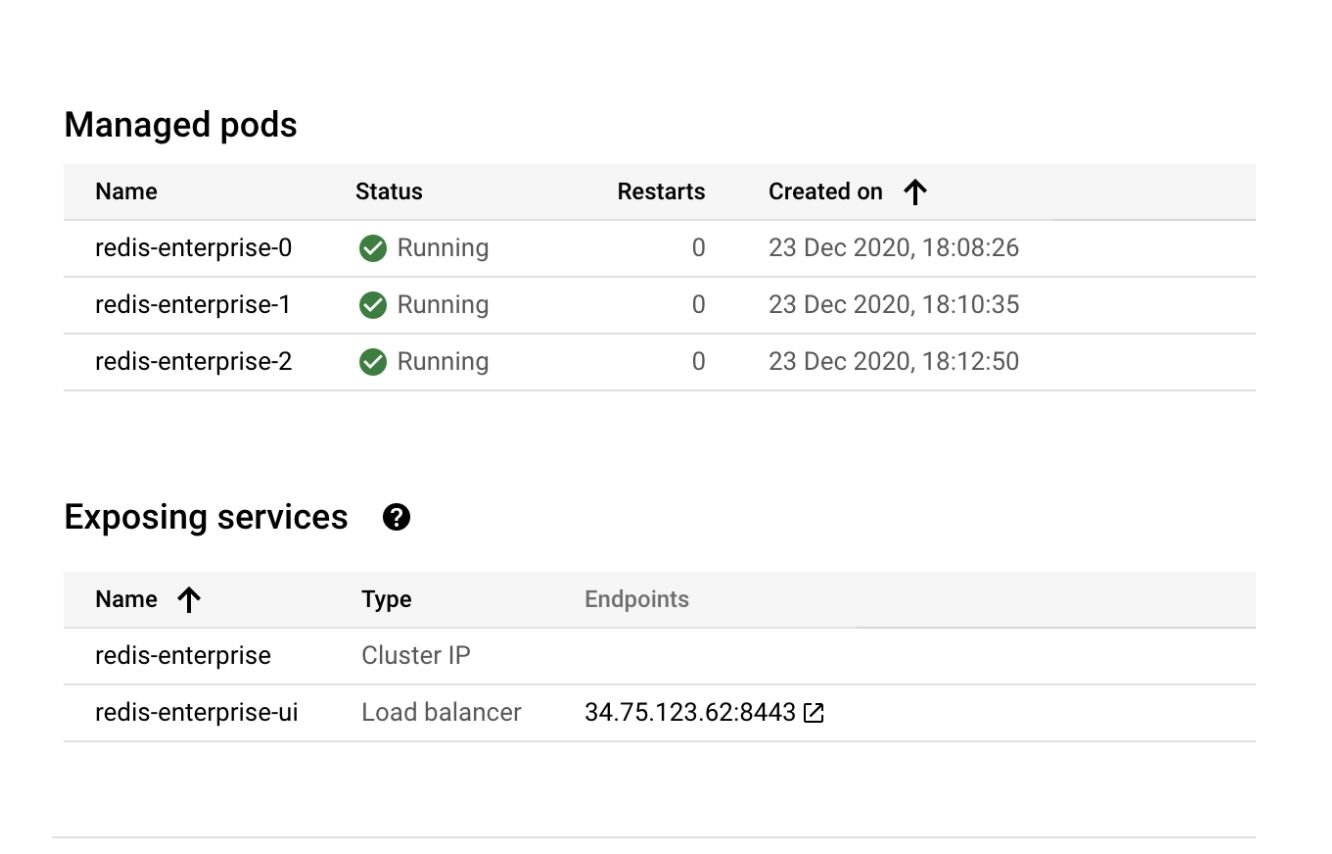
You can also verify the pods and services in the Google Cloud Console:
#How do you retrieve the Redis cluster admin password?
Extract the admin password from the Kubernetes secret:
#How do you create a Redis database?
Open the Redis Enterprise web console at
https://<EXTERNAL-IP>:8443 (use the redis-enterprise-ui service external IP from the output above). Log in with the admin credentials, then:- Click Setup and configure your cluster DNS and admin account.
- Navigate to Databases and create your first Redis database.
#Next steps
- Learn how Kubernetes operators manage Redis: Kubernetes Operator tutorial
- Understand the underlying design: Redis Kubernetes Architecture
- Plan for production workloads: Sizing and Scaling Redis on Kubernetes