
Tutorial
Use Redis with no setup required with Redis Sandbox
February 25, 20264 minute read

TL;DR:Want to try Redis without installing anything? Redis Sandbox is a free, browser-based tool that lets you run Redis commands instantly—no downloads, no configuration, no account required.
Redis Sandbox (also known as Redis Playground) is an interactive, online Redis console that lets you experiment with Redis commands in a safe, isolated environment—no setup required. Whether you're learning what Redis is, testing queries, or demonstrating features, Redis Sandbox is the perfect place to get hands-on experience and test Redis commands online.
#What you can do
- Run read queries against preloaded sample datasets
- Run write queries in a temporary session with automatic expiry
- Browse predefined queries covering common Redis operations and data types
- View query history to revisit and re-run past commands
- Share queries with a generated link—great for collaboration or teaching
- Explore Redis data types like strings, hashes, lists, sets, and sorted sets
#Accessing Redis Sandbox
Visit the Redis Sandbox at: https://redis.io/try/sandbox/
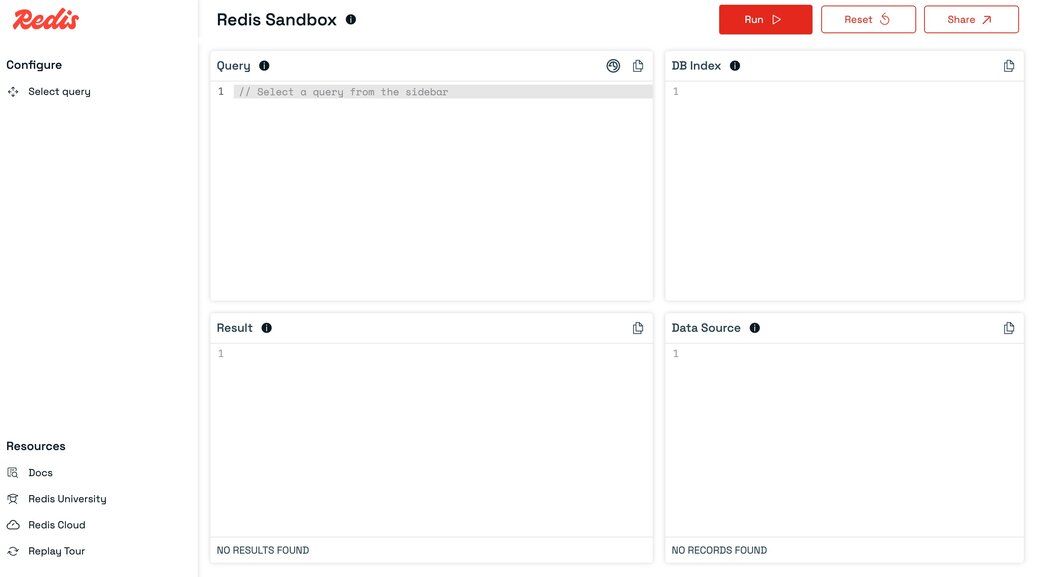
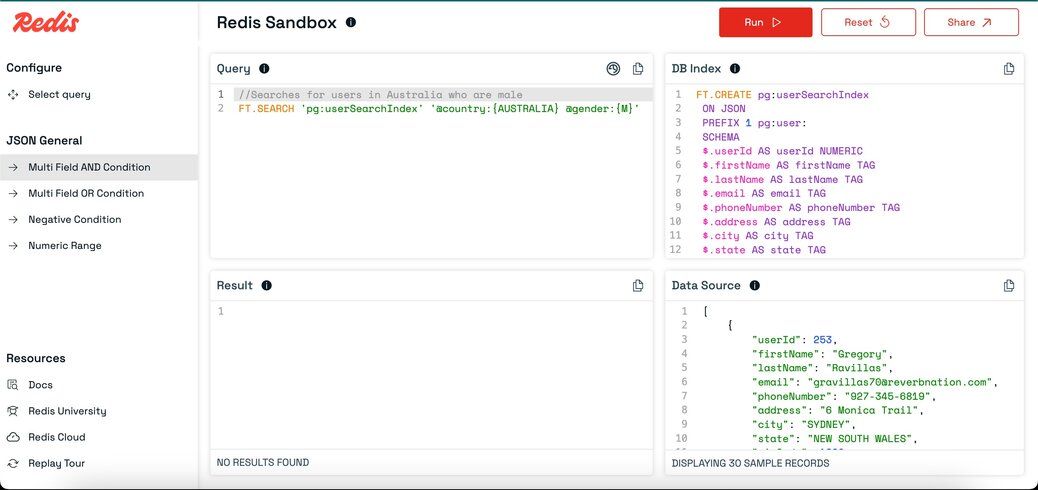
You'll be greeted with an interface designed for quick experimentation.
#Exploring the Interface
#Selecting a Predefined Query
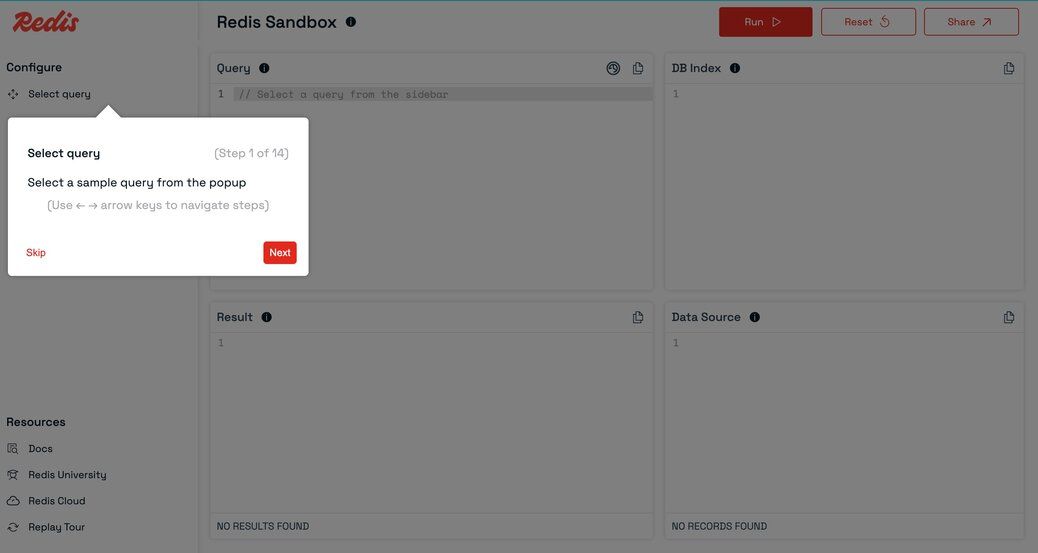
- Click
Select queryin the left sidebar.
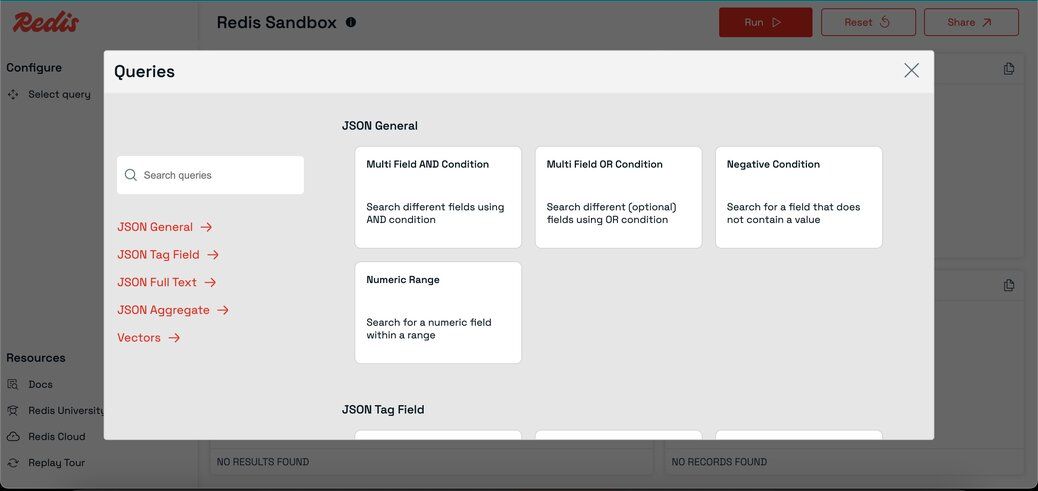
- A popup will appear with a list of predefined queries covering common Redis operations.
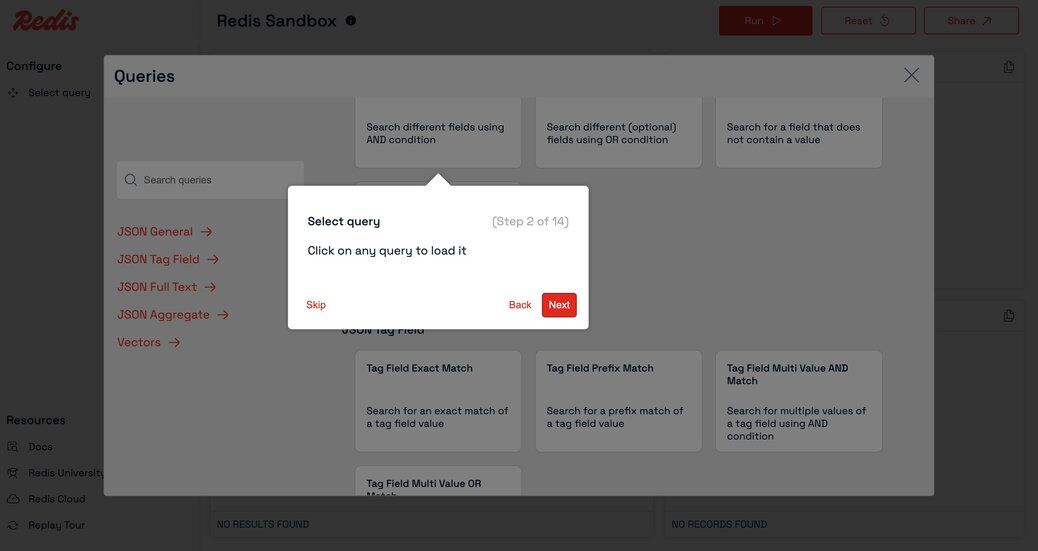
- Click any query to load it into the query editor.
#Writing Your Own Query
- You can also type or paste your own Redis commands directly into the query editor.
- The editor supports multi-line queries and syntax highlighting for better readability.
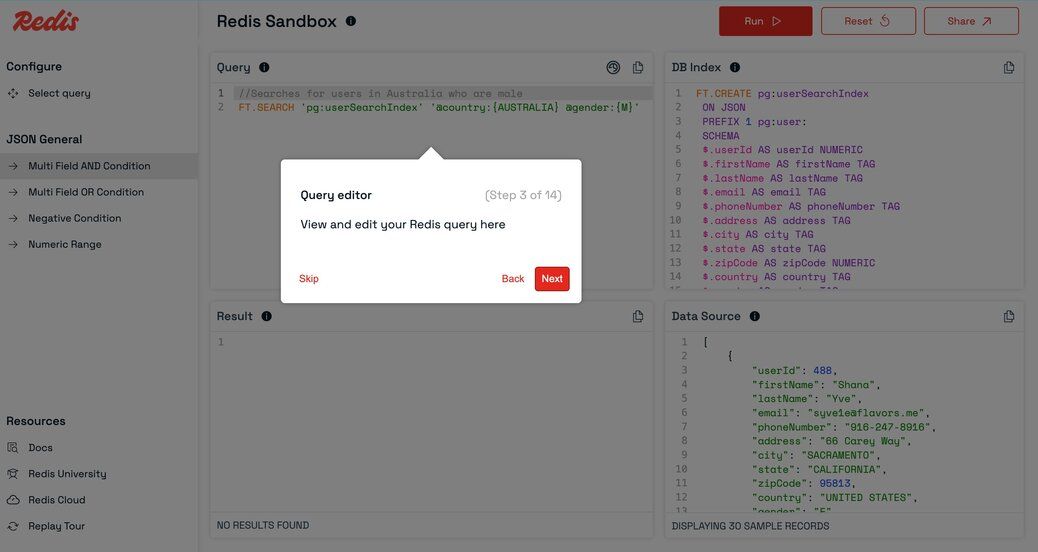
#Query Panel
- Displays the currently selected or written query.
- You can edit, run, or reset the query here.
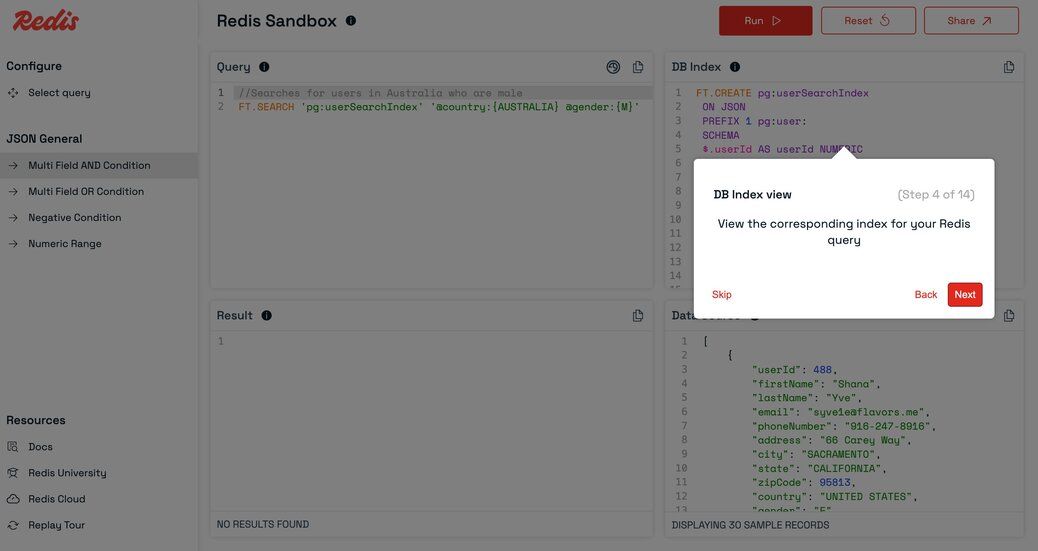
#DBIndex Panel
- Shows index details related to the selected query.
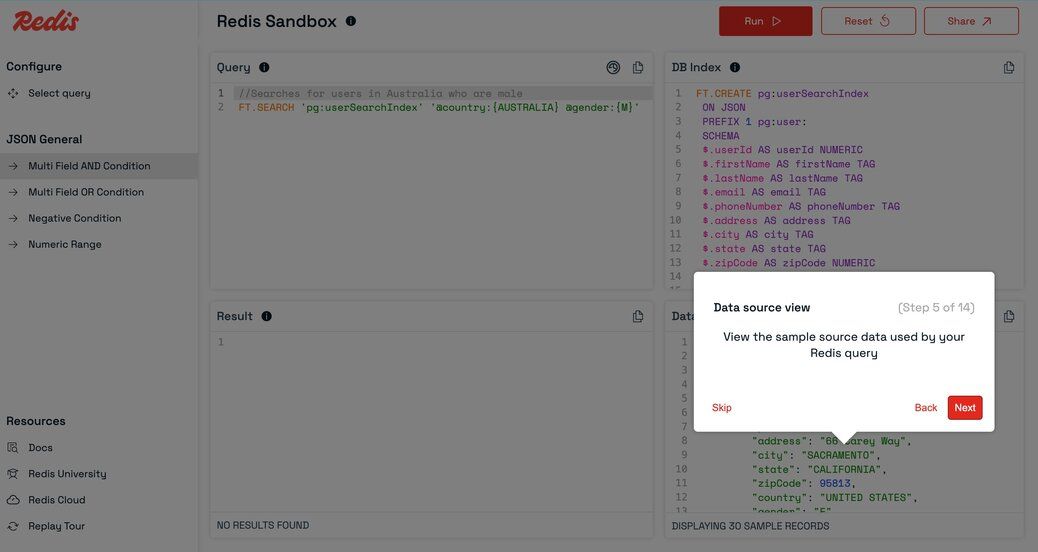
#DataSource Panel
- Displays sample data associated with the selected query and index.
- Helps you visualize the data your query will operate on.
#Run Query
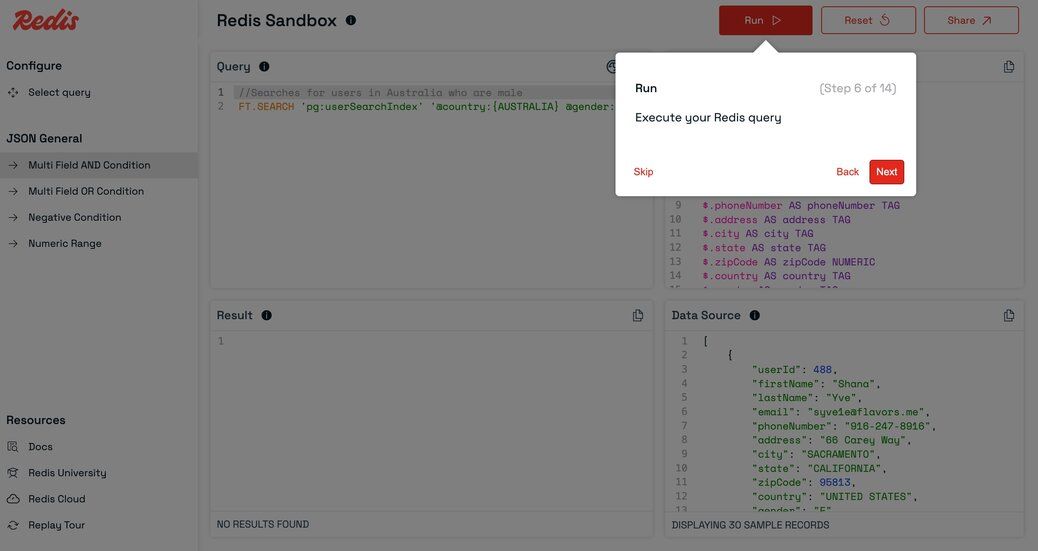
- Click the
Runbutton to execute your query. - The results will appear in the Results panel.
#Results Panel
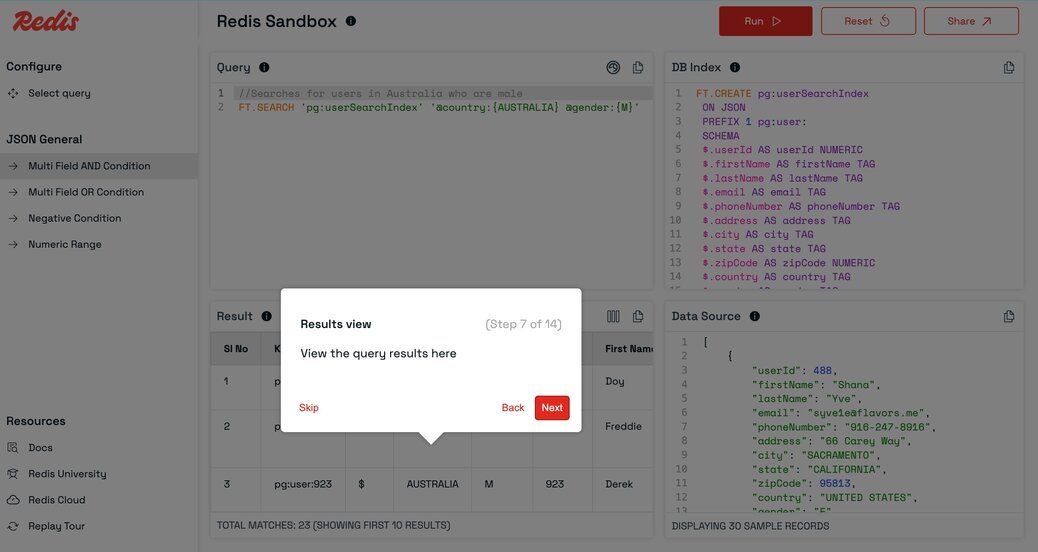
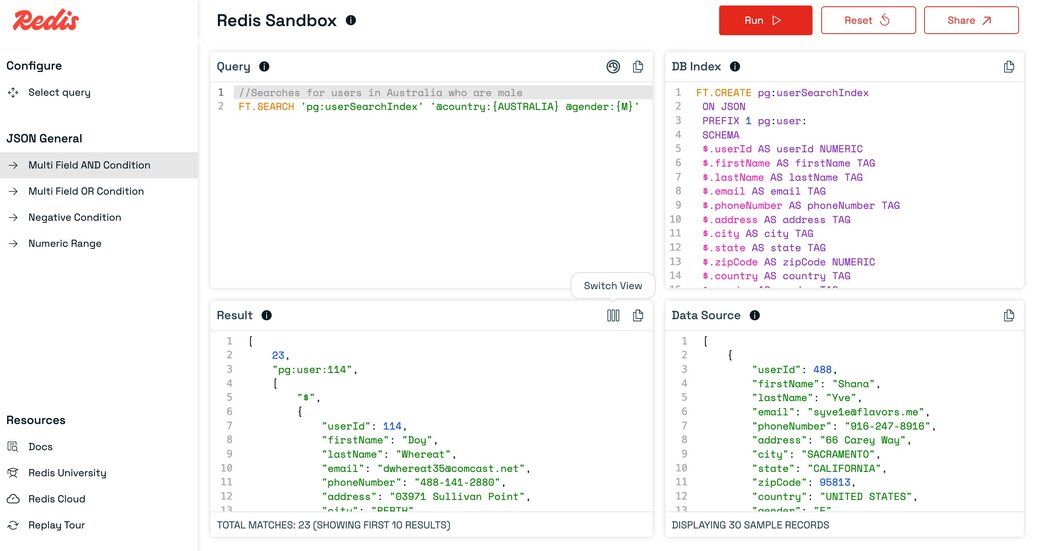
- View the output of your query in a structured table or as raw text.
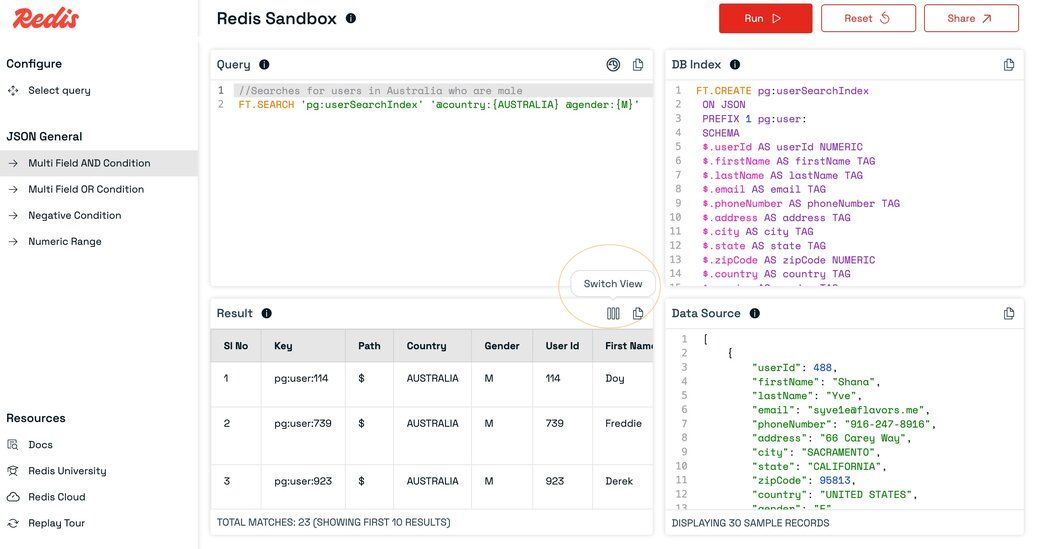
- Toggle between views using the
Switch Viewicon in the Results panel header.
#Share Query
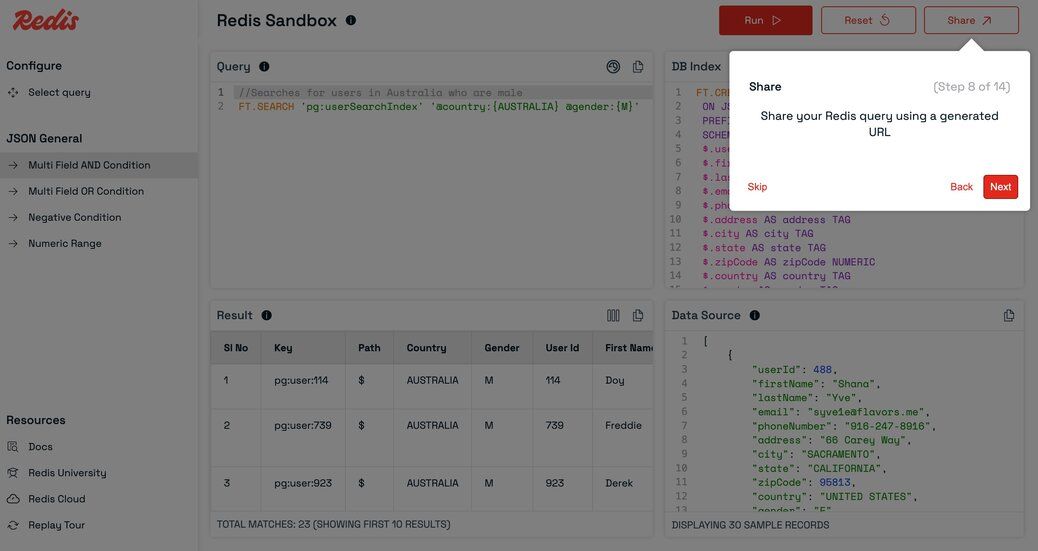
- Click the Share button to generate a shareable link for your current query.
- You can also modify the query before sharing.
#Reset Query
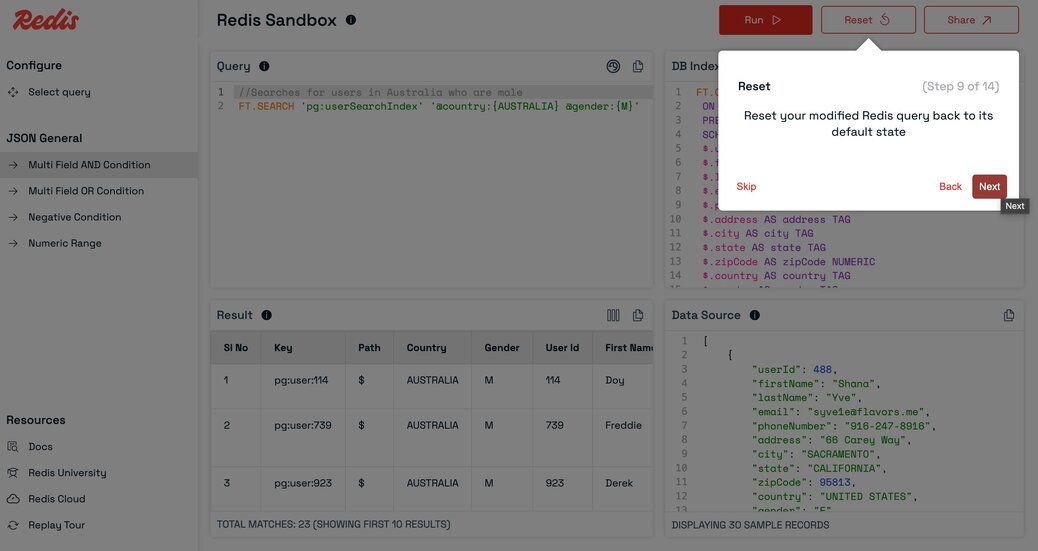
- Made changes you want to undo? Click
Resetto revert to the originally selected query.
#Navigating related queries
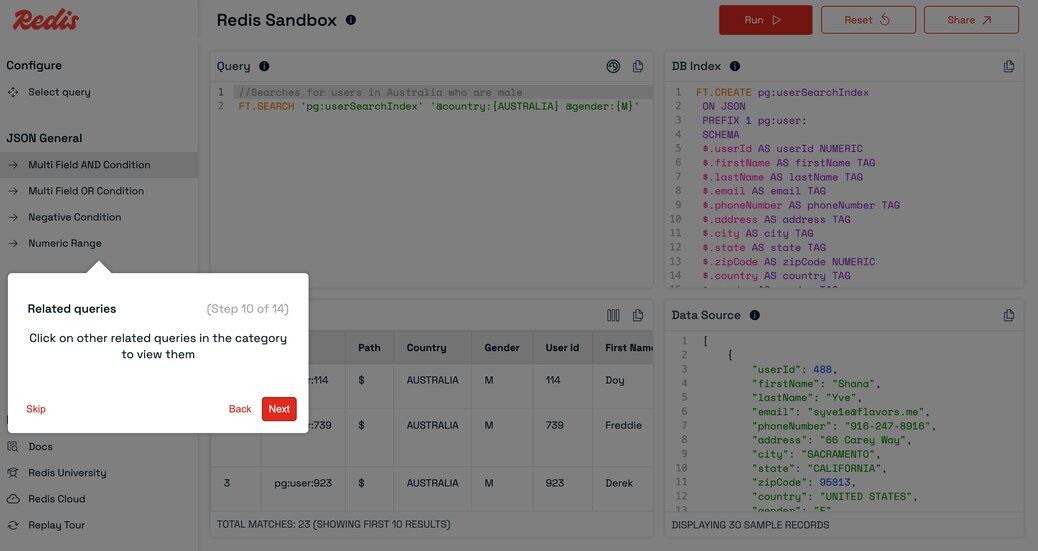
- Quickly switch between related queries by clicking their names in the left sidebar.
#Query History
- Click the history icon in the query panel header to view your past successful queries.
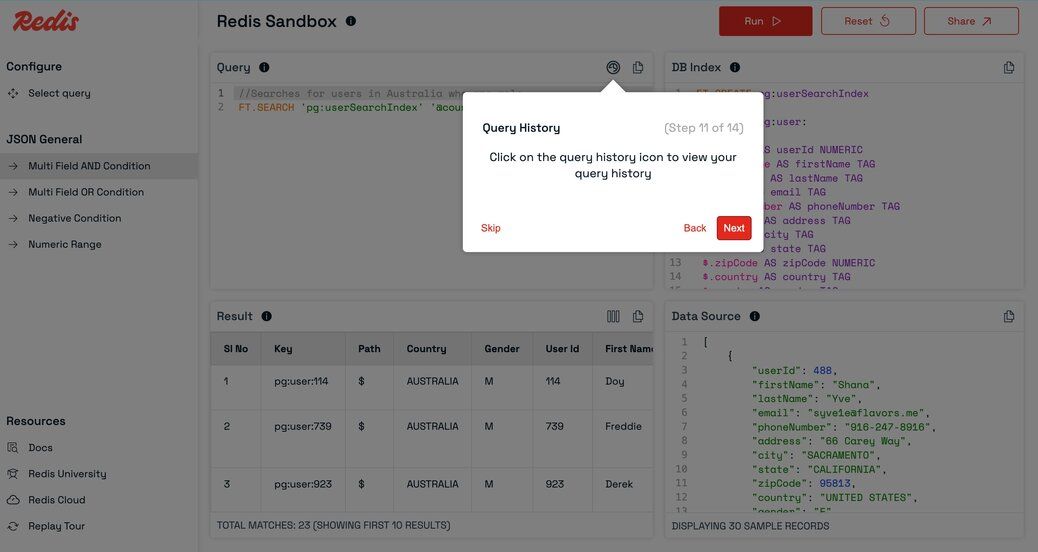
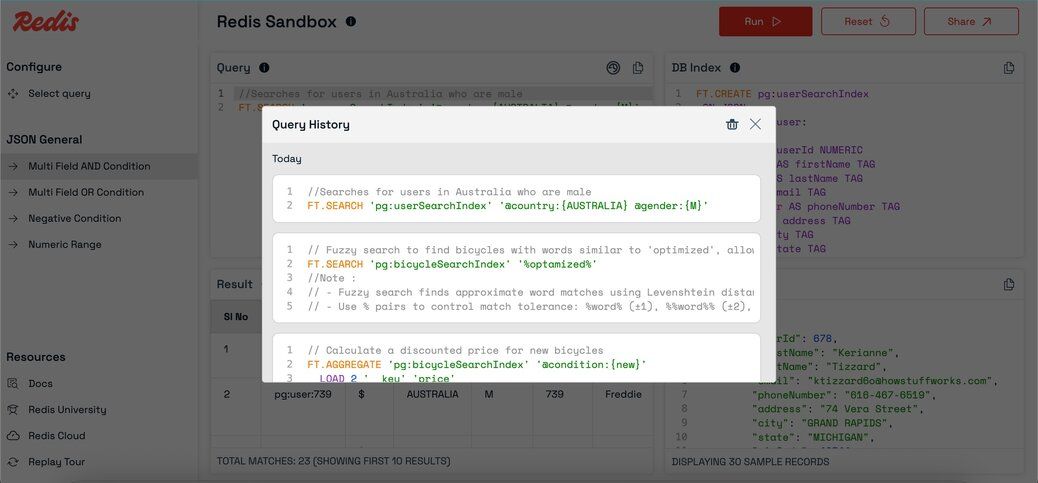
- Reload any previous query with a single click and run it again.
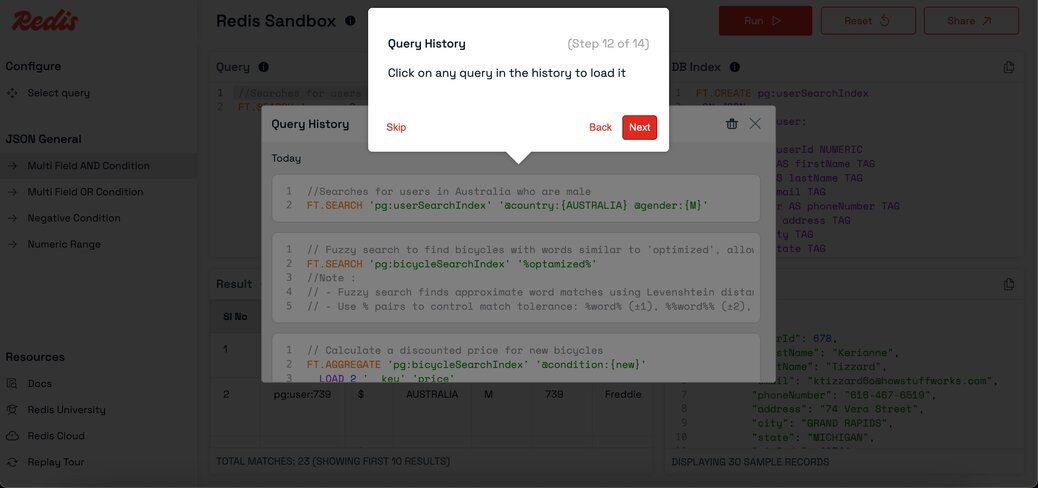
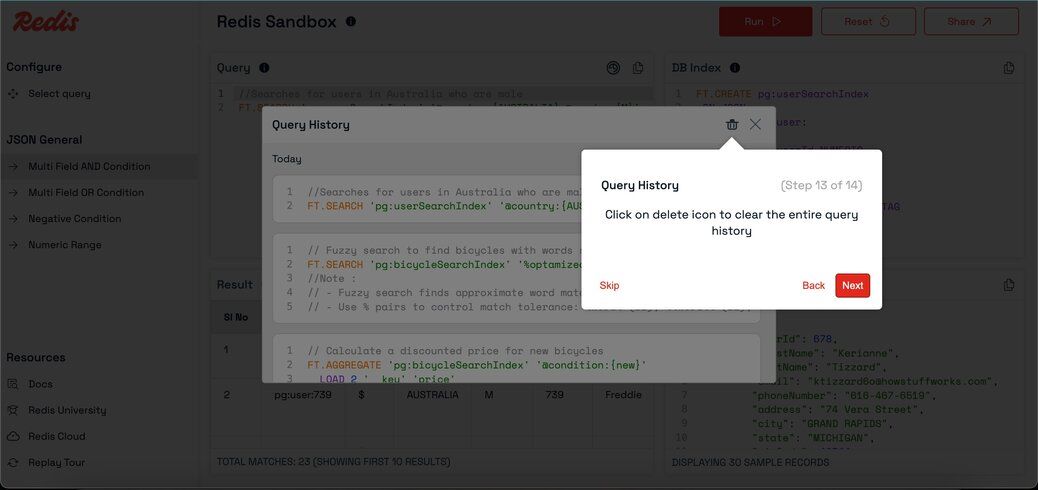
- Delete your query history if needed.
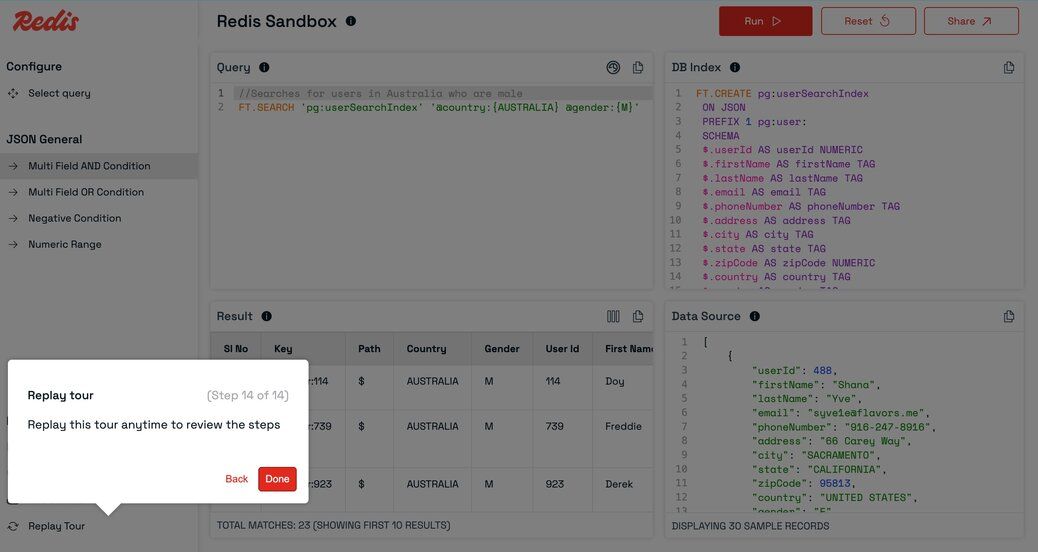
#Replay tour
- Click
Replay tourin the sidebar to revisit the guided walkthrough.
#Session (write) Queries
- When you execute a write query, a unique session is created for you.
Sample write query:

- All subsequent queries in that session will operate on your session's data.
- Sessions have an expiry setting; data is deleted after the session expires.
- Note: Every key in your write query must use the
pg:prefix.
Note: The session status is shown in the header
- Before starting a session:

- After starting a session:

#Next steps
Now that you've explored Redis Sandbox, take the next step in your Redis journey:
- Redis quick start guide - Install Redis locally and connect your first application.
- What is Redis? - Learn about Redis architecture, data structures, and common use cases.
- Redis documentation - Dive into the official Redis documentation.
- Redis University - Take free online courses and earn certifications.
- Redis Cloud - Deploy a managed Redis instance in minutes.