Tutorial
Vector Semantic Image Based Queries Using LangChain (OpenAI) and Redis
February 25, 202617 minute read


TL;DR:Use OpenAI to generate text descriptions of product images, store those descriptions as vector embeddings in Redis, and then search images by meaning using natural language queries. Redis handles the vector similarity search, returning products whose images best match the search text.
#What you'll learn
- How to generate AI-powered text summaries from product images using OpenAI's vision model
- How to create vector embeddings from image summaries and store them in Redis
- How to build a semantic search API that finds products by image content
- How to integrate LangChain, OpenAI, and Redis into an e-commerce application
#Terminology
LangChain is an innovative library for building language model apps. It offers a structured way to combine different components like language models (e.g., OpenAI's models), storage solutions (like Redis), and custom logic. This modular approach facilitates the creation of sophisticated AI apps.
OpenAI provides advanced language models like GPT-3, which have revolutionized the field with their ability to understand and generate human-like text. These models form the backbone of many modern AI apps including vector text/ image search and chatbots.
#What does the e-commerce application architecture look like?
GITHUB CODEBelow is a command to the clone the source code for the application used in this tutorialgit clone --branch v9.2.0 https://github.com/redis-developer/redis-microservices-ecommerce-solutions
Lets take a look at the architecture of the demo application:
products service: handles querying products from the database and returning them to the frontendorders service: handles validating and creating ordersorder history service: handles querying a customer's order historypayments service: handles processing orders for paymentapi gateway: unifies the services under a single endpointmongodb/ postgresql: serves as the write-optimized database for storing orders, order history, products, etc.
NOTEYou don't need to use MongoDB/ Postgresql as your write-optimized database in the demo application; you can use other prisma supported databases as well. This is just an example.
#How is the e-commerce frontend built?
The e-commerce microservices app consists of a frontend, built using Next.js with TailwindCSS. The app backend uses Node.js. The data is stored in Redis and either MongoDB or PostgreSQL, using Prisma. Below are screenshots showcasing the frontend of the e-commerce app.
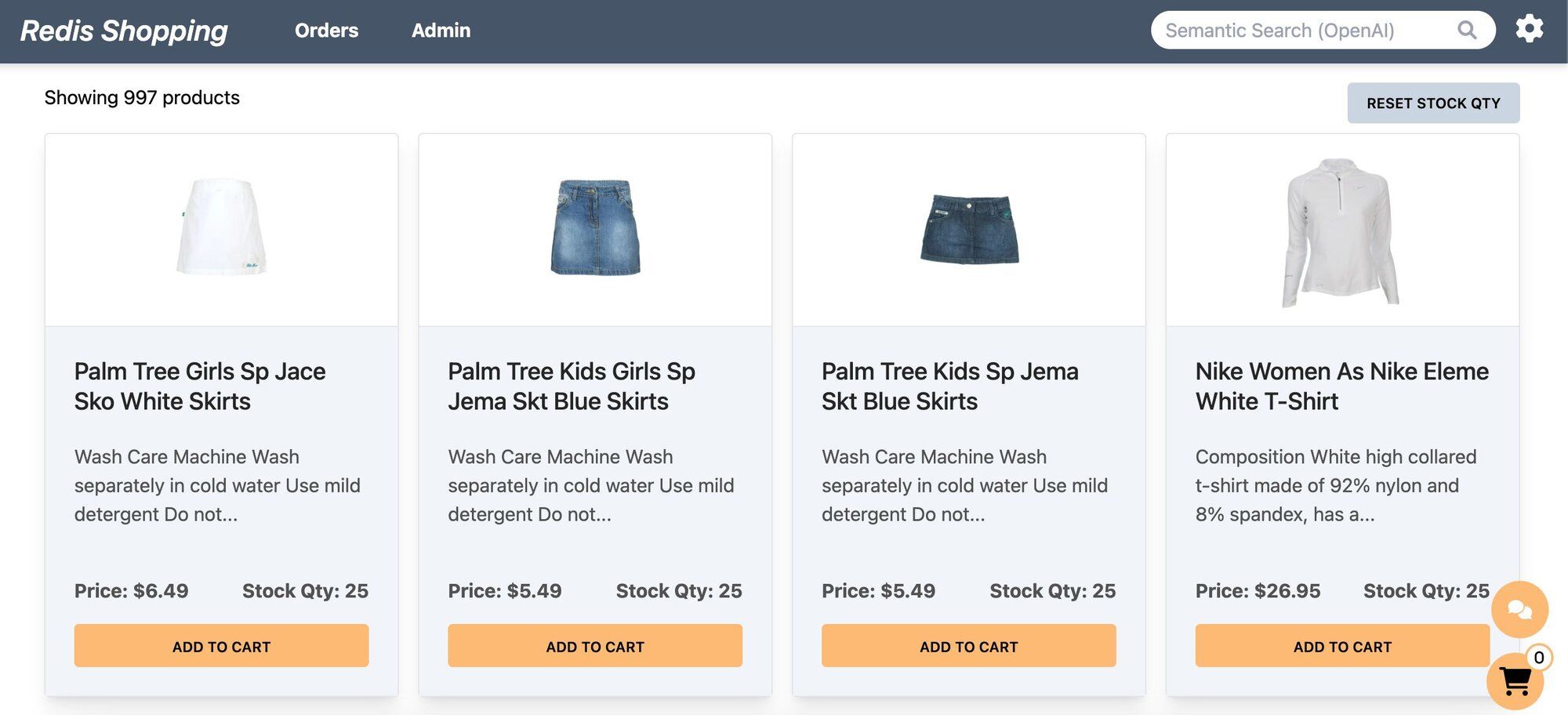
- Dashboard: Displays a list of products with different search functionalities, configurable in the settings page.
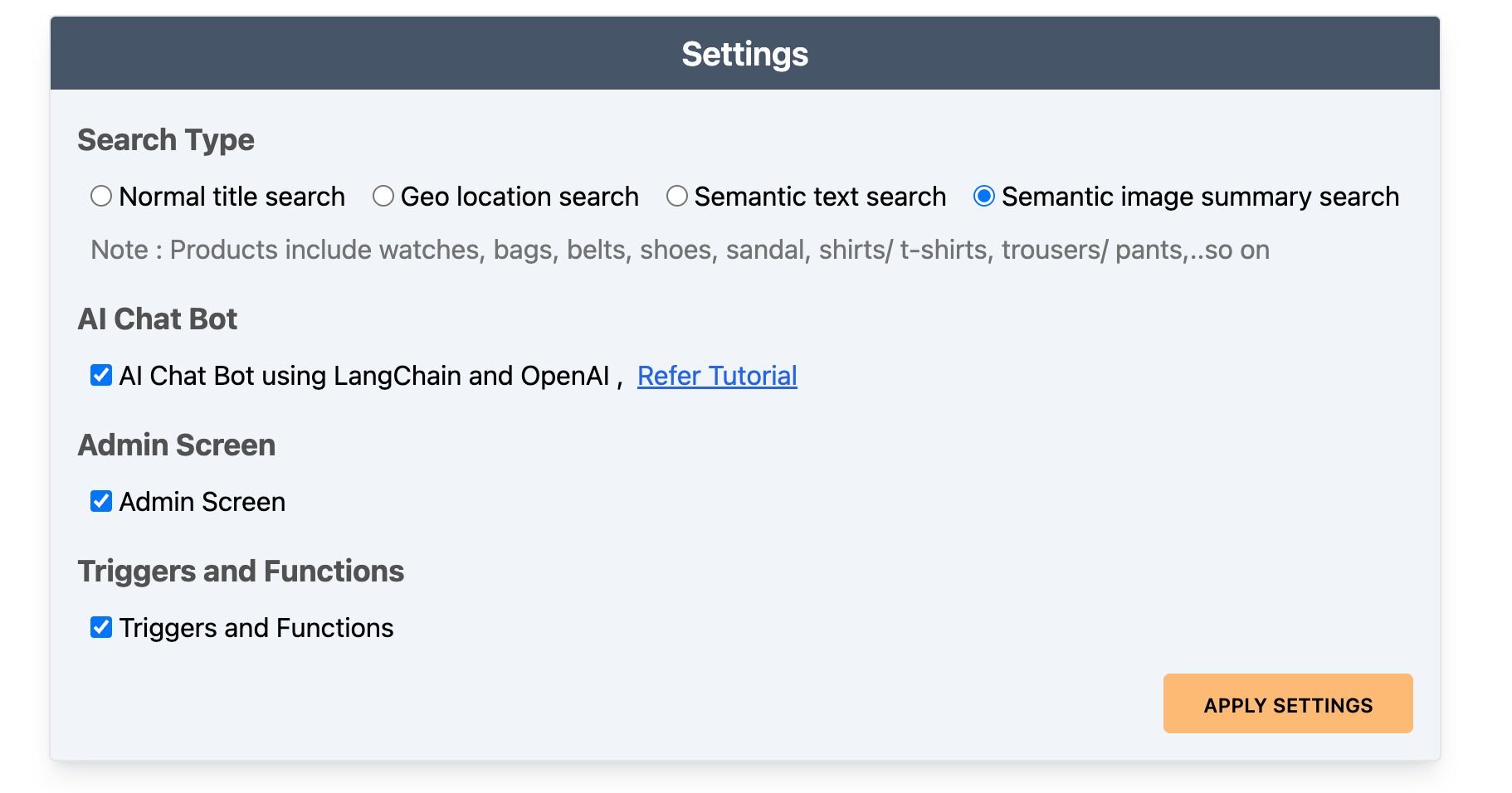
- Settings: Accessible by clicking the gear icon at the top right of the dashboard. Control the search bar, chatbot visibility, and other features here.
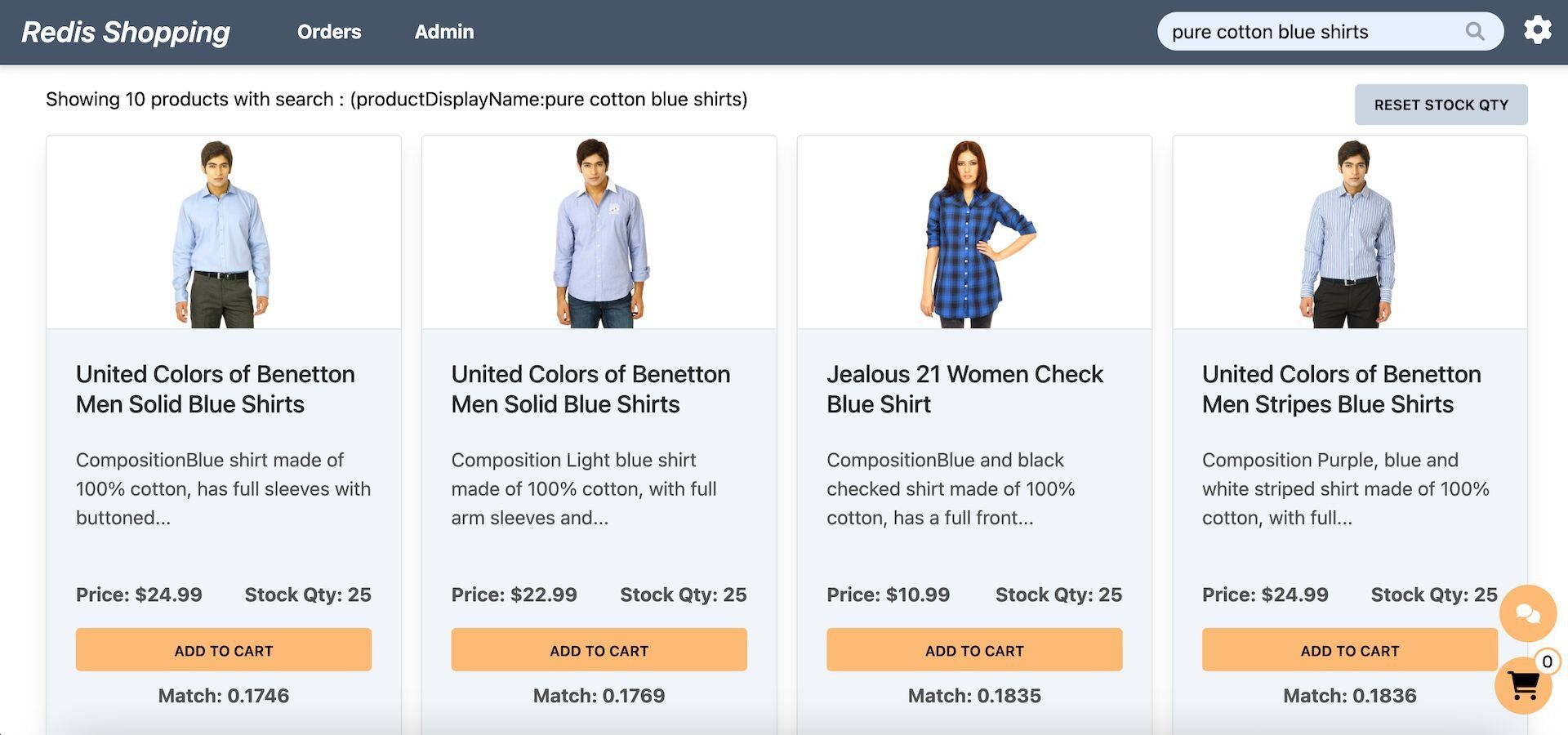
- Dashboard (Semantic Text Search): Configured for semantic text search, the search bar enables natural language queries. Example: "pure cotton blue shirts."
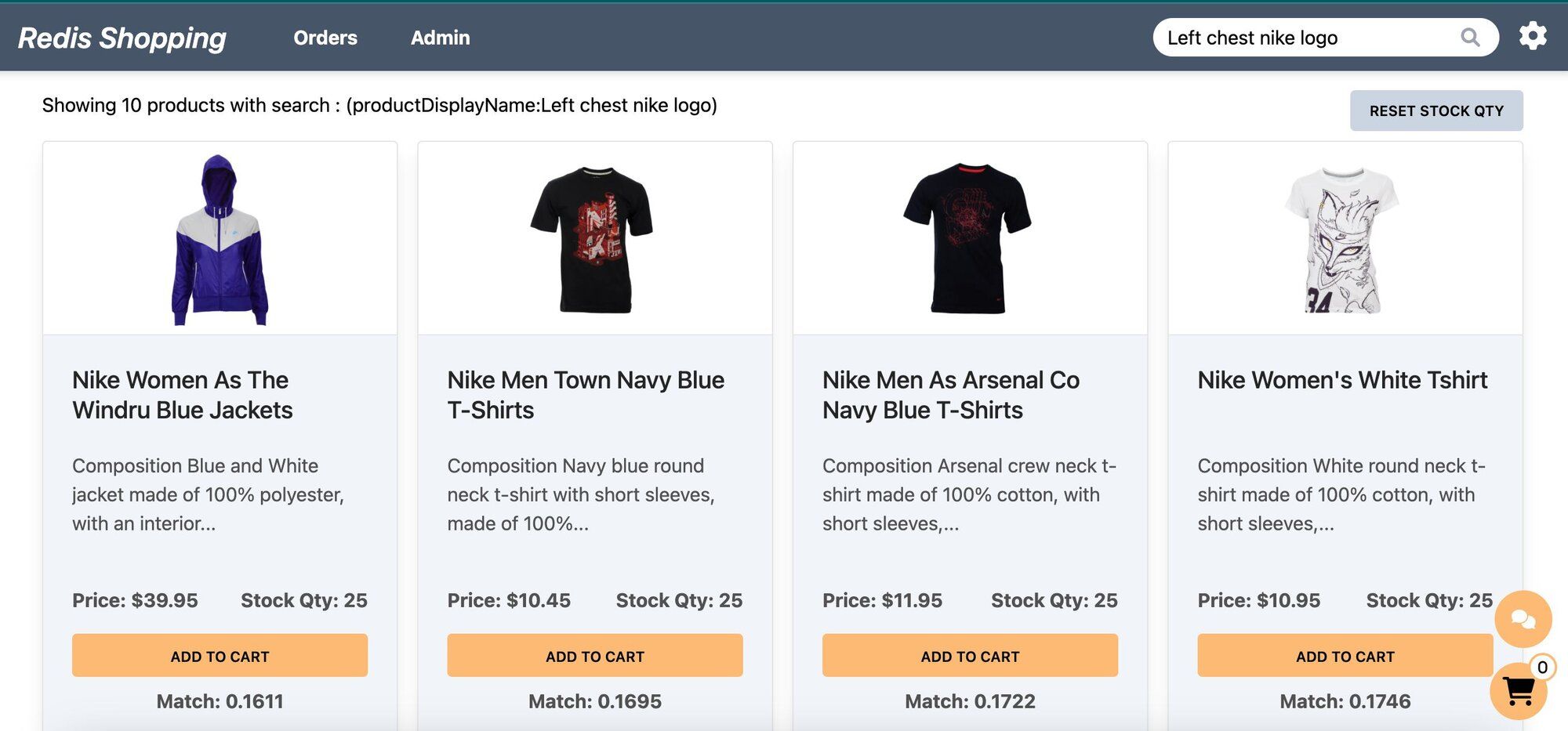
- Dashboard (Semantic Image-Based Queries): Configured for semantic image summary search, the search bar allows for image-based queries. Example: "Left chest nike logo."
- Chat Bot: Located at the bottom right corner of the page, assisting in product searches and detailed views.
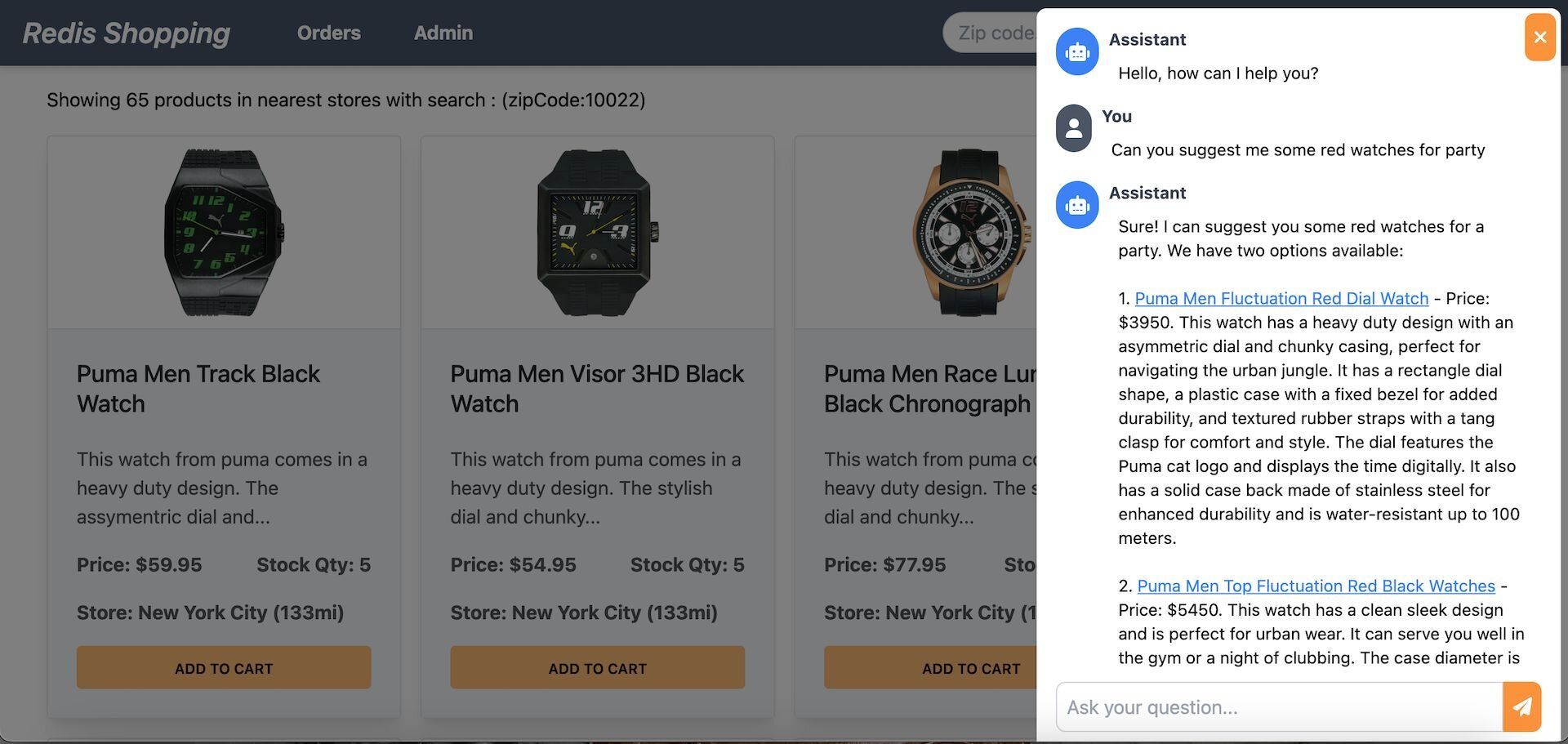
Selecting a product in the chat displays its details on the dashboard.
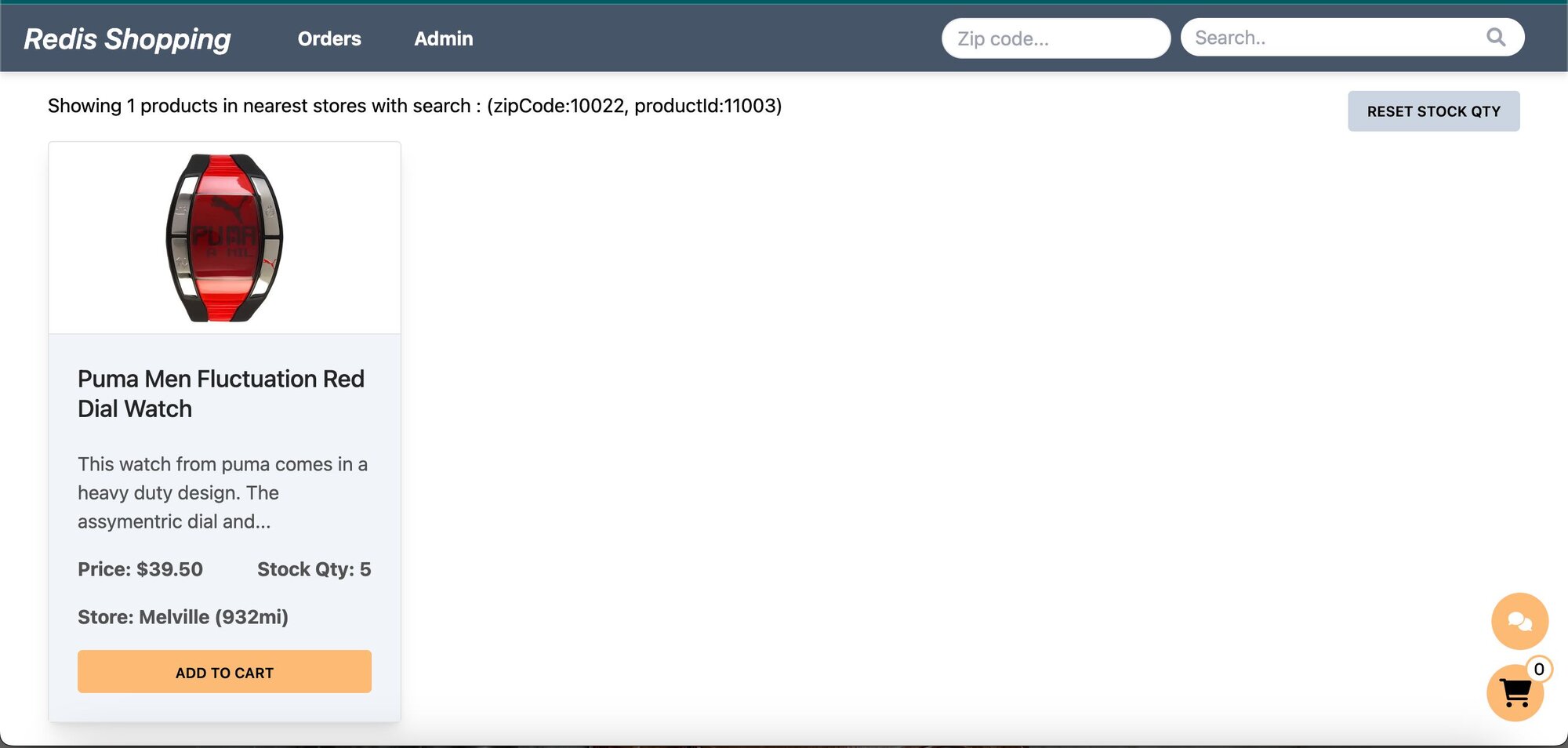
- Shopping Cart: Add products to the cart and check out using the "Buy Now" button.
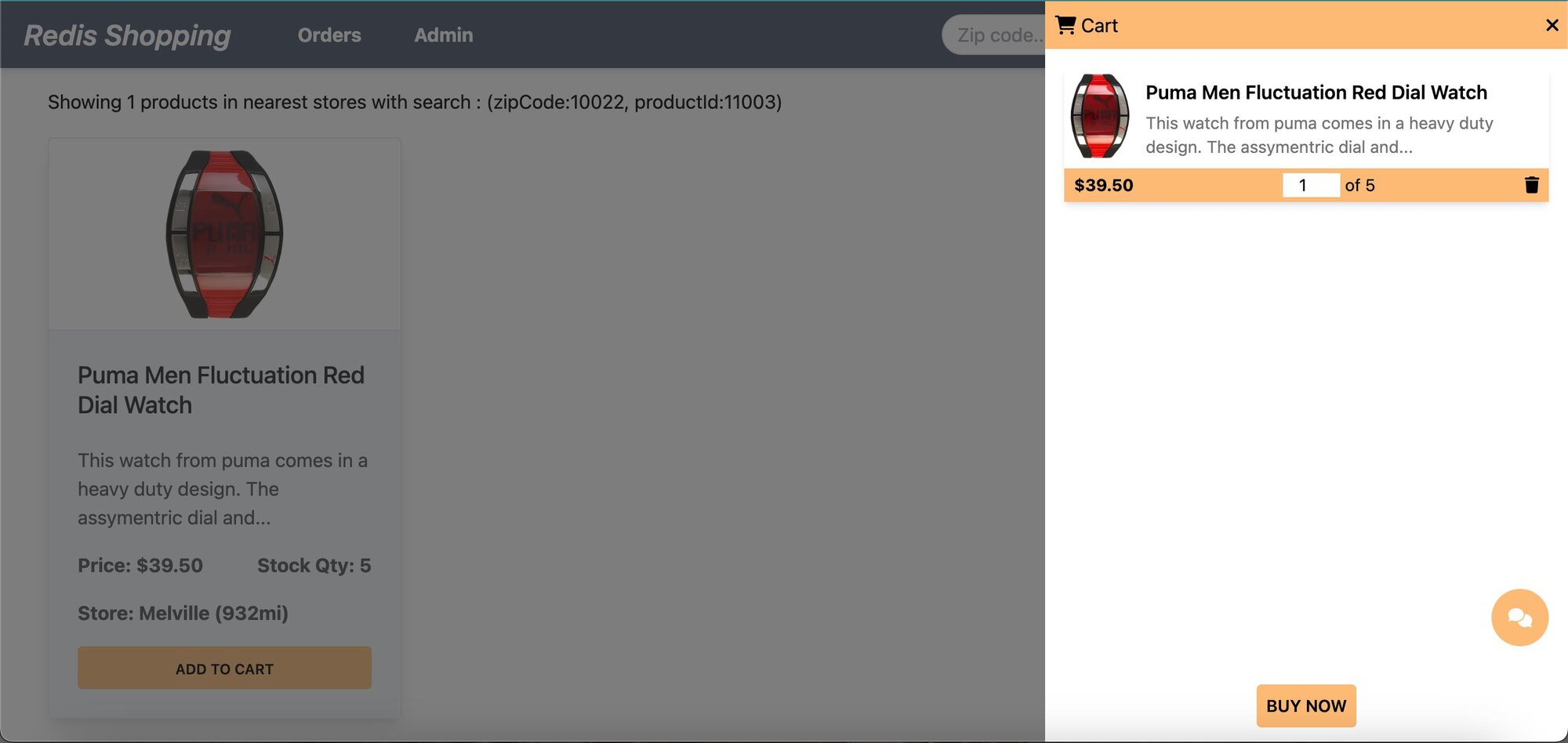
- Order History: Post-purchase, the 'Orders' link in the top navigation bar shows the order status and history.
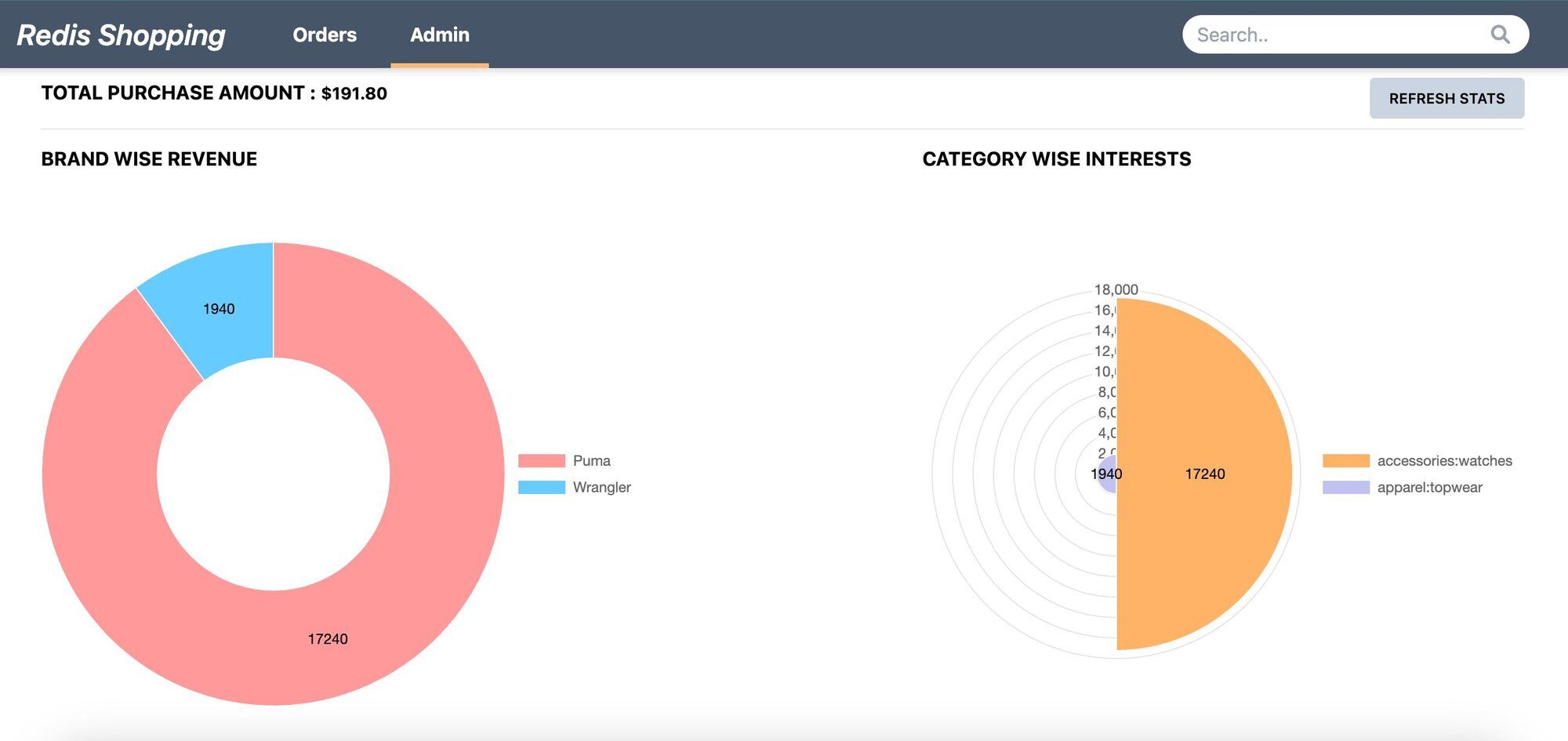
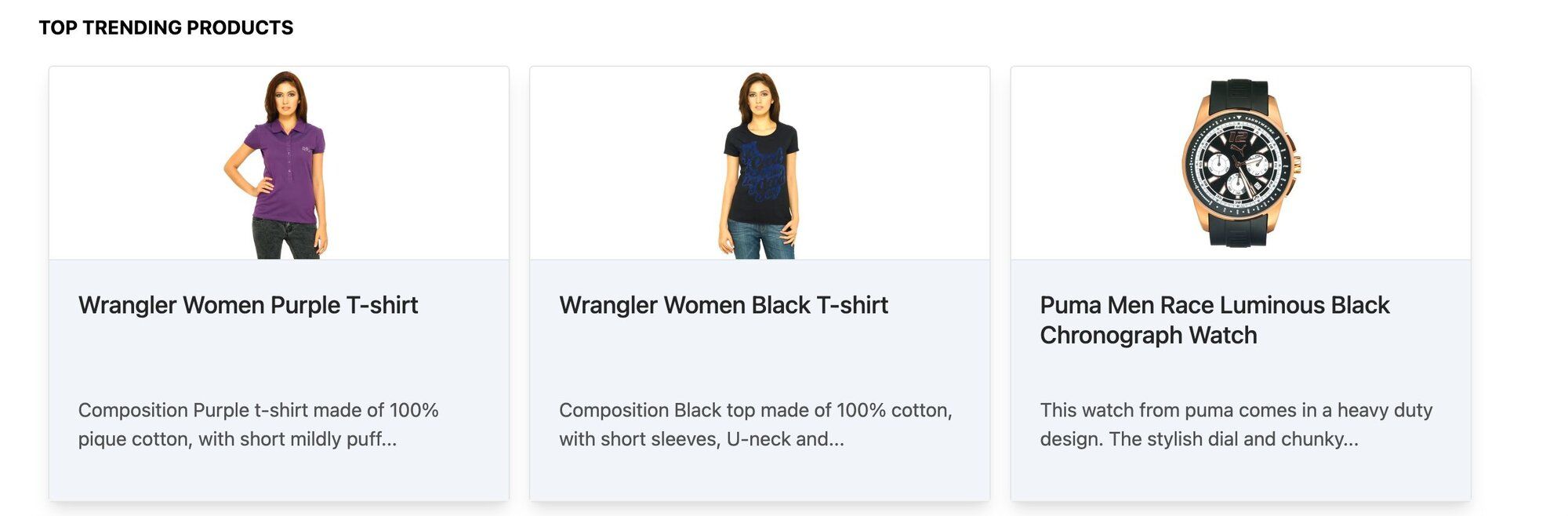
- Admin Panel: Accessible via the 'admin' link in the top navigation. Displays purchase statistics and trending products.
#How do you set up the database for image search?
NOTESign up for an OpenAI account to get your API key to be used in the demo (add OPEN_AI_API_KEY variable in .env file). You can also refer to the OpenAI API docs for more information.
GITHUB CODEBelow is a command to the clone the source code for the application used in this tutorialgit clone --branch v9.2.0 https://github.com/redis-developer/redis-microservices-ecommerce-solutions
#What does the sample data look like?
In this tutorial, we'll use a simplified e-commerce dataset. Specifically, our JSON structure includes
product details and a key named styleImages_default_imageURL, which links to an image of the product. This image will be the focus of our AI-driven semantic search.#How do you generate image summaries with OpenAI?
The following code segment outlines the process of generating a text summary for a product image using OpenAI's capabilities. We'll first convert the image URL to a base64 string using
fetchImageAndConvertToBase64 function and then utilize OpenAI to generate a summary of the image using getOpenAIImageSummary function.#What does a generated image summary look like?
The following section demonstrates the result of the above process. We'll use the image of a Puma T-shirt and generate a summary using OpenAI's capabilities.
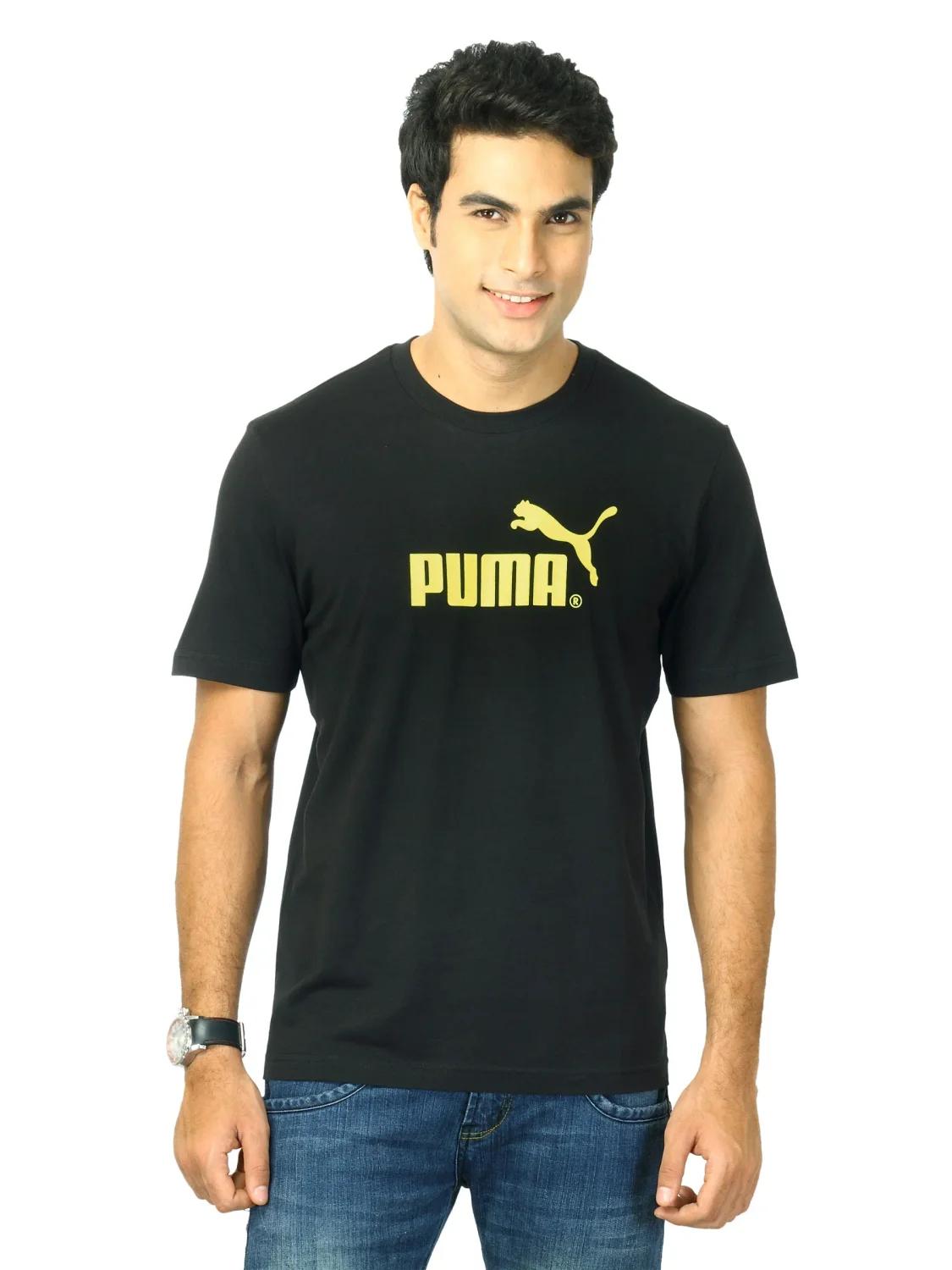
Comprehensive summary generated by the OpenAI model is as follows:
#How do you store image summary embeddings in Redis?
The
addImageSummaryEmbeddingsToRedis function plays a critical role in integrating AI-generated image summaries with Redis. This process involves two main steps:- Generating Vector Documents: Utilizing the
getImageSummaryVectorDocumentsfunction, we transform image summaries into vector documents. This transformation is crucial as it converts textual summaries into a format suitable for Redis storage. - Seeding Embeddings into Redis: The
seedImageSummaryEmbeddingsfunction is then employed to store these vector documents into Redis. This step is essential for enabling efficient retrieval and search capabilities within the Redis database.
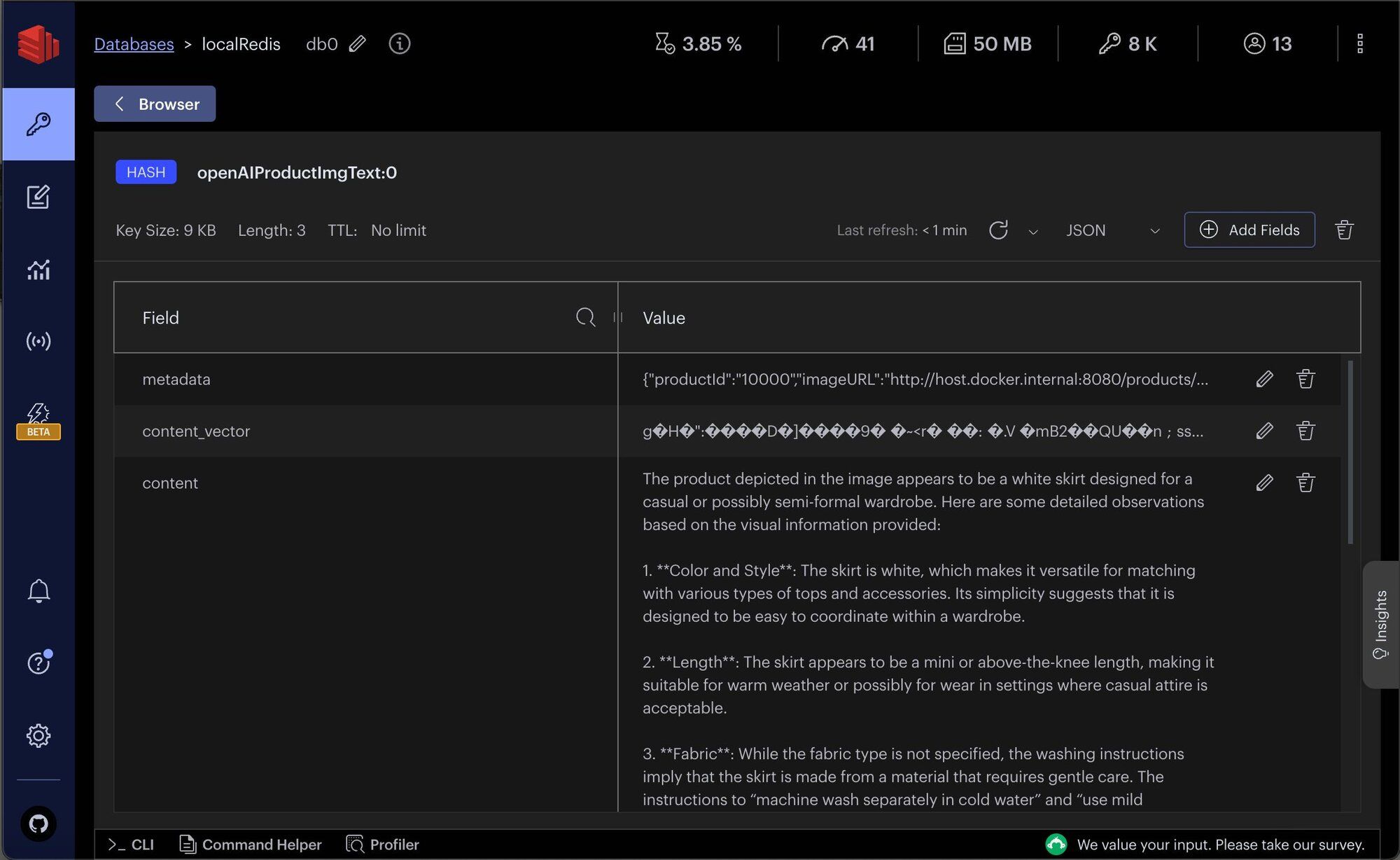
The image below shows the JSON structure of openAI image summary within Redis Insight.
TIPDownload Redis Insight to visually explore your Redis data or to engage with raw Redis commands in the workbench.
#How do you build the image search API?
#What does the search API endpoint look like?
This section covers the API request and response structure for
getProductsByVSSImageSummary, which is essential for retrieving products based on semantic search using image summaries.#Search API request format
The example request format for the API is as follows:
#Search API response structure
The response from the API is a JSON object containing an array of product details that match the semantic search criteria:
#How does the vector similarity search work?
The backend implementation of this API involves following steps:
getProductsByVSSImageSummaryfunction handles the API Request.getSimilarProductsScoreByVSSImageSummaryfunction performs semantic search on image summaries. It integrates with OpenAI's semantic analysis capabilities to interpret the searchText and identify relevant products from Redis vector store.
#How do you use the image search in the frontend?
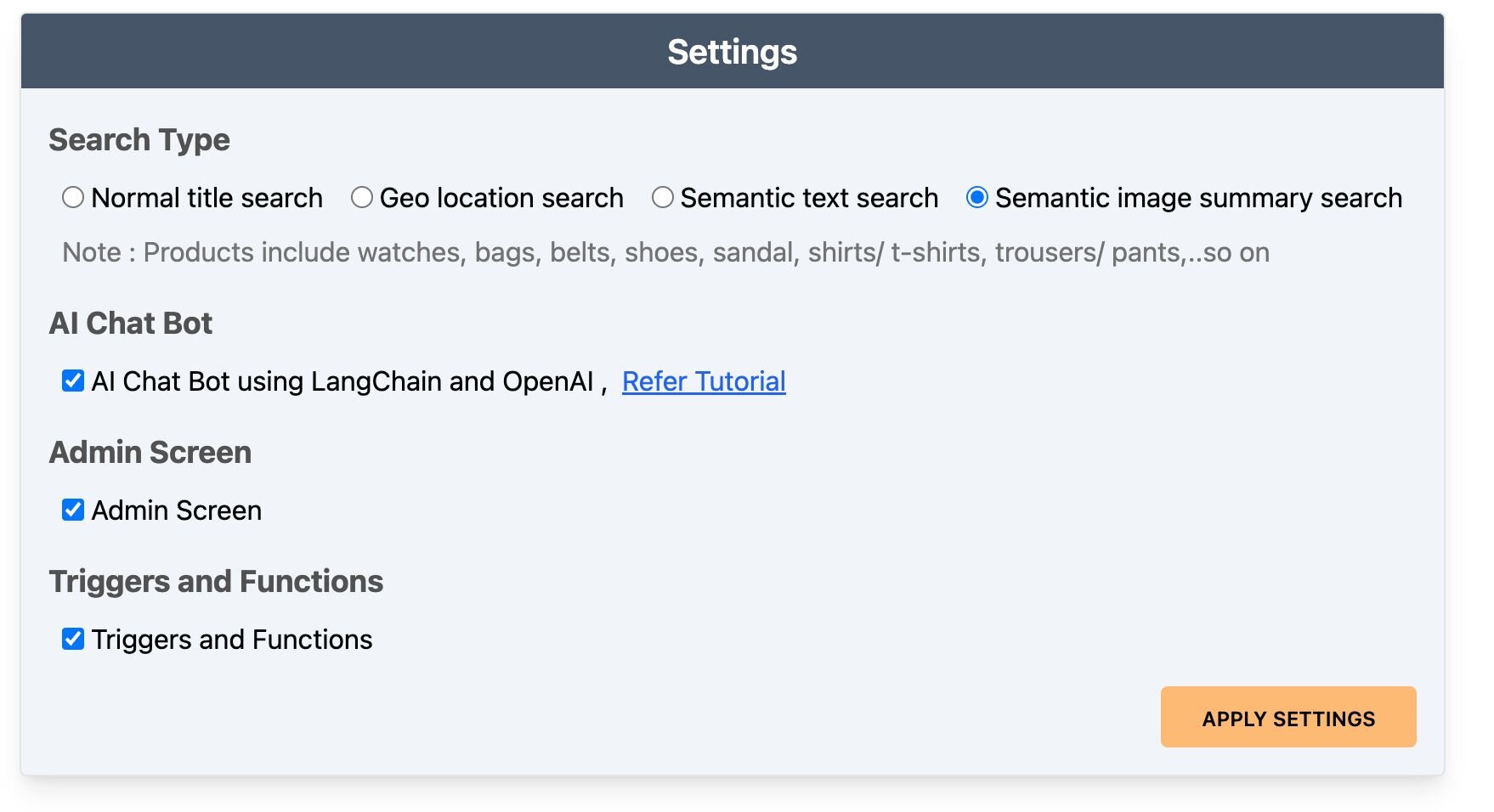
- Settings configuration: Initially, ensure that the
Semantic image summary searchoption is enabled in the settings page.
- Performing a search: On the dashboard page, users can conduct searches using image-based queries. For example, if the query is
Left chest nike logo, the search results will display products like a Nike jacket, characterized by a logo on its left chest, reflecting the query.
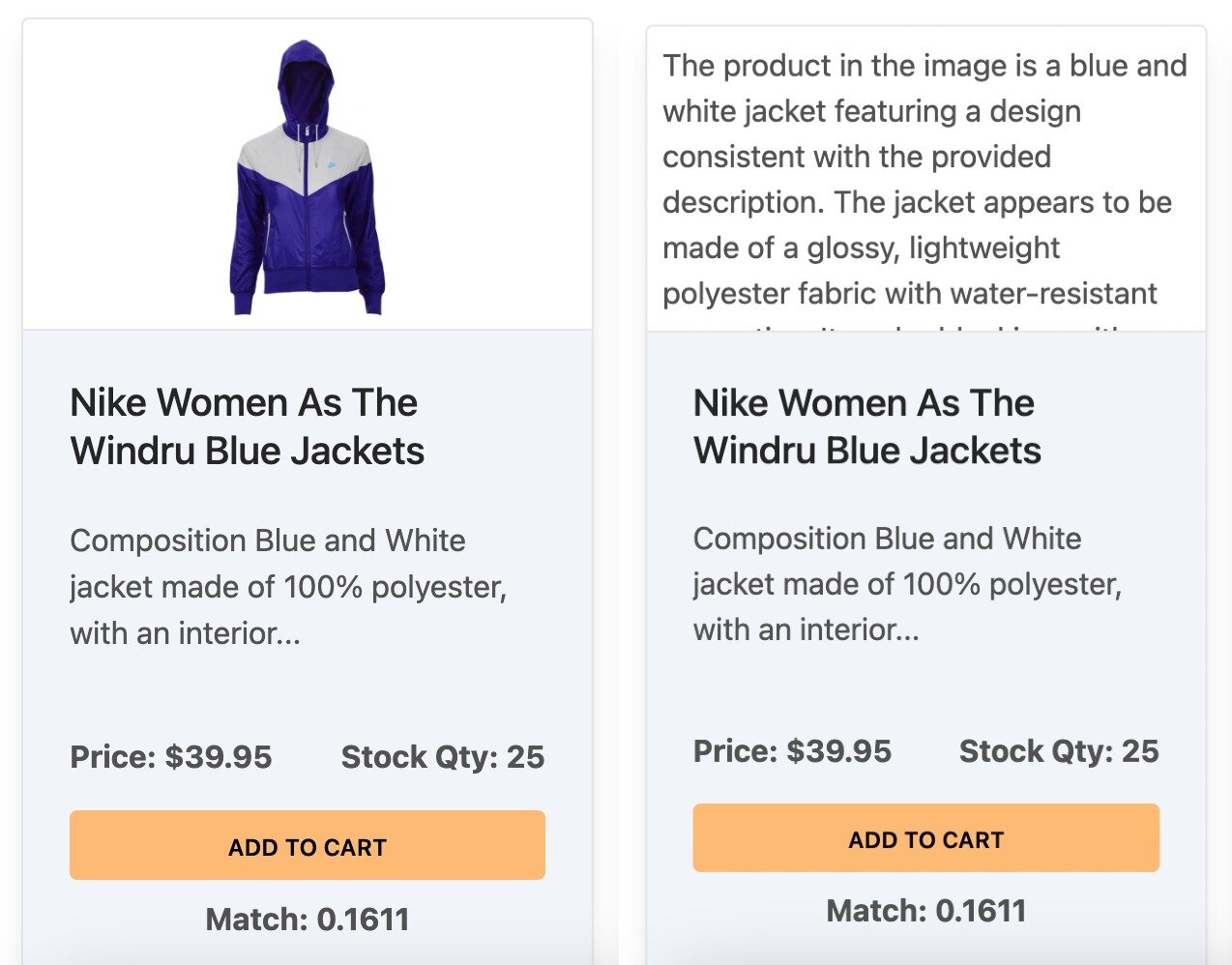
- Viewing image summaries: Users can click on any product image to view the corresponding image summary generated by OpenAI. This feature offers an insightful glimpse into how AI interprets and summarizes visual content.
#Next steps
Now that you've built semantic image search with Redis, explore these related tutorials:
- How to perform vector similarity search using Redis in NodeJS -- learn the fundamentals of vector search with Redis
- Semantic text search using LangChain (OpenAI) and Redis -- apply similar techniques to text-based semantic search
- LangChain JS
- Learn LangChain
- LangChain Redis integration