
Tutorial
Use Azure Managed Redis to store LLM chat history
February 25, 20269 minute read


TL;DR:Store LLM chat history in Redis by using the redisvl library'sStandardSessionManager. Each user's messages are persisted as Redis hashes with keys likemysession:UserName:entry_id, giving you per-user conversation memory, configurable TTLs, and token counting out of the box.
Learn how to deploy a Streamlit-based LLM chatbot whose conversation history is stored in Azure Managed Redis. Setup takes just five minutes, with built-in capabilities like per-user memory, TTL, token counts, and custom system instructions.
#What you'll learn
- How to store and retrieve LLM chat history in Azure Managed Redis
- How to manage separate conversation memories for multiple users
- How to count tokens over stored chat context to stay within model limits
- How to trim context to the last n messages
- How to set per-user TTLs on chat history entries
- How to configure custom system instructions for LLM behavior
#Architecture
The demo app consists of three main Azure components working together to deliver a multi-user LLM chatbot with persistent memory:
- Azure App Service hosts the Streamlit web app (LLMmemory.py). When a user submits a prompt, the app's managed identity obtains an Azure AD token and forwards the request to Azure OpenAI.
- Azure OpenAI Service (GPT-4o) processes each incoming chat request. The Streamlit app sends the most recent context (based on the “Length of chat history” setting) alongside a system prompt to the OpenAI endpoint, which returns the assistant's response.
Azure Managed Redis stores every message—user prompts, AI replies, and system instructions—as Redis hashes under keys like
mysession:UserName:entry_id. The redisvl library's StandardSessionManager abstracts reads and writes, enabling features such as per-user chat history, TTL, and token counting. This approach to persistent chatbot memory complements other Redis-powered AI patterns like agent memory with LangGraph and RAG chatbots using vector search.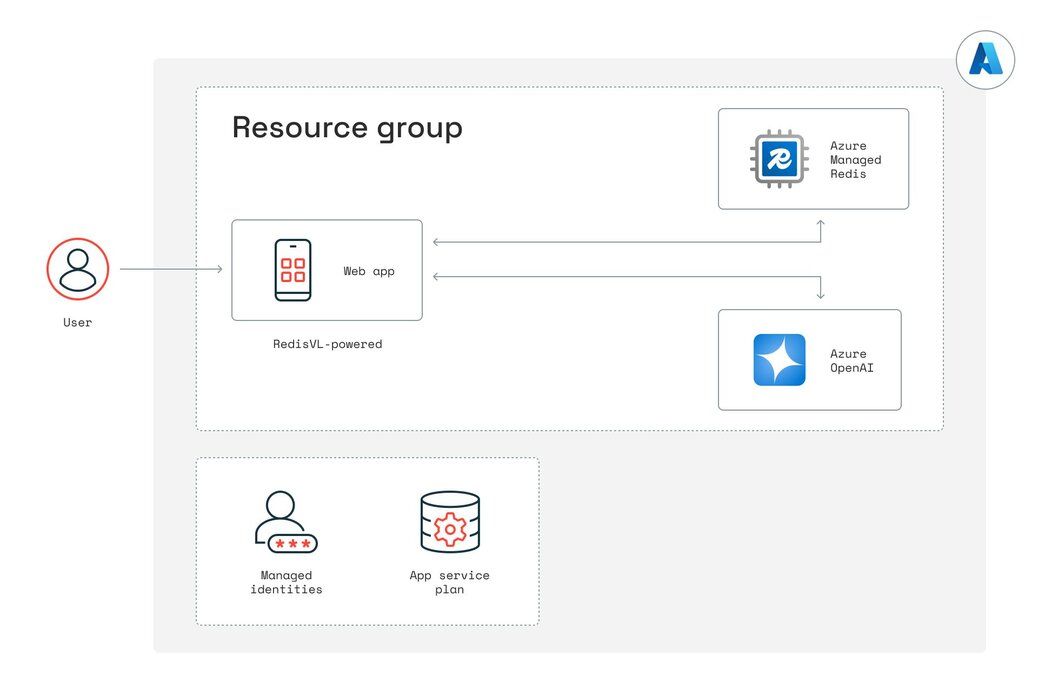
By using managed identities for both Redis and OpenAI, no secrets are required in the code or configuration. All resources are provisioned via Bicep in the infra/ folder, and the Azure Developer CLI (azd up) ties them together, creating the resource group, App Service, Azure Cognitive Services instance, and Redis cache in one seamless deployment.
#Prerequisites
- An active Azure subscription
- Azure CLI installed
- Azure Developer CLI (azd) installed
- Python 3.10 or later
- Access to Azure OpenAI Service (GPT-4o)
#Set up
#Install/update Azure CLI*
#Azure login
This should open a new browser window or tab to authenticate into your Azure account.
#Install Azure Developer CLI
If you have trouble installing the Azure Developer CLI from above, try grabbing it from here
#Verify the version
You should see azd version 1.x
#Clone the demo repository and get into the folder
#Azure Development CLI login
If you're not an Admin/Owner of the Azure account you're using, then before you run the demo, make sure your Azure user has the Cognitive Services contributor role. If you still hit errors while running azd up, being assigned the owner of the resource group unblocks most errors. If you need to troubleshoot with various permissions, resource groups, etc., remember to run azd auth logout and then azd auth login to refresh your session in your terminal after making changes in Azure.
#Start your instance
Most of the time, everything stands up by itself within five minutes. And you'll get a URL endpoint to the app in the terminal that looks something like this:
Deploying services (azd deploy)
(✓) Done: Deploying service web
Occasionally, it may time out while creating/updating resources:

Rerun
azd up, and it will finish creating the resources.#Feature walkthrough
#How do you store separate chat memories for multiple users?
By specifying a list of users and initializing a StandardSessionManager with a distinct session_tag per user, each person's chat history is stored under keys like
mysession:Luke:<id> versus mysession:Leia:<id>. Switching the “Select User” dropdown changes which Redis‐backed session is active.#How do you track token usage across stored chat history?
This function computes the total token count over the last n messages by encoding each message with tiktoken. The sidebar metric displays “Chat history tokens” in real time, helping you gauge prompt length versus model limits.
#How do you trim chat context to the last n messages?
A sidebar slider lets you choose how many recent messages to send as context. During each LLM call, only the top contextwindow messages (excluding the system message) are retrieved, effectively pruning older history.
#How do you set a TTL on per-user chat history?
By selecting a TTL value and clicking “Set TTL,” the code grabs the most recent contextwindow entries for that user and calls redis_client.expire on each entry's key. Those hashes will auto-expire after the chosen number of seconds.
#How do you configure custom system instructions for the LLM?
A dropdown offers three presets—“Standard ChatGPT,” “Extremely Brief,” and “Obnoxious American.” When changed, update_system_instructions finds the user's system message in Redis (the very first entry) and overwrites its content field via hset. The next LLM call uses that updated system prompt.
#Clean up
When you're ready to shut down the app, remember to tear down your resources:
#Next steps
Now that you've built a multi-user LLM chatbot with persistent conversation history in Azure Managed Redis, explore these related tutorials:
- What is agent memory? Example using LangGraph and Redis — Learn how to give AI agents long-term memory across sessions using Redis.
- Build a RAG GenAI Chatbot with Redis — Combine vector search with LangChain and Redis to build a retrieval-augmented generation chatbot.
- Streaming LLM output with Redis Streams — Use Redis Streams to deliver real-time LLM responses to your users.