Connect to Amazon Web Services PrivateLink
| Redis Cloud |
|---|
Amazon Web Services (AWS) PrivateLink allows service providers to securely expose specific services without exposing the entire service provider and consumer VPCs to each other. With AWS PrivateLink, Redis Cloud exposes a VPC endpoint service that you connect to as a consumer from your own VPC. Traffic stays within the AWS network and is isolated from external networks.
You can use PrivateLink as an alternative to Layer 3 connectivity options like VPC peering and Transit Gateway.
AWS PrivateLink provides the following benefits:
- Improved Security: PrivateLink exposes the Redis cluster and database(s) as a unidirectional endpoint inside your consumer VPC, thereby avoiding exposing entire VPC subnets to each other and eliminating some possible attack vectors.
- Network Flexibility: PrivateLink enables cross-account and cross-VPC connectivity and can be configured even when the Redis Cloud VPC and your consumer VPC have overlapping CIDR/IP ranges.
- Simplified architecture and low latency: PrivateLink does not require NAT, internet gateways, or VPNs. It provides simplified network routing, without the need for a network load balancer between the application and the Redis database.
Limitations
Be aware of the following limitations when using PrivateLink with Redis Cloud:
-
You cannot use the OSS Cluster API with PrivateLink during preview.
-
You cannot use Layer 3 connectivity options like VPC peering or Transit Gateway with PrivateLink during private preview.
-
Redis Cloud subscriptions with AWS PrivateLink are limited to a maximum of 55 databases. Contact support if you need more than 55 databases in one subscription with AWS PrivateLink.
-
Your subnets must have at least 16 available IP addresses for the resource endpoint.
-
Some AWS regions do not support PrivateLink Resource Endpoints. See AWS VPC Lattice Pricing for a list of regions that support AWS PrivateLink Resource Endpoints.
-
Redis Cloud's PrivateLink implementation uses PrivateLink Resource Endpoints, which is based on Amazon VPC Lattice, so the VPC Lattice quotas apply. Currently, the following availability zones are not supported with Amazon VPC Lattice:
use1-az3usw1-az2apne1-az3apne2-az2euc1-az2euw1-az4cac1-az3ilc1-az2
We recommend avoiding these availability zones when creating your Redis Cloud database if you plan to use AWS PrivateLink.
-
Redis Cloud Bring your Own Cloud subscriptions are not supported with PrivateLink.
-
The pre-handoff feature of Smart client handoffs is not currently supported with AWS PrivateLink, but relaxed timeouts are available and enabled by default.
Prerequisites
Before you can connect to Redis Cloud with an AWS PrivateLink VPC resource endpoint, you must have:
- A Redis Cloud Pro database and the Owner or Manager role for your Redis Cloud account.
- An AWS VPC with the following:
- A security group that allows ingress traffic to the following ports:
- The database port range (port 10000-19999)
- The Redis Cloud metrics port (port 8070), if desired
- Subnets in the same region as your Redis Cloud database.
- Settings to allow DNS resolution and DNS hostnames. See View and update DNS attributes for your VPC for more information.
- A security group that allows ingress traffic to the following ports:
- Permission to create and manage VPC endpoints or Service networks in AWS.
- AWS CLI version 2.32 or greater if using the AWS CLI.
Set up PrivateLink connection
To set up a connection to Redis Cloud with an AWS PrivateLink VPC resource endpoint, you need to:
- Associate the Redis Cloud Resource share with one or more AWS principals.
- Add a connection from your consumer account using a VPC resource endpoint or a VPC Lattice service network.
Associate Redis Cloud resource share with a principal
In this step, you will associate the Redis Cloud resource share with an AWS principal, such as an AWS Account.
-
From the Redis Cloud console, select the Subscriptions menu and then select your subscription from the list.
-
Select Connectivity > PrivateLink to view the PrivateLink settings.
-
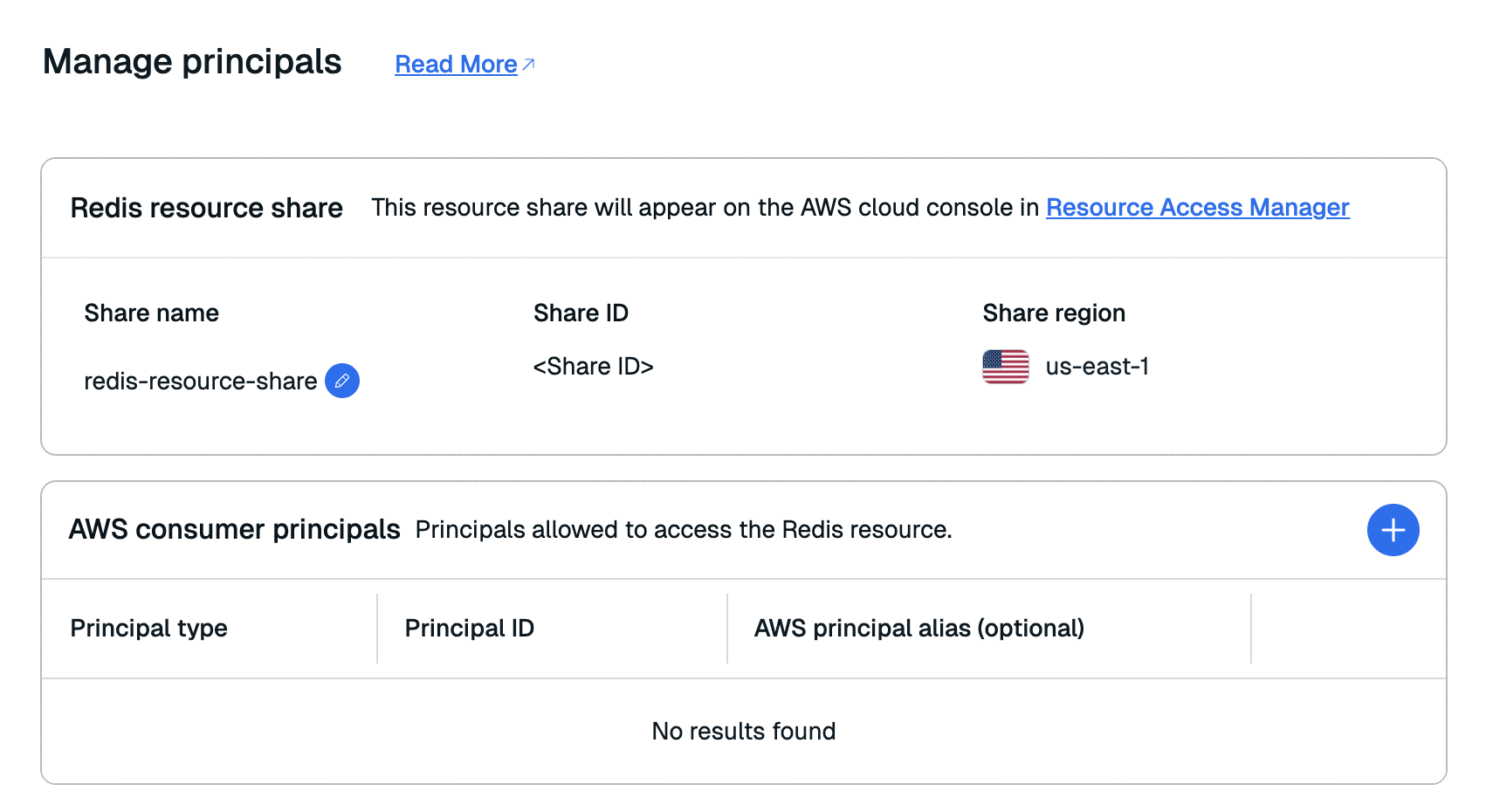
In the Resource Share section, select Manage Principals to open the Manage Principals window.

-
Select the Add button in the AWS consumer principals section to add a principal to the resource share.

-
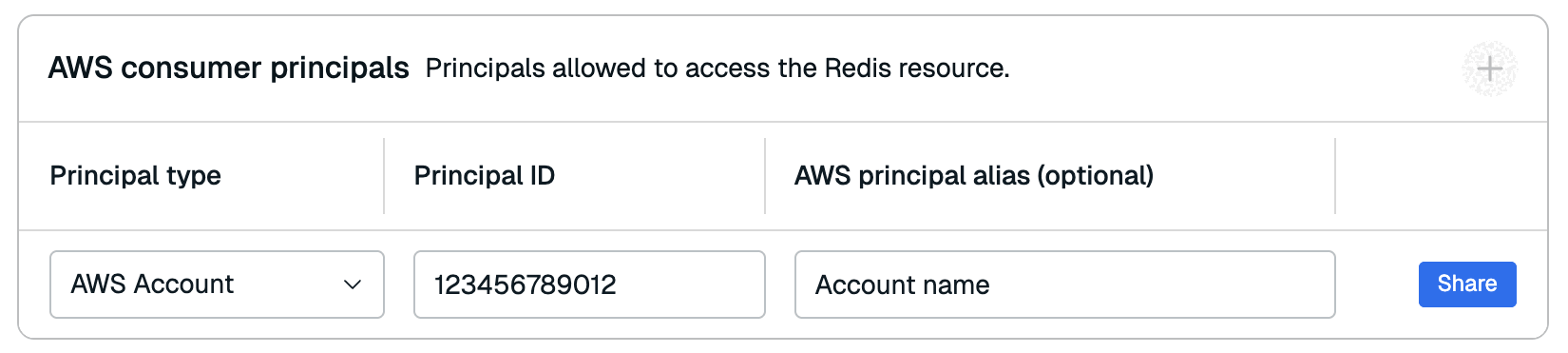
Select the type of principal you want to add from the Principal type list. You can choose from the following principal types:
- AWS account
- Organization
- Organizational unit (OU)
- Identity and Access Management (IAM) role
- IAM user
- Service principal
-
Enter the principal's ID in the Principal ID field. You can also add an optional alias in the AWS principal alias field.
-
Select Share to share the resource share with the principal. The first resource share may take a few minutes.
-
After sharing the resource share with the principal, accept the resource share in the Resource Access Manager or copy the Accept resource share command and run it with the AWS CLI.
After you accept the resource share, the Redis Cloud console will show the principal as Accepted.
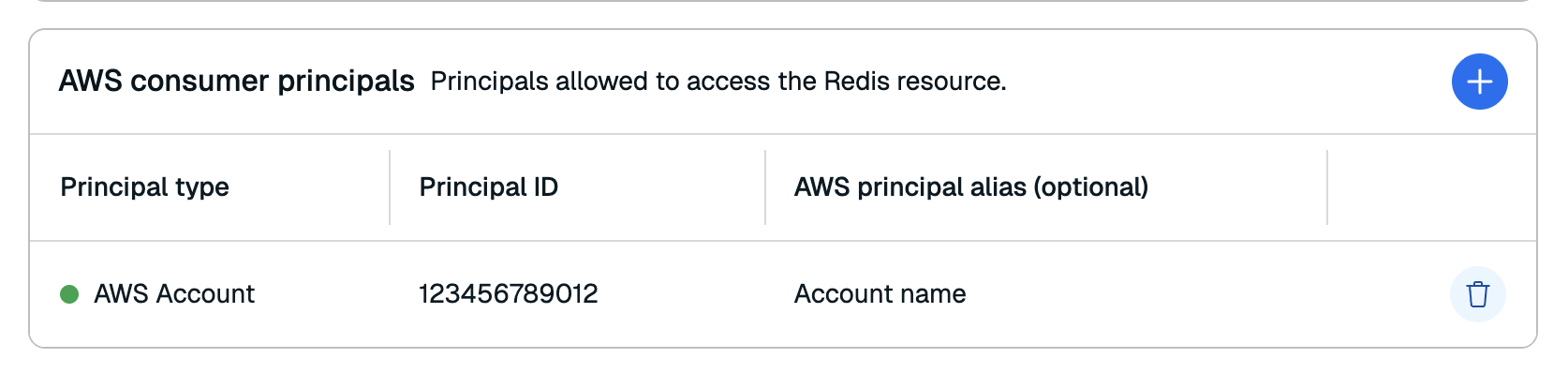
You can add additional principals to the resource share at any time.
Add a connection
In this step, you will add a connection from your consumer account using a VPC resource endpoint or a VPC lattice service network.
From the Connectivity > PrivateLink tab in your Redis Cloud subscription, open the Add connection section.
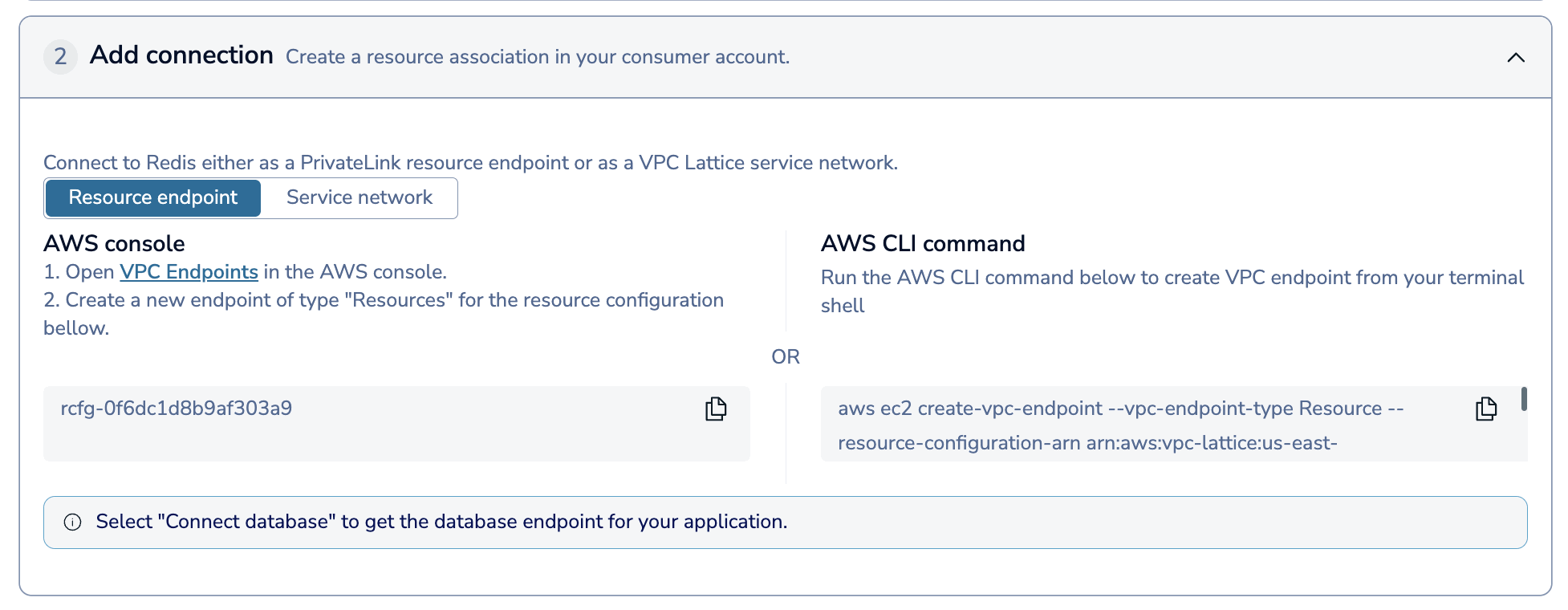
Here, choose whether you want to connect to Redis using a Resource endpoint or a Service network.
You can connect with a VPC resource endpoint through the AWS Console or with the AWS CLI.
AWS Console
Follow the guide to create a VPC resource endpoint in the AWS console with the following settings:
- Type: Select Resources.
- Resource configurations: Select the configuration with the same Resource Configuration ID as the one shown in the Redis Cloud console.
- VPC: Select your VPC from the list.
- Additional settings: Select Enable private DNS name and set Private DNS Preference to Verified domains only or Verified domains and specified domains.
- Subnets: Select the subnets to create endpoint network resources in.
- Security groups: Select any security groups you want to associate with the resource endpoint, including the security group that allows access to the necessary ports, as described in the prerequisites
AWS CLI
To use the AWS CLI to add a VPC resource endpoint, select Copy under the AWS CLI Command to save the command to your clipboard. Enter the saved command in a terminal shell to create the resource endpoint and replace the following parameters with your own values:
<vpc id>: The ID of your VPC<subnet ids>: The IDs of the subnets to create endpoint network resources in<security group ids>: The IDs of any security groups you want to associate with the resource endpoint, including the security group that allows access to the necessary ports, as described in the prerequisites
Connect to your database and metrics endpoint with PrivateLink
After you've connected to Redis Cloud with a VPC resource endpoint or a VPC lattice service network, you can find the endpoints for your databases and cluster metrics in the AWS UI by going to the Associations tab for your endpoint or service network and viewing the Private DNS entries. You will have one entry for each database and one entry for the metrics endpoint.
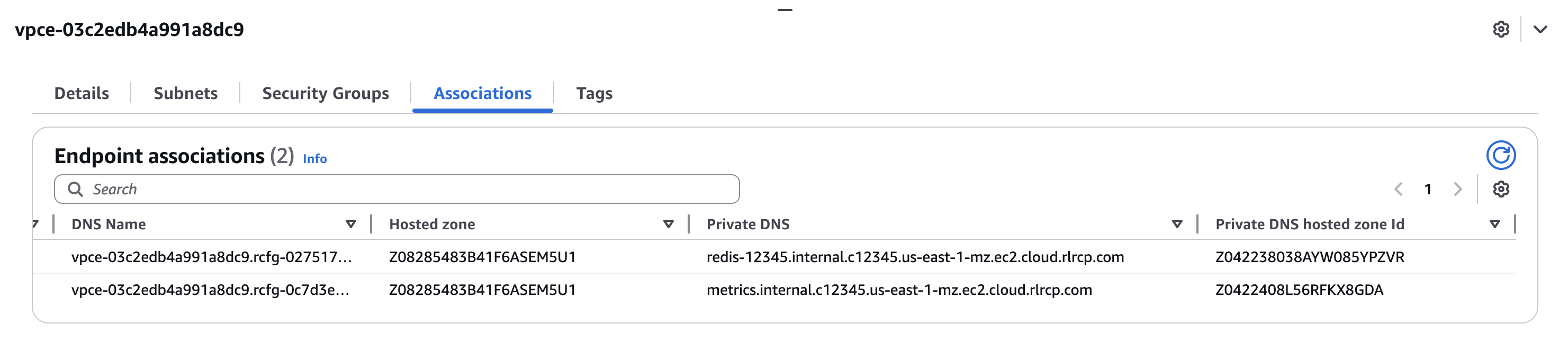
To view them on Redis Cloud, download the Discovery script from the Redis Cloud console and run it in your consumer VPC to discover the database endpoints.
The script returns a list of database endpoints that you can connect to from your consumer VPC.
[
  {
    "type": "metrics",
    "dns-entry": "<METRICS DNS ENTRY>",
    "private-dns-entry": "<METRIC PRIVATE DNS ENTRY>",
    "port": 8070
  },
  {
    "type": "database",
    "dns-entry": "<DATABASE DNS ENTRY>",
    "private-dns-entry": "<PRIVATE DNS ENTRY>",
    "port": 12345,
    "database_id": 1234567890
  }
]
You can connect to your database by using the database private-dns-entry and port from your consumer VPC. You can also connect to the metrics endpoint with services like Prometheus and Grafana by using the metrics private-dns-entry and port.
After you've connected to your database, you can view the connection details in the Redis Cloud console in your subscription's Connectivity > PrivateLink tab or by going to the connection wizard for your database. The private endpoint will point to the PrivateLink VPC resource endpoint or service network that you created.
Disassociate connection
To disassociate a PrivateLink connection:
-
Go to the Connectivity > PrivateLink tab in your Redis Cloud subscription.
-
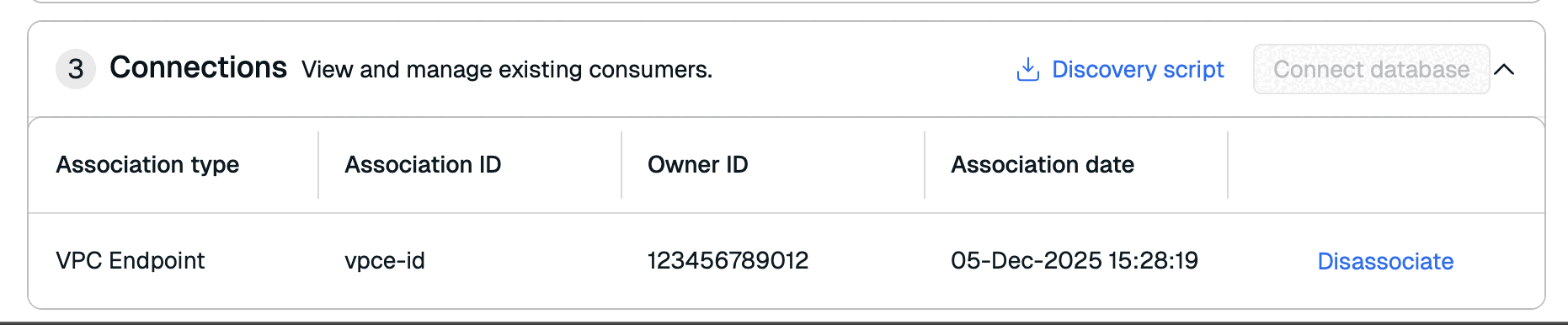
In the Connections section, select Disassociate button next to the connection you want to disassociate.
-
Select Disassociate VPC endpoint or Disassociate service network to confirm.
After disassociating the connection, you can delete the VPC resource endpoint or service network in the AWS console.