
Tutorial
Memorystore to Redis Cloud
February 27, 20265 minute read
TL;DR:You can migrate from Google Cloud Memorystore to Redis Cloud using either an offline RDB export through Google Cloud Storage or a live replication with RIOT-X. Offline migration is simpler but requires downtime; live migration minimizes downtime but does not guarantee full consistency.
#What you'll learn
- How to export an RDB backup from Memorystore and import it into Redis Cloud
- How to set up live replication from Memorystore to Redis Cloud using RIOT
- How to validate your migration and redirect application traffic
#Prerequisites
- A Google Cloud Platform (GCP) account with an active Memorystore for Redis instance
- A Redis Cloud account with a target database provisioned
- For live migration: a Compute Engine instance in the same region and network as your Memorystore instance
Before migrating to Redis Cloud, you should evaluate the migration and consider the best option. Read this guide to determine which migration strategy is right for you.
#How do I perform an offline migration from Memorystore to Redis Cloud?
#Create a Google Cloud Storage bucket with proper permissions
- Open Google Cloud Storage bucket.
- Create a new bucket to store Memorystore backups.
- Under Choose how to control access to objects, uncheck Enforce public access prevention on this bucket
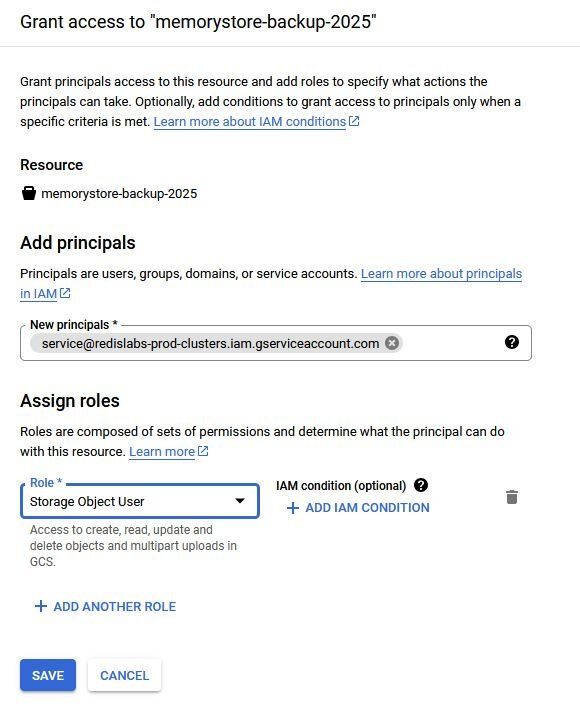
- In the Google Cloud Storage bucket, under the Permissions tab, click Grant Access.
- In the Grant access menu under Add principals, enter:
service@redislabs-prod-clusters.iam.gserviceaccount.com - Under Assign roles, select Cloud Storage ⇒ Storage Object User
- Click Save.
#Import RDB file from Google Cloud Storage to Redis Cloud
- In the Redis Cloud console, select the target database from the database list.
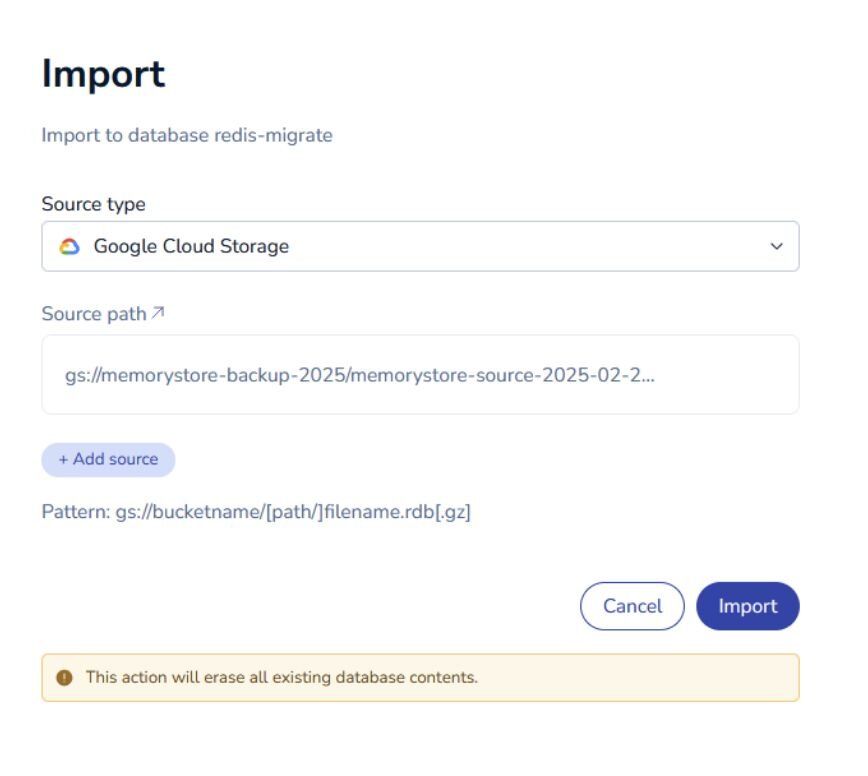
- Click Import.
- Enter the details for the RDB file:
- Source type - Select Google Cloud Storage.
- Source path - Enter the URL for the RDB file:
gs://bucketname/[path/]filename.rdb - For sharded databases with multiple RDB files, select Add source to add another RDB file.
- Select Import.
- Validate your migration and redirect your application's traffic to the new Redis Cloud endpoint.
#How do I perform a live migration from Memorystore to Redis Cloud?
Your Memorystore instance must be accessed from a Compute Engine instance with proper permissions. The following guide assumes that your Memorystore instance is reachable from the internet via a Compute Engine instance.
#Enable notify-keyspace-events in Memorystore
- Go to the Memorystore for Redis page in the Google Cloud console.
- Click the Instance ID of your migration source.
- Click Edit.
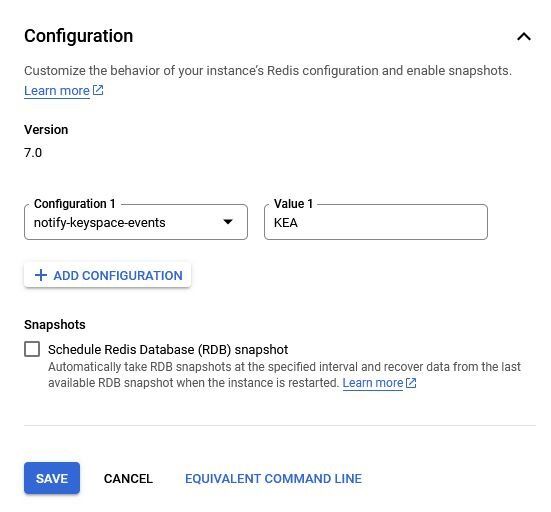
- The Configurations section is now visible. Click Add Configuration to add a new configuration.
- In the configuration dropdown, select notify-keyspace-events
- For the Value, enter KEA
- Click Save.
#Create a Compute Engine instance
- Go to the Google Cloud Compute Engine console.
- Click Create Instance
- For the operating system, Ubuntu is preferred.
- Ensure that the Compute Engine instance is created in the same region as your Memorystore instance
- Ensure that the Compute Engine instance uses the same Authorized network.
- Click Create.
#Install redis-tools, Java, and RIOT
- In the Google Cloud Compute Engine console, click SSH to connect to your instance.
- Install the redis-cli tool:
3. Verify the connectivity with the Memorystore instance, replace MEMORYSTORE_ENDPOINT with your Memorystore endpoint.
4. Install Java, we recommended using OpenJDK 21 or later:
5. Install RIOT. Download the desired release. Then, unzip the package and make sure the RIOT binaries are in place, as shown here:
6. You can check the version of RIOT-X by running the command below:
#Replicate Memorystore to Redis Cloud
Once Java and RIOT are installed, you are all set to begin the migration process which replicates data directly from the source (Memorystore) to the target (Redis Cloud).
- Log into the Redis Cloud console.
- Click on your migration target and take note of the public endpoint, username, and password
- You can replicate the data from Memorystore to Redis Cloud by running the below command:
sudo ./riot replicate redis://MEMORYSTORE_ENDPOINT:port redis://username:password@REDIS_CLOUD_ENDPOINT:port --mode live - If you are migrating from a Memorystore cluster, you must include the --source-cluster option
- If you are migrating to a Redis Cloud cluster, you must include the --target-cluster option.
- Validate your migration and redirect your application's traffic to the new Redis Cloud endpoint.
#What are the risks of live replication?
The live replication mechanism does not guarantee data consistency. Redis sends keyspace notifications over pub/sub which does not provide guaranteed delivery. It is possible that RIOT can miss some notifications in case of network failures for example.
Also, depending on the type, size, and rate of change of data structures on the source it is possible that RIOT cannot keep up with the change stream. For example if a big set is repeatedly updated, RIOT will need to read the whole set on each update and transfer it over to the target database. With a big-enough set, RIOT could fall behind and the internal queue could fill up leading up to updates being dropped.
For those potentially problematic migrations it is recommended to perform some preliminary sizing using Redis statistics and bigkeys/memkeys in tandem with --mem-limit. If you need assistance please contact your Redis account team.
#Next steps
- Redis Cloud Migration overview — compare migration strategies and choose the right approach
- Migrate ElastiCache to Redis Cloud — follow a similar migration path from AWS ElastiCache
- Migrate Memorystore to Azure Managed Redis — migrate Memorystore to Azure Managed Redis instead
- Redis Input/Output Tools (RIOT) — learn more about RIOT replication
- RIOT Live Replication — deep dive into RIOT live replication mode